PowerEdge: How to Troubleshoot a Server Power Supply Unit
Summary: This article details the procedure to troubleshoot power supply unit (PSU) issues that may arise on a PowerEdge Server.
This article applies to
This article does not apply to
This article is not tied to any specific product.
Not all product versions are identified in this article.
Instructions
Introduction
Each PowerEdge Server is supplied with power by a Power Supply Unit (PSU). The information in this article can be used to troubleshoot a PSU. Use the following steps to troubleshoot the PSU:
- Ensure that no loose connections exist and that all components are firmly connected.
- Ensure that the socket that the PSU is plugged into is in good working order.
- If there is more than one PSU, switch the PSUs and see if the error follows the PSU.
- Ensure you are using a compatible PSU. To learn how to find the type of PSU that was originally shipped with the server, reference How to Check the System Configuration on Your Dell Computer.
- Ensure that the firmware of the PSU is up to date and update if necessary.
- For more information about how to check the firmware version, reference Using Available Utilities to Check Hardware Devices Current Firmware Version.
- For more information about how to update firmware, reference How to Update Firmware Remotely Using the Integrated Dell Remote Access Controller (iDRAC) Web Interface.
- For a step-by-step guide to do firmware updates, find details in PowerEdge: How to do Firmware Updates for every Important Component.
Note: Power supply updates should be the last update made to a system, as it is guaranteed to result in downtime.
- Ensure that no loose connections exist and that all components are firmly connected.
If the error persists, follow the videos in the troubleshooting section below.
Troubleshooting Steps:
How to Troubleshoot a PowerEdge Server Power Supply Unit
Duration: 00:01:01 (hh:mm:ss)
When available, closed caption (subtitles) language settings can be chosen using the CC icon on this video player.
PowerEdge: Power Supply Unit LEDs Quick Tips
Duration: 00:00:58
Closed captions: Available in multiple languages. Use the CC icon to change the closed caption language.
- Press the power button on the server to ensure that the system is powered on.
- Perform a swap test. If another compatible, working PSU is available, swap it with the PSU that is experiencing issues. If the replacement PSU shows no issues, then it is likely that the original PSU is faulty. If the replaced PSU exhibits the same issue as the original, it is likely that the power distribution board (PDB) or the motherboard is faulty.
Note:
- If you are installing a new PSU, allow several seconds for the system to recognize the power supply unit and determine if it is working properly.
- If no additional PSUs are available, shut down your server and attempt to swap test with the redundant PSU.
Replacing a power supply unit is a simple action. If the server has two power supplies configured in redundant mode, which is the default setting, you can remove one of them without shutting down the server. The remaining power supply continues to provide the power to the server. In general, all components with an amber removal tool can be unplugged while the server is powered on.
Warning: The system requires one power supply for normal operation. On power-redundant systems, remove and replace only one power supply at a time in a system that is powered on.
- Disconnect the power cable from the power source and from the power supply unit that you intend to remove, and then remove the cable from the strap.
- Press the release latch and then slide the power supply unit out of the chassis.
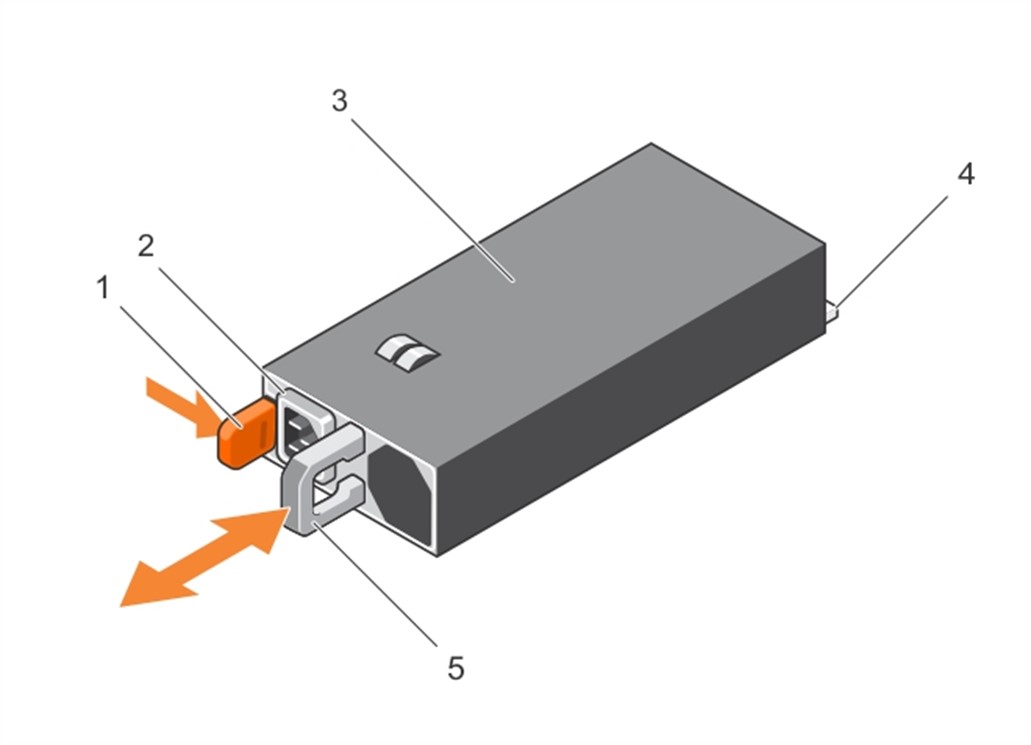
Figure 1: Power supply diagram
| Figure 1 Reference | Part |
|---|---|
| 1 | Release latch |
| 2 | Power supply unit cable connector |
| 3 | Power supply unit |
| 4 | Connector |
| 5 | Power supply unit handle |
- To insert the new power supply, insert the block in the slot. This operation can be performed while the server is powered on.
- Check for loose cabling to the power supply unit and for loose seating of the power supply unit.
- Check the PSU indicator lights. Understanding the PSU indicator codes helps you to understand the issue. Each AC PSU has an illuminated translucent handle. Each DC PSU has an LED that serves as an indicator to show whether power is present or a power fault has occurred.
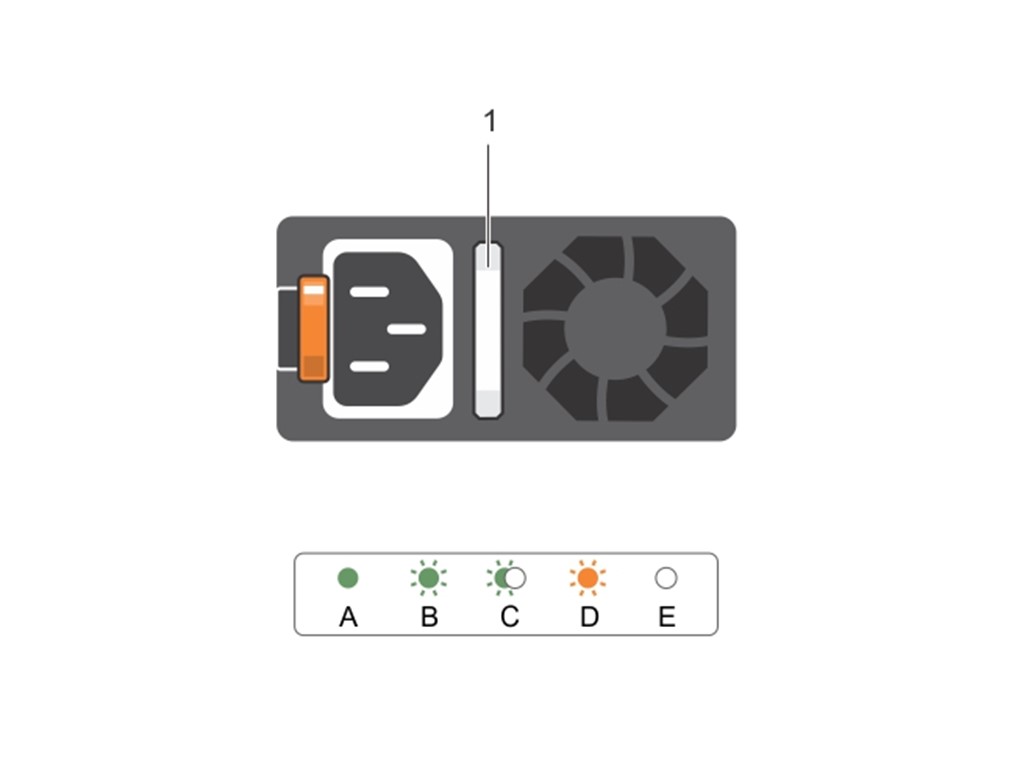
Figure 2: DC PSU LED statuses
| Figure 2 Status | LED Color | Condition |
|---|---|---|
A |
Green | A valid power source is connected to the PSU, and the PSU is operational. |
B |
Flashing green | When the firmware of the PSU is being updated, the PSU handle flashes green. |
C |
Flashing green and turns off | When hot-adding a PSU, the PSU handle flashes green five times and turns off. This indicates that there is a PSU mismatch regarding efficiency, feature set, health status, and supported voltage. |
D |
Flashing amber | This indicates a problem with the PSU. |
E |
Not lit | The power is not connected. |
- If you have recently upgraded your system, ensure that the power supply unit has enough power to support the newly upgraded system.
- If you have a redundant power supply configuration, ensure that both the power supply units are identical.
- Check if there is no POST.
If the PSU appears to be in good working order, the issue may be due to no POST. For more information about this issue, check the "No POST" section of Dell PowerEdge: Troubleshooting a Server that does not start (No Power, No POST, No Boot and No Video). - If step 1 through step 7 fails, it is likely that the power supply unit has failed.
Affected Products
PowerFlex rack, ScaleIO, Storage Spaces Direct R440 Ready Node, Storage Spaces Direct R640 Ready Node, Storage Spaces Direct R740xd Ready Node, Storage Spaces Direct R740xd2 Ready node, OEMR R240, OEMR R250, OEMR XE R250, OEMR R260, OEMR XE R260
, OEMR R340, OEMR R350, OEMR XE R350, OEMR R360, OEMR XE R360, OEMR R440, PowerEdge XR2, OEMR R450, OEMR R540, OEMR R550, OEMR R5500, OEMR R640, OEMR XL R640, OEMR R6415, OEMR R650, OEMR R650xs, OEMR R6515, OEMR R6525, OEMR R660, OEMR XL R660, OEMR R660xs, OEMR R6615, OEMR R6625, OEMR R740, OEMR XL R740, OEMR R740xd, OEMR XL R740xd, OEMR R740xd2, OEMR R7415, OEMR R7425, OEMR R750, OEMR R750xa, OEMR R750xs, OEMR R7515, OEMR R7525, OEMR R760, OEMR R760xa, OEMR R760XD2, OEMR XL R760, OEMR R760xs, OEMR R7615, OEMR R7625, OEMR R840, OEMR R860, OEMR R940, OEMR R940xa, OEMR R960, OEMR T140, OEMR T150, OEMR T340, OEMR T350, OEMR T360, OEMR T440, OEMR T550, OEMR T560, OEMR T640, OEMR XL T640, OEMR XL R240, OEMR XL R340, OEMR XL R660xs, OEMR XL R6615, OEMR XL R6625, OEMR XL R6715, OEMR XL R6725, OEMR XL R760xs, OEMR XL R7615, OEMR XL R7625, OEMR XL R7715, OEMR XL R7725, OEMR XR11, OEMR XR12, OEMR XR5610, OEMR XR7620, PowerEdge c6300, PowerEdge C6400, PowerEdge C6600, PowerEdge HS5610, PowerEdge HS5620, PowerEdge MX7000, PowerEdge R240, PowerEdge R250, PowerEdge R260, PowerEdge R340, PowerEdge R350, PowerEdge R360, PowerEdge R440, PowerEdge R450, PowerEdge R470, PowerEdge R540, PowerEdge R550, PowerEdge R640, PowerEdge R6415, PowerEdge R650, PowerEdge R650xs, PowerEdge R6515, PowerEdge R6525, PowerEdge R660, PowerEdge R660xs, PowerEdge R6615, PowerEdge R6625, PowerEdge R670, PowerEdge R740, PowerEdge R740XD, PowerEdge R740XD2, PowerEdge R7415, PowerEdge R7425, PowerEdge R750, PowerEdge R750XA, PowerEdge R750xs, PowerEdge R7515, PowerEdge R7525, PowerEdge R760, PowerEdge R760XA, PowerEdge R760xd2, PowerEdge R760xs, PowerEdge R7615, PowerEdge R7625, PowerEdge R770, PowerEdge R7715, PowerEdge R7725, PowerEdge R840, PowerEdge R860, PowerEdge R940, PowerEdge R940xa, PowerEdge R960, PowerEdge T140, PowerEdge T150, PowerEdge T160, PowerEdge T340, PowerEdge T350, PowerEdge T360, PowerEdge T40, PowerEdge T440, PowerEdge T550, PowerEdge T560, PowerEdge T640, PowerEdge XE2420, PowerEdge XE7420, PowerEdge XE7440, PowerEdge XE8545, PowerEdge XE8640, PowerEdge XE9640, PowerEdge XE9680, PowerEdge XR11, PowerEdge XR12, PowerEdge XR5610, PowerEdge XR7620, PowerFlex appliance R650, PowerFlex appliance R6525, PowerFlex appliance R660, PowerFlex appliance R6625, Powerflex appliance R750, PowerFlex appliance R760, PowerFlex appliance R7625, PowerFlex custom node R650, PowerFlex custom node R6525, PowerFlex custom node R660, PowerFlex custom node R6625, PowerFlex custom node R750, PowerFlex custom node R760, PowerFlex custom node R7625, PowerFlex custom node R860, VxFlex Ready Node R640, VxFlex Ready Node R740xd, Dell EMC vSAN MX740c Ready Node, Dell EMC vSAN MX750c Ready Node, Dell vSAN Ready Node MX760c, Dell EMC vSAN R440 Ready Node, Dell EMC vSAN R640 Ready Node, Dell EMC vSAN R6415 Ready Node, Dell EMC vSAN R650 Ready Node, Dell EMC vSAN R6515 Ready Node, vSAN Ready Node R660, Dell vSAN R6615 Ready Node, Dell EMC vSAN R740 Ready Node, Dell EMC vSAN R740xd Ready Node, Dell EMC vSAN R750 Ready Node, Dell EMC vSAN R7515 Ready Node, Dell EMC vSAN R760 Ready Node, Dell vSAN R7615 Ready Node, Dell vSAN Ready Node R7625, Dell EMC vSAN R840 Ready Node, Dell EMC vSAN T350 Ready Node, PowerFlex appliance R640, PowerFlex appliance R740XD, PowerFlex appliance R7525, PowerFlex appliance R840, VxFlex Ready Node R840
...
Article Properties
Article Number: 000127944
Article Type: How To
Last Modified: 10 Sept 2025
Version: 22
Find answers to your questions from other Dell users
Support Services
Check if your device is covered by Support Services.