Find Drivers for Devices Using a Hardware ID from Device Manager
Summary: Learn how to find drivers by hardware ID using Windows Device Manager. Look up device ID, use the hardware device identifier, and download the correct driver ID for your computer.
This article applies to
This article does not apply to
This article is not tied to any specific product.
Not all product versions are identified in this article.
Instructions
The hardware id for a device in Windows can be found in the Windows Device Manager. To check the hardware id for a device, follow these steps:
-
Open the Device Manager from the Control Panel. You can also type "devmgmt.msc" at the Run option in the Start menu.
- In the Device Manager, right-click the device, and select Properties in the window.
- Select the Details tab.
- Select the Hardware Ids in the dropdown list.
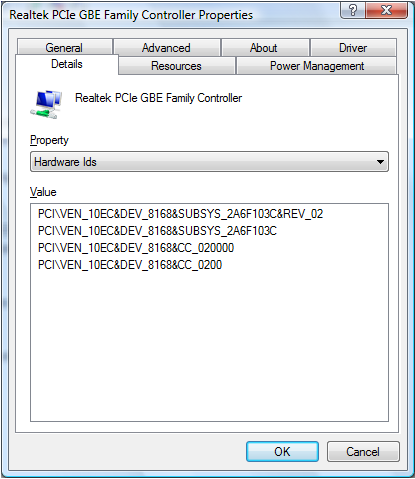
There can be multiple hardware ids for a device. The top listing is the most specific hardware device identifier, and going down, the identifiers are more generic. The reason this is done is to allow a device driver identifier to be selected based on a match to any of these hardware identifiers.
The hardware manufacturer in this example is Realtek, which is identified by VEN_10EC.
A hardware ID is typically in the form of <BUS>\<VENDOR ID>&<Device ID>&<Additional IDs>.
The Vendor ID is indicated by the four characters after VEN_.
The Device ID is indicated by the four characters after DEV_.
The hardware ID is available for devices in which drivers were already installed, for unknown devices and not recognized devices.
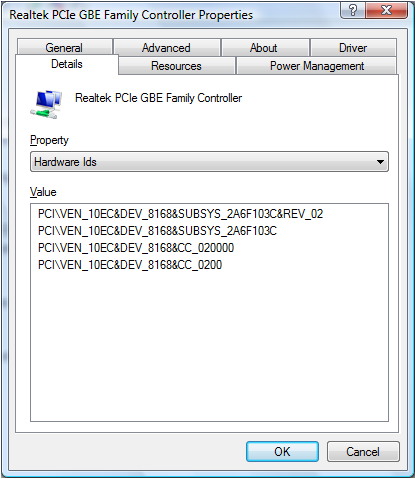
You can also use the hardware ID for a device to find drivers for that device by searching the Microsoft Update Catalog .
.
If the driver is not in the Microsoft Update Catalog, search for the Device ID online to find drivers.
 Out of warranty? No problem. Browse to the Dell.com/support website and enter your Dell Service Tag and view our offers.
NOTE: Offers are only available for US, Canada, UK, France, Germany, and China personal computer customers. Server and Storage not applicable.
Affected Products
Alienware, Dell All-in-One, Dell Pro All-in-One, Dell Pro Max Micro, Dell Pro Max Slim, Dell Pro Max Tower, Dell Pro Micro, Dell Pro Slim, Dell Pro Tower, Dell Slim, Dell Tower, Inspiron, Legacy Desktop Models, OptiPlex, Vostro, XPS, G Series
, G Series, Alienware, Dell Plus, Dell Pro, Dell Pro Max, Dell Pro Plus, Dell Pro Premium, Inspiron, Latitude, Dell Pro Rugged, Vostro, XPS, Legacy Laptop Models, Fixed Workstations, Mobile Workstations, Dell Pro Max Micro XE FCM2250, Dell Pro Max Slim XE FCS1250, Dell Pro Max Tower T2 XE FCT2250, Dell Pro Max 16 XE MC16250, Dell Pro Micro Plus XE QBM1250, Dell Pro Slim Plus XE5 QBS1250, Dell Pro Tower Plus XE5 QBT1250
...
Article Properties
Article Number: 000131022
Article Type: How To
Last Modified: 04 Jun 2025
Version: 7
Find answers to your questions from other Dell users
Support Services
Check if your device is covered by Support Services.