How to Set up both Wired and Wireless Networks to work simultaneously on a Latitude Laptop
Summary: This article provides information about why a wireless signal drops when a wired connection is made. It explains what is stopping them from working simultaneously on Latitude E3 and E4 laptops. ...
This article applies to
This article does not apply to
This article is not tied to any specific product.
Not all product versions are identified in this article.
Instructions
Table of Contents:
- Latitude E3 and E4 laptop Wi-Fi or 3G turns off automatically when Ethernet cables are connected
- Why is this happening?
- How to stop this from happening
Latitude E3 and E4 laptop Wi-Fi or 3G turns off automatically when Ethernet cables are connected
The wireless local area network (WLAN) or wireless wide area network (WWAN) adapters are automatically shut off. This is whenever a network cable is connected on Latitude E3 and E4 latitude laptops. (The Exx20 and Exx30 Series.)
This may prevent setting up connection sharing, a bridge, or connecting to multiple networks simultaneously.
Why is this happening?
The WLAN or WWAN adapter is disabled at the basic input output system (BIOS) level when a network cable is plugged in.
There are no controls within Windows that enables the adapter until the network cable is unplugged.
Intel wireless adapters may report that the radio switch is turned off even when the switch is physically in the on position.
How to stop this from happening
Follow the steps below:
-
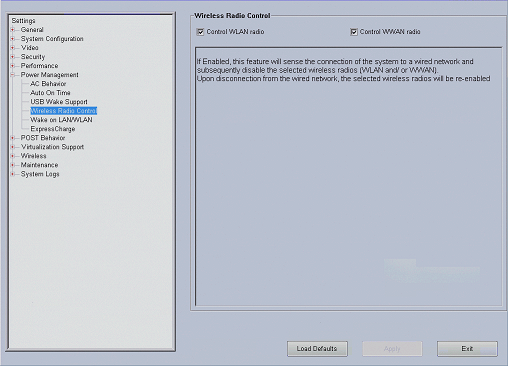
In the BIOS setup under Power Management, there is a section for Wireless Radio Control.
-
Go straight to the setup screens by pressing F2 or F12 as your laptop starts up.
-
F2 goes straight to the BIOS where your touchpad can navigate the screens.
-
F12 goes to a Boot once menu where after selecting system setup, it also goes to the BIOS.
-
-
When Wireless Radio Control is enabled, it senses the connection of the laptop to a wired network and then disables the selected wireless radios (WLAN and/or WWAN)
-
The BIOS default setting is Enabled.
-
Set this to Disabled, click Apply, and then Save and Exit to boot back to your operating system.
-
This allows both a Wired and a Wireless network active simultaneously.
If this does not resolve your issue, check these Dell Knowledge Base articles:
Affected Products
LatitudeArticle Properties
Article Number: 000140094
Article Type: How To
Last Modified: 14 Oct 2025
Version: 10
Find answers to your questions from other Dell users
Support Services
Check if your device is covered by Support Services.