How to Fix a Dell Personal Computer That Boots into Manufacturing Mode
Summary: Manufacturing Mode is a BIOS setting that speeds assembly by skipping nonessential tests and prioritizing removable media. It is disabled after factory processing completes.
This article applies to
This article does not apply to
This article is not tied to any specific product.
Not all product versions are identified in this article.
Instructions
Symptoms
A system in Manufacturing Mode may exhibit the following:
- Displays Manufacturing Mode message during startup
- Missing F12 boot menu prompt
- Shows asset tag format like "pass:12/34" in BIOS
- Displays multiple boot-time errors (for example, storage or PXE errors)
- Boot delay (up to ~55 seconds before message appears)
NOTE: These errors are expected behavior in this mode and do not indicate hardware failure.
Cause
Manufacturing Mode is typically triggered when:
- A system board (motherboard) is replaced
- The device has not been fully transitioned from factory configuration
- BIOS settings remain in factory provisioning state
Manufacturing mode prioritizes:
- Faster boot time
- External/removable media boot
- Reduced hardware checks.
Resolution / Fix
- Ensure that the computer is off and power on the computer
- Wait for the Manufacturing Mode message
- Press and hold the ALT key, and then press the F key.
- The computer reboots
- Confirm normal boot behavior resumes
NOTE: If the Manufacturing Mode message still appears, follow the steps below.
- Ensure that the computer is off and power on the computer
- Press the F2 key once a second to enter the BIOS/System Setup screen.
- Once in the BIOS, check the Service tag field Figure 1.
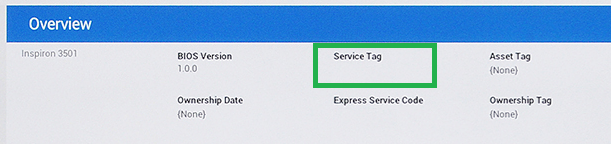
Figure 1: Service Tag Location in the BIOS - If the Service Tag field is blank, enter the Service Tag, select Exit, if asked, save the changes.
NOTE: The Service Tag is located on a label affixed to the computer and is also printed on the original packaging.
- If the Manufacturing Mode message still appears, press and hold The ALT key, and them press the F key.
- The computer reboots
- Confirm normal boot behavior resumes
Expected Behavior After Fix
- Normal Dell splash screen returns
- Standard POST timing restored
- The boot order behaves normally
- Error messages disappear
When to Escalate
Contact Technical Support when:
- ALT + F does not exit Manufacturing Mode
- System repeatedly returns to Manufacturing Mode
- BIOS settings cannot be saved
- Hardware replacement was recently performed, and issue persists
Additional Information
Important Notes
- The Manufacturing Mode message may scroll off-screen quickly
- Multiple diagnostic-like errors may appear before the prompt—this is normal in this state
- The system may attempt to boot from multiple devices before showing the message
Affected Products
Alienware, Dell All-in-One, Dell Pro All-in-One, Dell Pro Max Micro, Dell Pro Max Slim, Dell Pro Max Tower, Dell Pro Micro, Dell Pro Slim, Dell Pro Tower, Dell Slim, Dell Tower, Inspiron, Legacy Desktop Models, OptiPlex, Vostro, XPS, G Series
, G Series, Alienware, Dell Plus, Dell Pro, Dell Pro Max, Dell Pro Plus, Dell Pro Premium, Inspiron, Latitude, Dell Pro Rugged, Vostro, XPS, Legacy Laptop Models, Fixed Workstations, Mobile Workstations, Dell Pro Max Micro XE FCM2250, Dell Pro Max Slim XE FCS1250, Dell Pro Max Tower T2 XE FCT2250, Dell Pro Max 16 XE MC16250, Dell Pro Slim Plus XE5 QBS1250, Dell Pro Tower Plus XE5 QBT1250
...
Article Properties
Article Number: 000150614
Article Type: How To
Last Modified: 23 Jun 2026
Version: 13
Find answers to your questions from other Dell users
Support Services
Check if your device is covered by Support Services.