Preparing Acronis Snap Deploy 5 Server for use on NVMe / Skylake systems
This article applies to
This article does not apply to
This article is not tied to any specific product.
Not all product versions are identified in this article.
Symptoms
Table of Contents:
- Preparation
- Creating the Acronis Windows PE image
- Preparing Master Images
- Creating OS Templates for Deployment
- Create a new Deployment Task
- Deploying the captured image to systems
1. Preparation
Perform the following steps before preparing Acronis Snap Deploy 5 Server for use on Non-Volatile Memory express (NVMe)/Skylake systems.
NOTE: This article does require you to have a good working knowledge of Acronis and Windows imaging.
- Install Windows Server 2012 R2
- Install DHCP
- Install Acronis Snap Deploy 5
2. Creating the Acronis Windows PE image:
- Open Acronis Snap Deploy 5 Management Console (See Figure 1.)
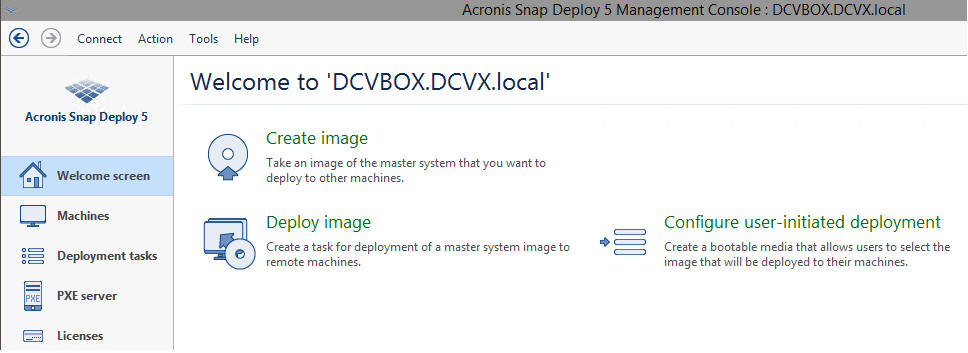
Figure 1. - Acronis Snap Deploy 5 Management Console - Select Tools
- Select Create PE image (See Figure 2.)
NOTE: Currently in version 1660, the Linux kernel of Acronis does not have the necessary NVMe drivers. PE does if configured correctly.
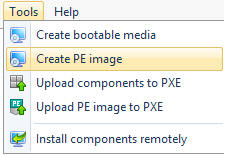
Figure 2. - Creation of the PE image - Select Create WinPE automatically
- Select Create 64-bit media (See Figure 3.)
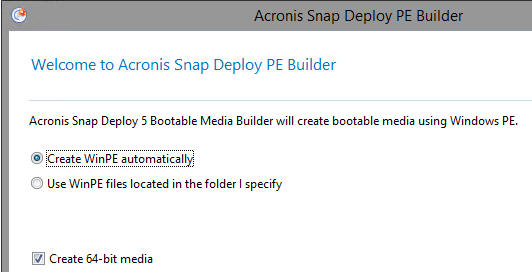
Figure 3. - Creation of 64-bit media - Select Network Settings
- Enter the Server IP
- Select Acronis PXE Server: (See Figure 4.)
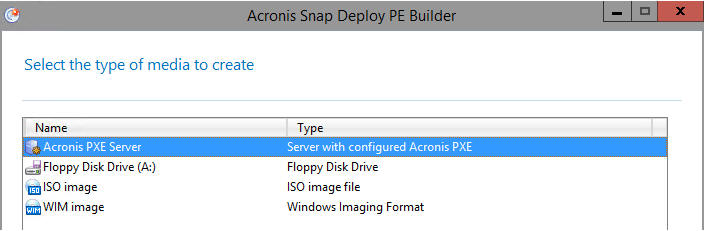
Figure 4. - Selecting the Acronis PXE Server - Specify the drivers for network and storage: WINPE10.0-DRIVERS-A03-2K3RC\Winpe\x64 (See figures 5 & 6)
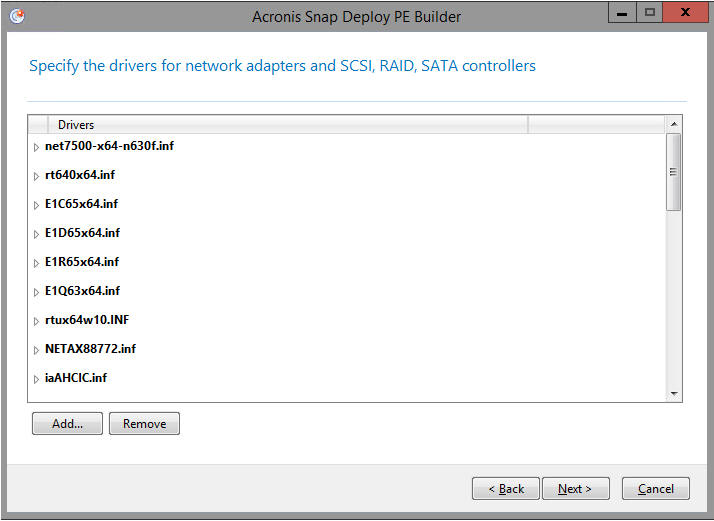
Figure 5. - Specifying drivers in the PE build
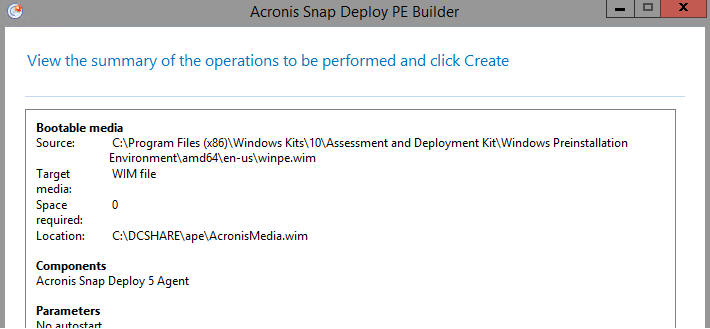
Figure 6. - Summary of the PE build - Verify PE Media is in PXE Server: (See Figure 7.)
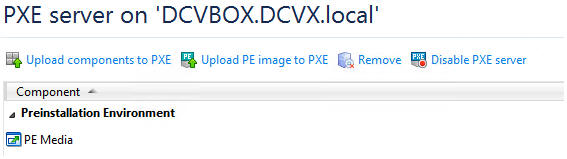
Figure 7. - Verifying the PE Media
3. Preparing Master Images
- PXE boot to the Acronis Snap Deploy Server on the machine you are creating the image from (Sysprep the image first).
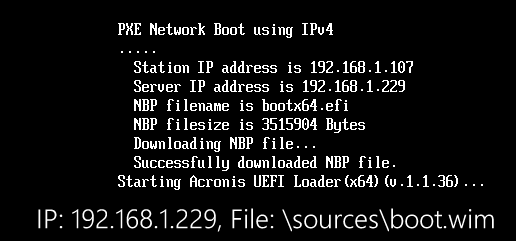
Figure 8. - PXE Network Boot using IPv4 - Select Acronis Snap Deploy 5 Master Image Creator
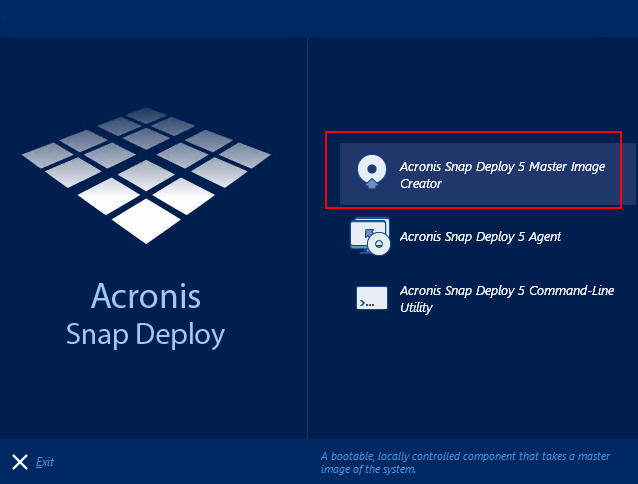
Figure 9. - Acronis Snap Deploy 5 Master Image Creator - Select all partitions listed
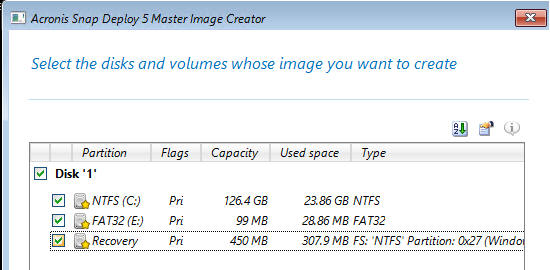
Figure 10. - Disk and Volume Options - Select a location for the image to be stored (the image must be accessible to the Acronis Server and the client system)
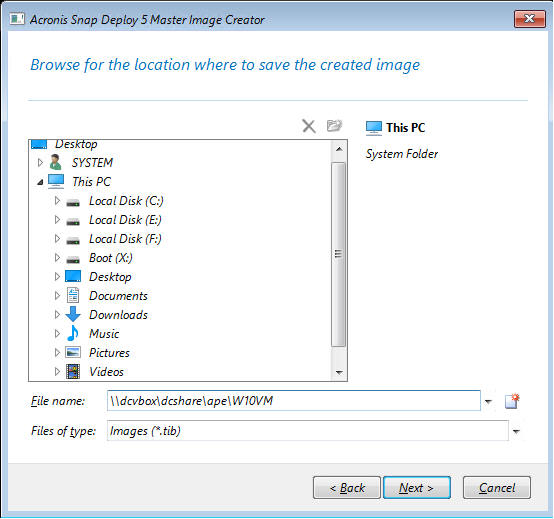
Figure 11. - Stored Image Location - Select Splitting, enter 2048 to split the image into 2GB sections (this is necessary for FAT32 keys, etc)
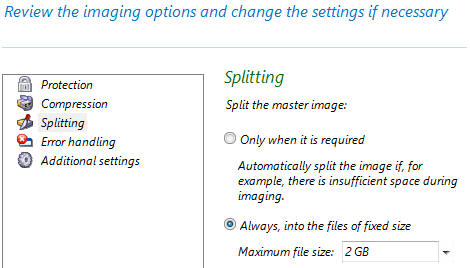
Figure 12. - Imaging Optiosn Review - Repeat steps 1-5 with Windows 10/8.1/7 (all should be using UEFI mode)
Back to Top
4. Creating OS Templates for Deployment
- Go to the Acronis Snap Deploy 5 Management Console
- Select Action
- Select Manage Templates
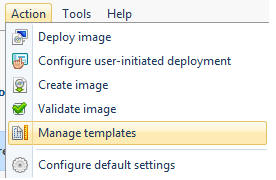
Figure 13. - Manage Templates - Select Create New
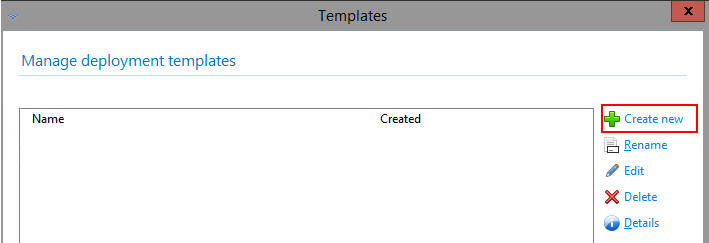
Figure 14. - Create New Template - Select Create a new template
- Select the previously captured image:
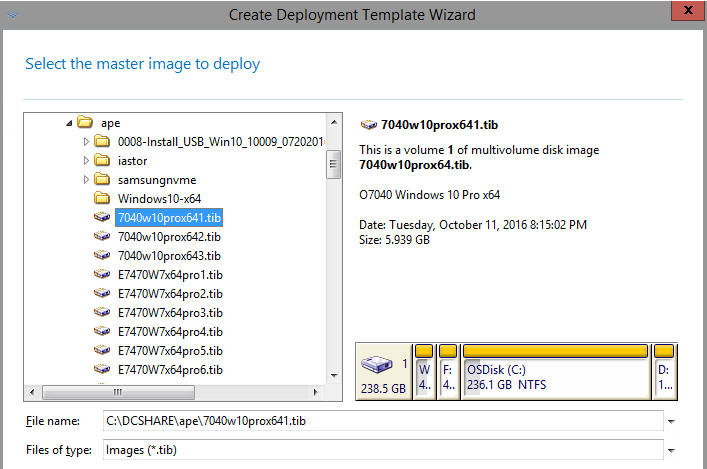
Figure 15. - New Template Deployment Wizard - Select all partitions
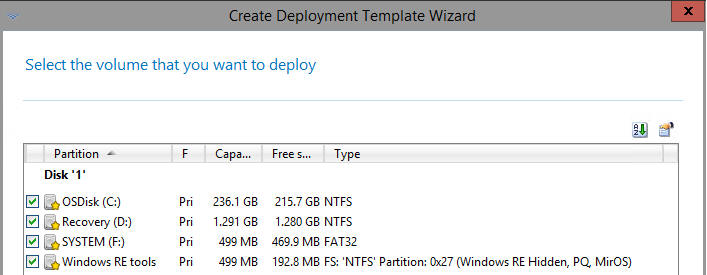
Figure 16. - All Partitions - Select Network utilization
- Select Unicast
- Enable Acronis Universal Deploy
- Select Search removable media for device drivers
- Select Search for device drivers in the following locations
- Select Add
Windows 10 example:
\\dcvbox\DCSHARE\CABS\WinPE10.0-Drivers-A01-6XFM6\winpe\x64\
Windows 7 example:
\\dcvbox\DCSHARE\CABS\WINPE3.0-DRIVERS-A20-CT5DP\winpe\x64\ - Select Install the following drivers under Specify mass storage drivers to install anyway
- Add the following:
C:\DCSHARE\ape\iastor\Serial-ATA_Driver_PFJ82_WN32_14.8.9.1053_A06\Drivers\Production\Windows10-x64\iaAHCIC.inf
C:\DCSHARE\ape\iastor\Serial-ATA_Driver_PFJ82_WN32_14.8.9.1053_A06\Drivers\Production\Windows10-x64\iaStorAC.inf
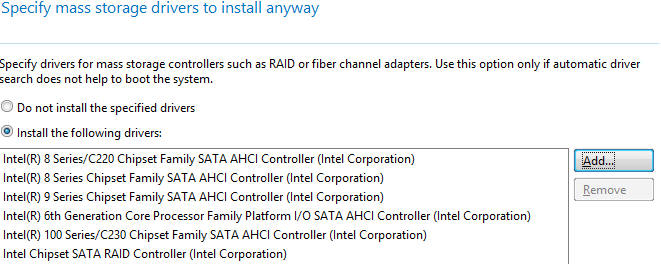
Figure 17. - Mass Storage Drivers - Name the Deployment Template for your OS and Boot type (W10x64 UEFI for this example)
- Repeat the same process for Windows 7/8.1/10
- Click Save
Back to Top
5. Create a new Deployment Task
- Select Deployment Tasks
- Select Create
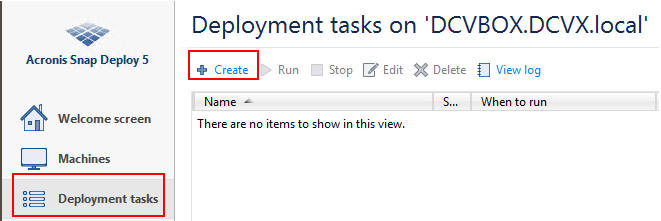
Figure 18. - Deployment Tasks - Specify the machines to deploy to
- Select the Deployment Template previously created:
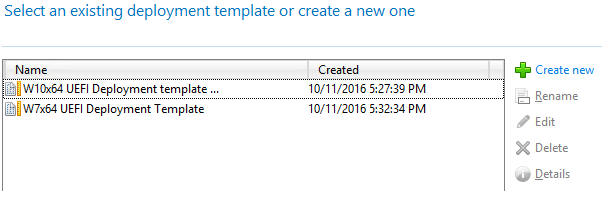
Figure 19. - Select Deployment Template - Type in the name of the OS in Task Name
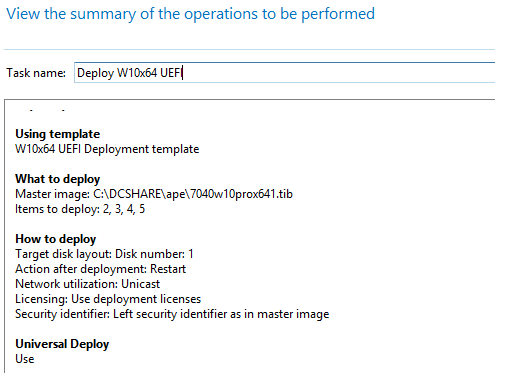
Figure 20. - OS Name
Back to Top
6. Deploying the captured image to systems
- PXE boot to Acronis Snap Deploy 5
- Select Acronis Snap Deploy 5 Agent
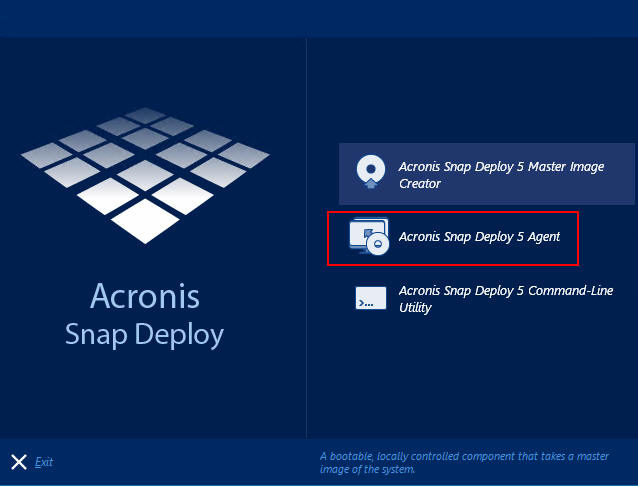
Figure 21. - Acronis Snap Deploy 5 Agent - The deployment should start automatically
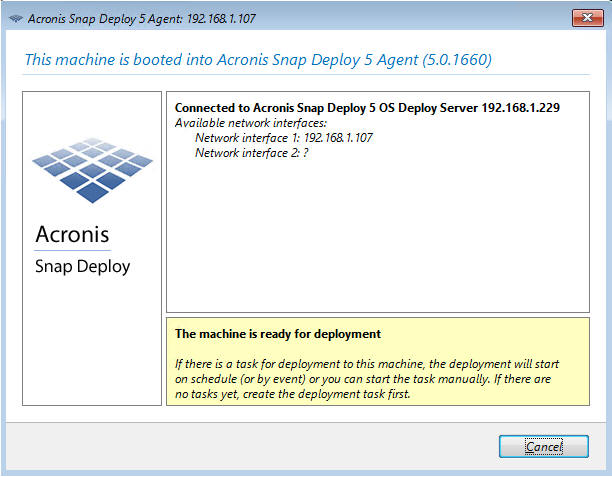
Figure 22. - Acronis Deployment Started
Back to Top
Article Properties
Article Number: 000152246
Article Type: Solution
Last Modified: 04 May 2026
Version: 4
Find answers to your questions from other Dell users
Support Services
Check if your device is covered by Support Services.