Adobe Acrobatで言語を変更する方法: ステップバイステップ ガイド
Summary: Adobe Acrobat 2017以降で言語設定を変更する手順について説明します。シームレスな言語切り替えのためのガイドに従ってください。今すぐ専門家のヒントを入手してください。
This article applies to
This article does not apply to
This article is not tied to any specific product.
Not all product versions are identified in this article.
Instructions
対象製品:
- Adobe Acrobat 2017以降
対象オペレーティング システム:
- Windows 10
- Windows 11
Warning: 先へ進む前に:
- Adobe Acrobatを閉じる必要があります。
- 少なくとも 2 つの言語パックをインストールする必要があります。
- 既定では、1 つの言語パックのみがインストールされます。
- 他のAdobe言語パックは、アプリと機能でAdobe Acrobatを変更することでインストールできます。
言語を変更するには、次の手順を実行します。
- Windowsの[スタート]メニューで、 Adobe Acrobatを検索します。
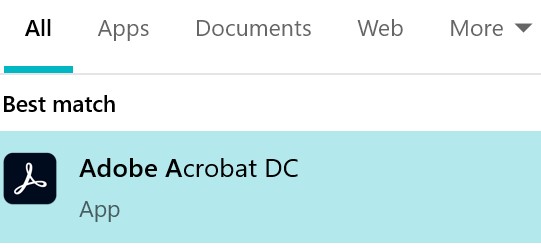
図1: (英語のみ)Adobe Acrobatを検索
注:お使いのAdobe Acrobatのバージョンは、上記のスクリーンショットとは異なる場合があります。
- Ctrl + Adobe Acrobatをクリックします。
- ドロップダウン メニューから適切な 言語 を選択し、[ OK]をクリックします。
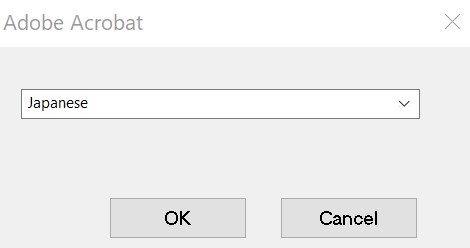
図2:(英語のみ)適切な言語を選択します
Additional Information
Videos
Affected Products
Chromebox, Alienware, Inspiron, Legacy Desktop Models, OptiPlex, Vostro, XPS, G Series, Chromebook, G Series, Alienware, Inspiron, Latitude, Vostro, XPS, Legacy Laptop Models, Latitude Tablets, Surface, XPS TabletsArticle Properties
Article Number: 000180675
Article Type: How To
Last Modified: 24 Jul 2025
Version: 12
Find answers to your questions from other Dell users
Support Services
Check if your device is covered by Support Services.