如何在 Dell 電腦上安裝 Adobe Photoshop Elements 和 Premier Elements
Summary: 本文探討如何下載和安裝在 Dell 平台上銷售的 Adobe Photoshop Elements 或 Adobe Premier Elements。
This article applies to
This article does not apply to
This article is not tied to any specific product.
Not all product versions are identified in this article.
Instructions
注意:對於在 2025 年及之後售出的 Dell 裝置,Dell Digital Delivery 已由 Dell Optimizer 取代,以取得產品金鑰或授權金鑰。若為 Alienware 裝置,Dell Digital Delivery 已由 Dell 購買的應用程式取代。
如需有關遷移的詳細資訊,請參閱 Dell 知識庫 Dell Optimizer 6.x 版已購買應用程式資訊。
若要安裝 Dell 購買的應用程式,請前往 Microsoft Store 頁面。
如需有關遷移的詳細資訊,請參閱 Dell 知識庫 Dell Optimizer 6.x 版已購買應用程式資訊。
若要安裝 Dell 購買的應用程式,請前往 Microsoft Store 頁面。
受影響的產品:
- Adobe Photoshop Elements 2020 及更新版本
- Adobe Premier Elements 2020 及更新版本
受影響的作業系統:
- Windows
警告:這些步驟僅涵蓋 Dell 硬體當時所購買的 Adobe Photoshop Elements 或 Adobe Premier Elements。
若要安裝產品:
- 在 Windows 開始功能表中,搜尋並按一下 Dell Optimizer 或 Dell 購買的應用程式。
- 在 Dell Optimizer (在「購買的應用程式 」標籤下,按一下 「取得您的應用程式」) 或 Dell 購買的應用程式,找到 Adobe Photoshop Elements &; Premier Elements [版本],然後根據產品版本 複製 提供的產品金鑰或授權金鑰。在記事本或 Word 中複製此金鑰,因為安裝需要金鑰。
 注意:
注意:- 以上螢幕擷取畫面中已省略 16 碼的英數字元授權金鑰或產品金鑰。
- Adobe 將授權金鑰或產品金鑰視為 兌換代碼。
- 您的 Adobe Photoshop Elements 和 Adobe Premier Elements 版本可能會與螢幕擷取畫面不同。
- 以上螢幕擷取畫面中已省略 16 碼的英數字元授權金鑰或產品金鑰。
- 按一下 兌換 以自動移至 https://www.adobe.com/go/getserial
。
- 輸入您的 Adobe ID 或相關的電子郵件地址,然後按一下繼續。
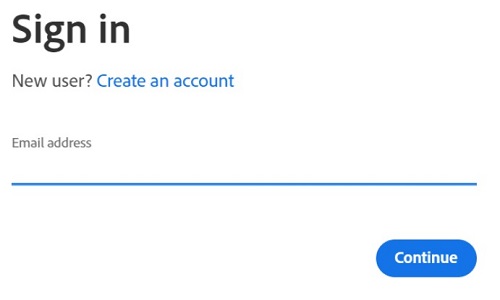 注意:
注意:- 如需帳戶協助,請參閱 https://helpx.adobe.com/manage-account/kb/account-password-sign-help.htm
- 如果這是第一次使用 Adobe 產品,請按一下建立帳戶。
- Dell 無法協助處理第三方 (Adobe) 帳戶問題。請聯絡廠商以尋求進一步的協助。
- 如需帳戶協助,請參閱 https://helpx.adobe.com/manage-account/kb/account-password-sign-help.htm
- 貼上您的授權金鑰產品金鑰 (步驟 2),然後按一下 兌換。請務必貼 上金鑰 ,以避免任何潛在的錯誤。然後按一下 兌換。
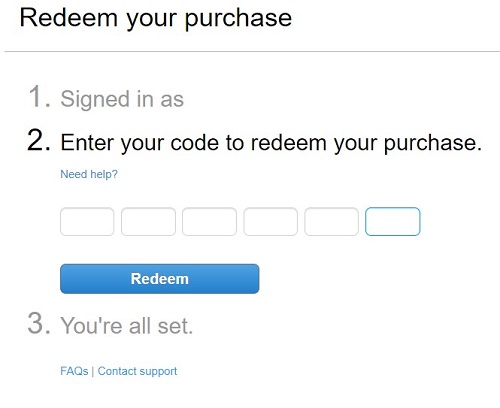 注意:
注意:- 使用者名稱和兌換代碼已從上述螢幕擷取畫面中移除。
- 如果發生 此代碼已兌換 錯誤,請參閱 Adobe 產品代碼已兌換 ,取得解決的步驟。
警告:- 兌換代碼 (步驟 2) 只能使用一次。
警示:- 使用兌換代碼後,若因為重新建立映像或變更機器而需重新安裝,則必須先停用已啟動的產品。
- 未停用會造成無法重新安裝產品。
- 記下序號。啟用軟體所需的序號與先前從 Dell Digital Delivery 複製的授權和產品金鑰不同。記下序號後,按一下「下載」。
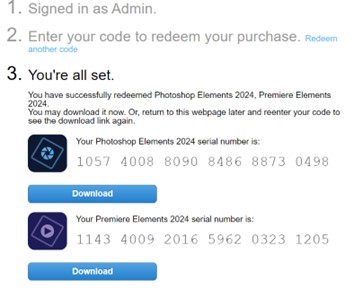 注意:
注意:- 產品序號已從上述螢幕擷取畫面中移除。
- 序號 (步驟 6) 與 16 碼的英數字元兌換金鑰 (步驟 2) 不同。
警示:- 在您安裝所有適當的產品之前,請勿離開此網頁。
- 為協助進行故障診斷和重新安裝,Dell 強烈建議您註冊 Adobe 序號,網址:https://account.adobe.com/products
- 在彈出式視窗中,填入您的 Adobe ID,然後按一下繼續。
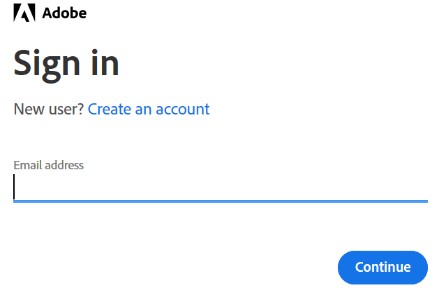
- 確認電子郵件地址,然後按一下繼續。
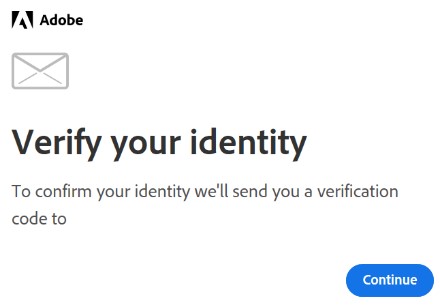 注意:使用者的電子郵件已從上述螢幕擷取畫面中移除。
 - 填入 Adobe ID 的密碼,然後按一下繼續。
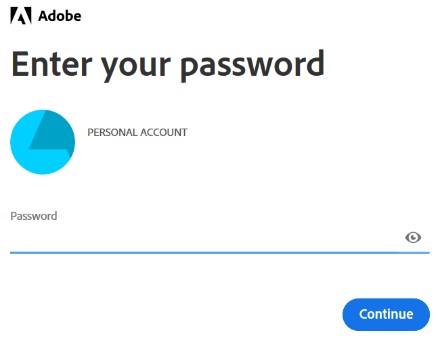
- 按一下繼續。
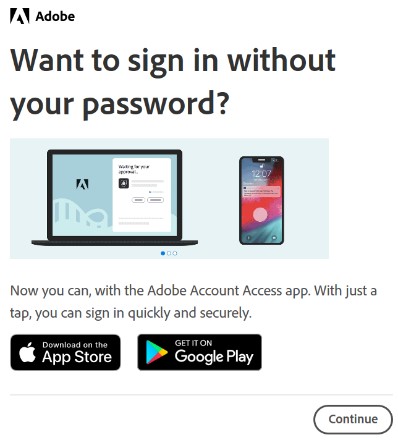
- 按一下 Continue。
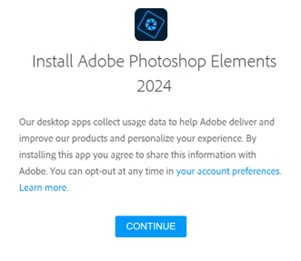
- 可選擇變更語言或安裝位置。按一下繼續以繼續。
 注意:按一下繼續以開始安裝程序。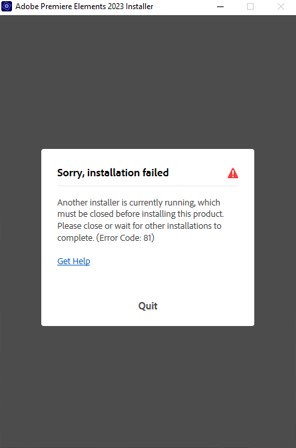
- 選擇要安裝的軟體。
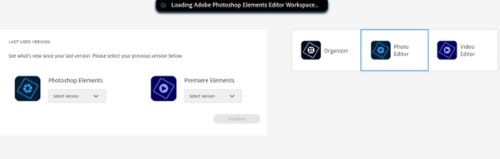
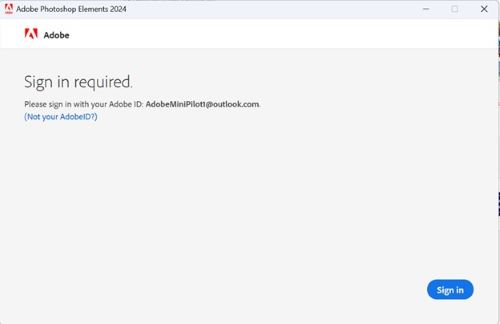
- 登入 Adobe 帳戶。
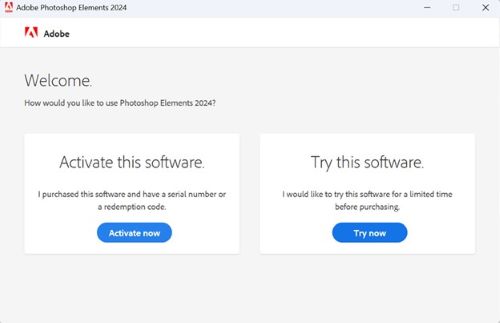
- 按一下 立即啟動。
- 貼上 步驟 6 的序號。按一下下一步。
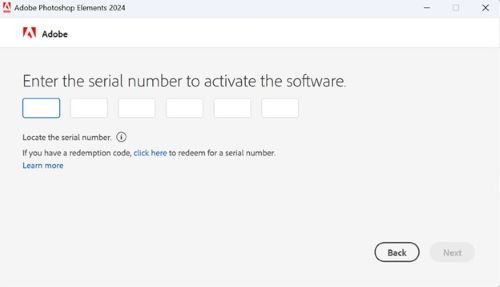
- 安裝完成後,可選擇前往步驟 6 以安裝其他產品。
Additional Information
Videos
Affected Products
Alienware, Dell All-in-One, Dell Pro All-in-One, Dell Pro Max Micro, Dell Pro Max Slim, Dell Pro Max Tower, Dell Pro Micro, Dell Pro Slim, Dell Pro Tower, Dell Slim, Dell Tower, Inspiron, Legacy Desktop Models, OptiPlex, Vostro, XPS, G Series
, G Series, Alienware, Dell Plus, Dell Pro, Dell Pro Max, Dell Pro Plus, Dell Pro Premium, Inspiron, Latitude, Dell Pro Rugged, Vostro, XPS, Legacy Laptop Models, Fixed Workstations, Mobile Workstations, Dell Pro Max Micro XE FCM2250, Dell Pro Max Slim XE FCS1250, Dell Pro Max Tower T2 XE FCT2250, Dell Pro Max 16 XE MC16250, Dell Pro Micro Plus XE QBM1250, Dell Pro Slim Plus XE5 QBS1250, Dell Pro Tower Plus XE5 QBT1250
...
Products
Business and OfficeArticle Properties
Article Number: 000182101
Article Type: How To
Last Modified: 04 Nov 2025
Version: 31
Find answers to your questions from other Dell users
Support Services
Check if your device is covered by Support Services.