How to Change the Operating System Language in Windows 11
Summary: This article describes how to guide a customer through changing the operating system language in Windows 11.
This article applies to
This article does not apply to
This article is not tied to any specific product.
Not all product versions are identified in this article.
Instructions
How to Change Display Language Settings in Windows 11
Duration: 00:01:38 (hh:mm:ss)
When available, closed caption (subtitles) language settings can be chosen using the CC icon on this video player.
The default Windows language may not have been set correctly during setup or may differ from the customer's preference.
Windows 11 makes it easy to change the operating system language without having to reinstall Windows.
Change the Windows 11 Default Language.
- Open Settings. Go from the Start button, or use Windows Key + I Key.
- Click Time & Language. Click the Clock Icon for Time and Language settings.
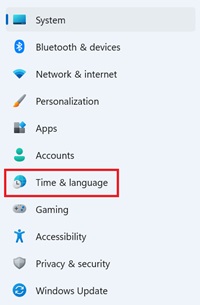
- Click Language & Region. Click the world Icon with language symbols to open Language and Region settings.

- In the Language section, click the Add a language button for the Preferred languages setting.
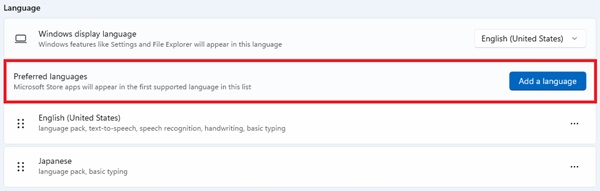
- Search for the new language and select the wanted language. Click Next.
Note: Scroll through the list to find your wanted language and region. You can search for the country or region's name to find the language.
- Check the box Set as my Windows display language and click Install.
Note: Optionally, you could also check the required options under Optional language features.
- You see the alert Windows needs to sign you out in order to apply your new display language.
- Click the Sign out button and sign in to your user account to start using the new language.
You are now ready to use the new language. The display language changes now are reflected throughout the operating system, including the Sign-in screen, Settings app, File Explorer, Desktop, applications, browser, and so on.
Affected Products
Alienware, Dell Pro All-in-One, Dell Pro Max Micro, Dell Pro Max Slim, Dell Pro Max Tower, Dell Pro Micro, Dell Pro Slim, Dell Pro Tower, Dell Slim, Dell Tower, Inspiron, Legacy Desktop Models, OptiPlex, Vostro, XPS, G Series, G Series, Alienware
, Dell Plus, Dell Pro, Dell Pro Max, Dell Pro Plus, Dell Pro Premium, Inspiron, Latitude, Dell Pro Rugged, Vostro, XPS, Legacy Laptop Models, Fixed Workstations, Mobile Workstations
...
Article Properties
Article Number: 000203574
Article Type: How To
Last Modified: 08 Sept 2025
Version: 8
Find answers to your questions from other Dell users
Support Services
Check if your device is covered by Support Services.