Dell Pro Wired ANC Headset WH5024 Usage and Troubleshooting Guide
Summary: The following article provides information about the Dell Pro Wired ANC Headset WH5024. You can reference each section to learn more about the features of the Dell Pro Wired ANC Headset WH5024 and how to use it. ...
This article applies to
This article does not apply to
This article is not tied to any specific product.
Not all product versions are identified in this article.
Instructions
Table of Contents:
- What is in the Dell Pro Plus Wired ANC Headset WH5024 box?
- Pro Wired ANC Headset Features
- Setting up your Pro Wired ANC Headset
- Troubleshooting
- Additional Information
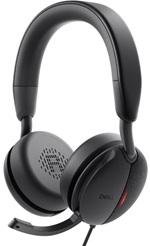
(Figure.1 Work faster and easier with the Dell Pro Plus Wired ANC Headset WH5024)
What is in the Dell Pro Plus Wired ANC Headset WH5024 box?
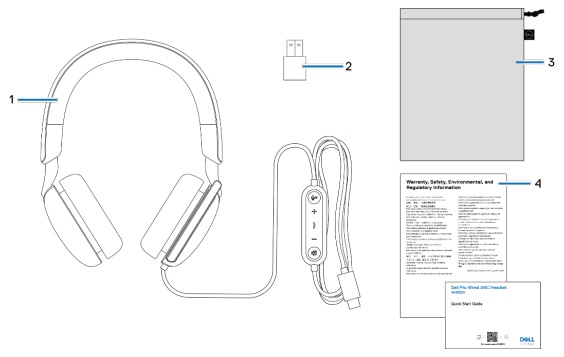
(Figure.2 Dell Pro Plus Wired ANC Headset WH5024 Box Contents)
| 1 | WH5024 Headset | 2 | USB-A adapter (drop in box) |
| 3 | Soft carry pouch | 4 | Documentations |
Pro Wired ANC Headset Features
Top View
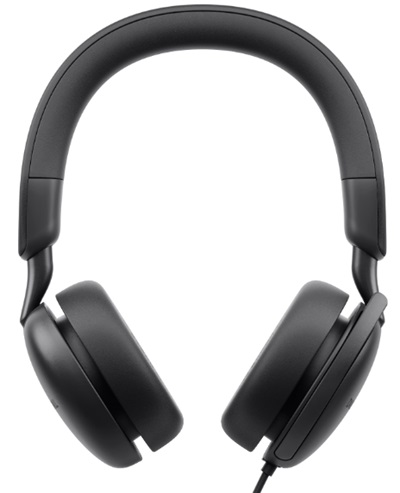
(Figure.3 Dell Pro Plus Wired ANC Headset WH5024 Top View)
Left View
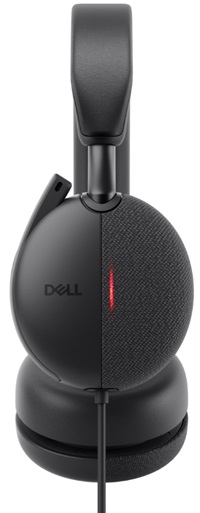
(Figure.4 Dell Pro Plus Wired ANC Headset WH5024 Left View)
Product Features
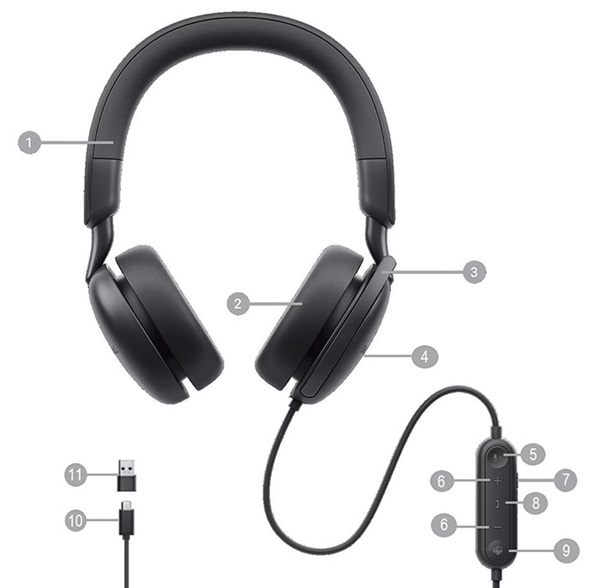
(Figure.5 Dell Pro Plus Wired ANC Headset WH5024 Product Features)
| 1 | Adjustable Leatherette Headband | 2 | Leatherette Memory Foam Ear Cushion |
| 3 | Discrete Boom Microphone | 4 | Busy light LED |
| 5 | Microphone mute button with LED | 6 | Volume control button |
| 7 | ANC button | 8 | Call control button |
| 9 | Microsoft Teams button with LED | 10 | USB-A adapter |
| 11 | USB-C cable |
Setting up your Pro Wired ANC Headset
Compatibility
Operating Systems:
-
Windows 10 64-bit, Windows 11 64-bit, and macOS.
Connecting the Pro Wired ANC Headset
Power on your headset by plugging the cable to the USB-C port on the computer. A USB-A adapter is also provided as an alternative for connection to the USB-A port.
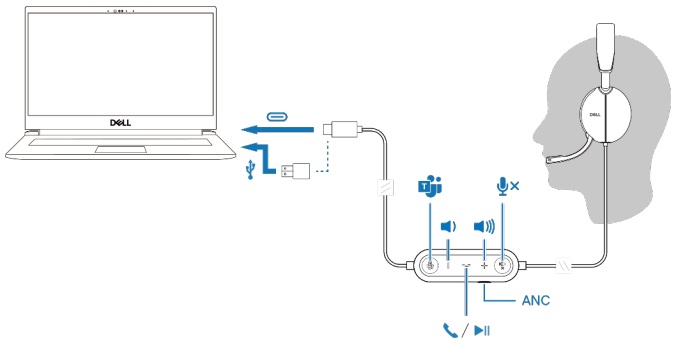
(Figure.7 Connecting the Pro Wired ANC Headset)
Troubleshooting
| Problems | Possible solutions |
|---|---|
| I cannot hear the caller. |
|
| Callers are unable to hear me. |
|
| The audio in the headset is experiencing distortion, and I am hearing an echo. |
|
| The other headset that I was using to listen to music on my system/laptop does not work anymore. |
|
| My computer is not finding my headset during a call or while listening to music. |
|
| Apparently the ANC feature is not working. |
|
When I mute or unmute the microphone using the Windows system control panel settings, the following issue or set of issues arises:
|
|
| The sound coming through the headset appears to be at a lower or quieter level when I open the system control panel for audio devices. |
|
Additional Information
Additional Information
Dell Pro Wireless ANC Headset WH5024 Support Site
Learn how to use and troubleshoot problems with the Dell Pro Wireless ANC Headset WH5024 you use with your computer. You can find information about Troubleshooting steps, How-To guides, and relevant Support Videos for assistance.
For the Dell Pro Wireless ANC Headset WH5024 User Guide, browse to the Dell Pro Wireless ANC Headset WH5024 Online Manual Page, and then touch or click View PDF to the right of the Dell Pro Wireless ANC Headset WH5024 User Guide, located in the Manuals and Documents section.
Affected Products
Dell Pro Plus Wired ANC Headset WH5024Article Properties
Article Number: 000221748
Article Type: How To
Last Modified: 09 Apr 2025
Version: 2
Find answers to your questions from other Dell users
Support Services
Check if your device is covered by Support Services.