Viewing Data Domain Licenses and Certificates activated from TLA
Summary: This Knowledge Article outlines how to access and view Data Domain Licenses and Certificates activated from Transformational License Agreements (TLA)
This article applies to
This article does not apply to
This article is not tied to any specific product.
Not all product versions are identified in this article.
Instructions
Pre-requisite:
External users who require access to the DELL Digital Locker or the Software Licensing Central (SLC) should register for a Support Account on Dell Support. And, Internal users who require access to the Software Licensing Central (SLC) should submit a MyAccess Ticket Internally.
To access your Transformational Licensing Agreement (TLA), see How to access your Data Domain Transformational Licensing Agreement (TLA) in Software Licensing Central (SLC)
To activate licenses from your Transformational Licensing Agreement (TLA), see How to activate PowerProtect Data Domain Licenses from a Transformational Licensing Agreement (TLA)
Note: The certificate for a machine is a record of the installed Dell products. The certificate allows the user to manage the installed products by retrieving keys, rehosting, regenerating, or converting licenses. It displays all activity that has occurred on the machine.
Instructions
Access the Software Licensing Central (SLC) home page and click LICENSE and then View Certificate in the Main Navigation Menu.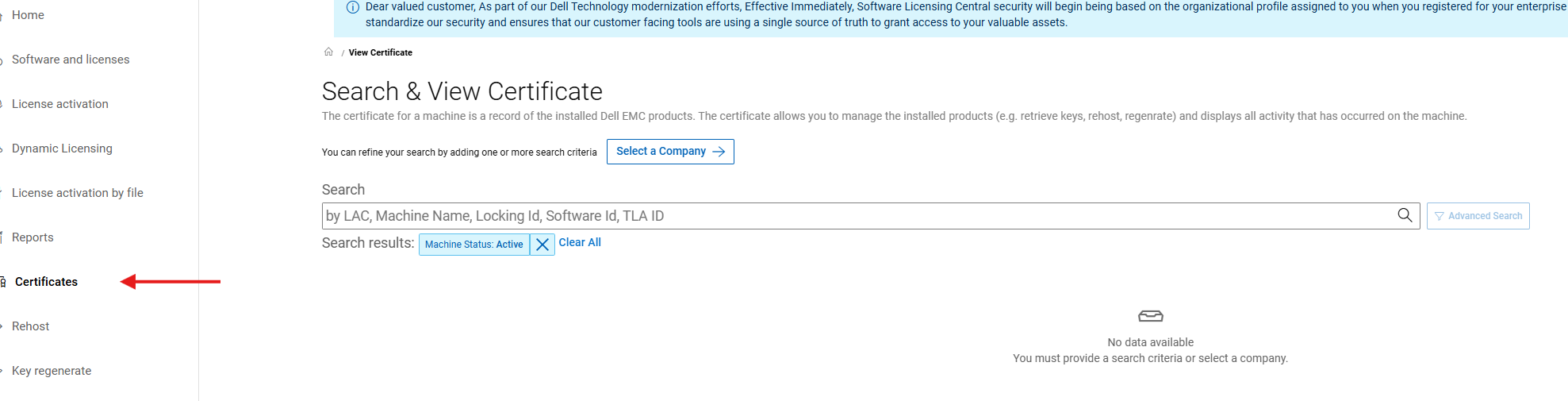
Search for a certificate using any of the listed search criteria and then click SEARCH. In this example, the LAC was used as the search criteria. Machine Name or Locking ID can also be used.

Advanced search criteria are also available, notably, 'Product Line' where a specific product family can be entered.
Find the required certificate and then click View.
Note: The machine names and Locking IDs have been removed from the below screenshot.
When viewing the certificate, there is the option to select Print or Email Certificate functions. Click the four table headings (KEYS, PRODUCTS and SOFTWARD IDs, OWNERSHIP, and ACTIVITY) to see additional information associated with the certificate.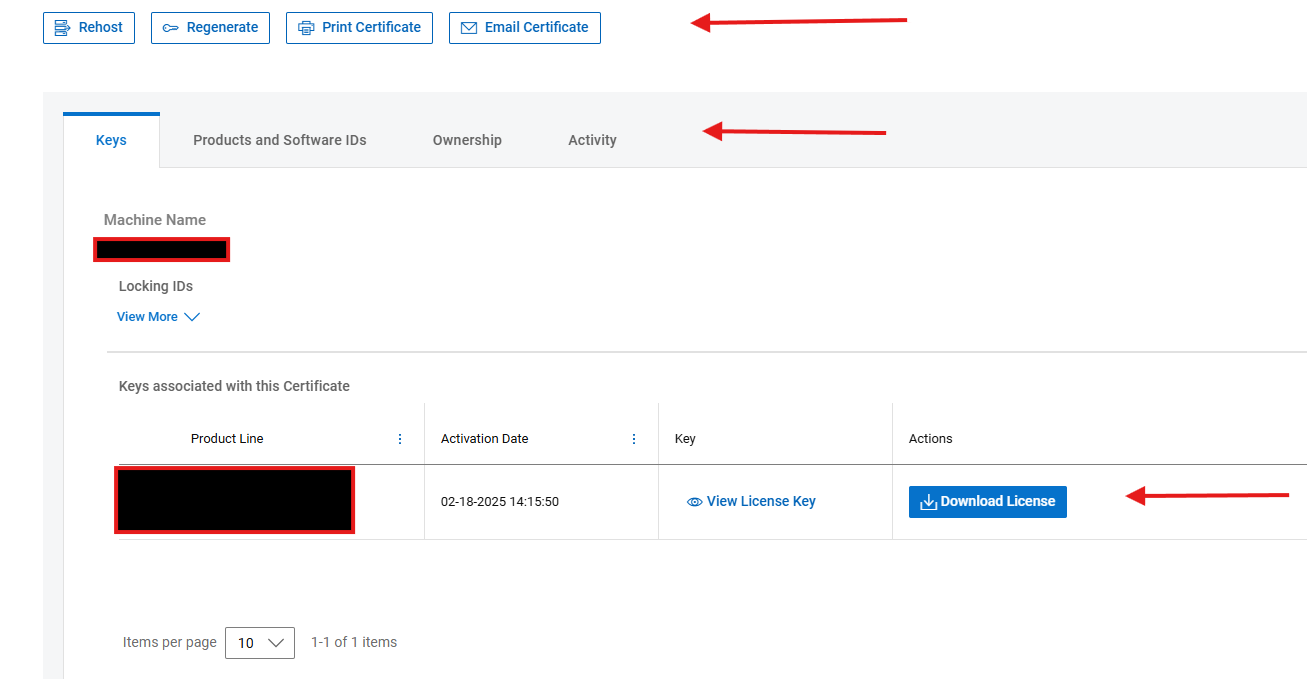
The following table outlines the information displayed against each header.
In the ACTIVITY tab, slide the bar to the right to view additional details associated with each transaction.
Affected Products
Data DomainArticle Properties
Article Number: 000225813
Article Type: How To
Last Modified: 25 Jun 2025
Version: 2
Find answers to your questions from other Dell users
Support Services
Check if your device is covered by Support Services.