E2E Connectivity - How to Manually Export Device Data to A1
Summary: Overview: In cases of redeployment, customers may encounter situations where the SCG UI is inaccessible, and they are unable to export device data from the Device Management page. However, device data can still be exported manually using the process outlined below from CLI ...
This article applies to
This article does not apply to
This article is not tied to any specific product.
Not all product versions are identified in this article.
Instructions
Instructions:
- Use an SSH client (such as PuTTY) to log in to the SCG with root credentials.
- Run the following commands to access the device list:
-
docker exec -it esrsde-app bash
psql -d vapp -U postgres
 select * from device_management;
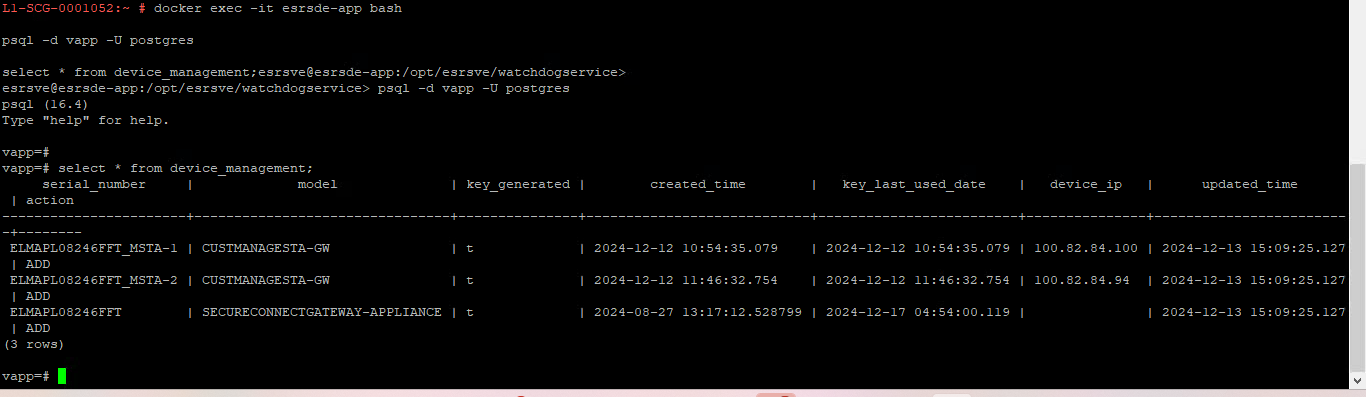
- Run the following command to export the device list to a .CSV file:
-
COPY device_management TO '/tmp/devices.csv' DELIMITER ',' CSV HEADER;
exit
exit
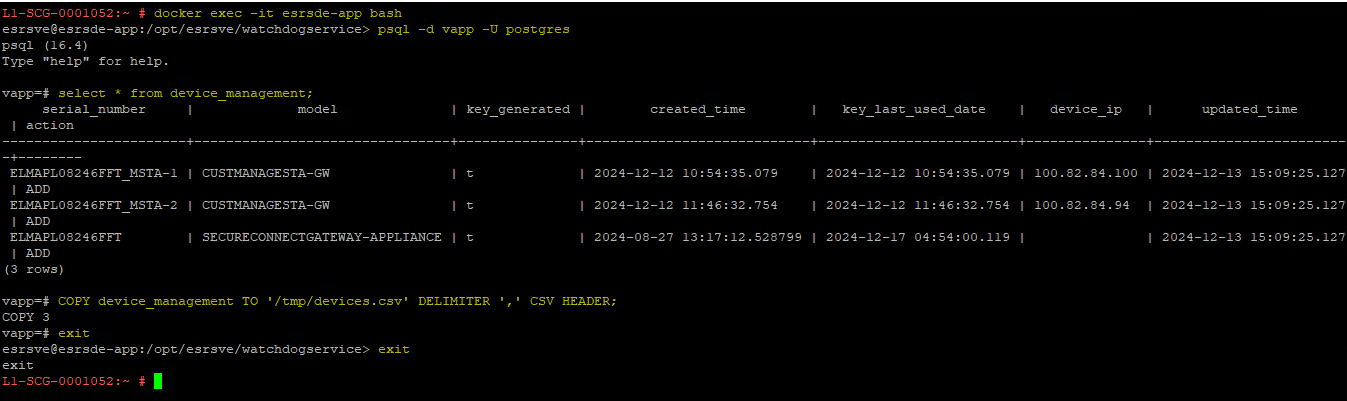
- The device data is now saved in a .CSV file named devices.csv. To find this file within the Docker container, run the following command:
-
find /var -type f -iname devices.csv

- Copy the file path returned from the previous command. Then, use a file transfer client (for example, WinSCP or FileZilla) to connect to the SCG. Paste the file path into the address bar or use the "Open Directory" option in WinSCP.
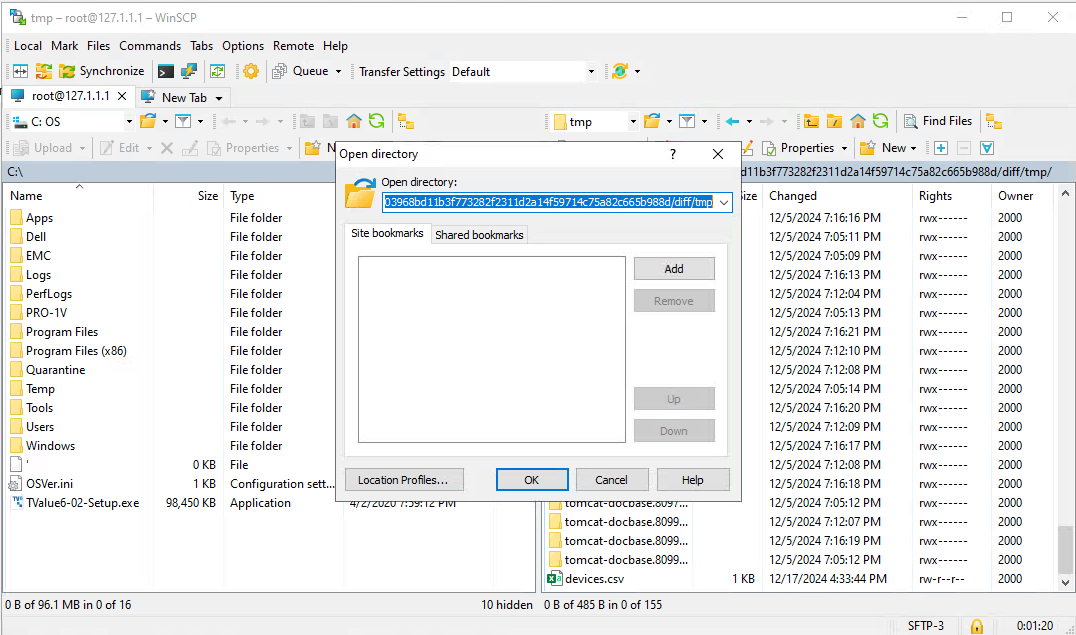
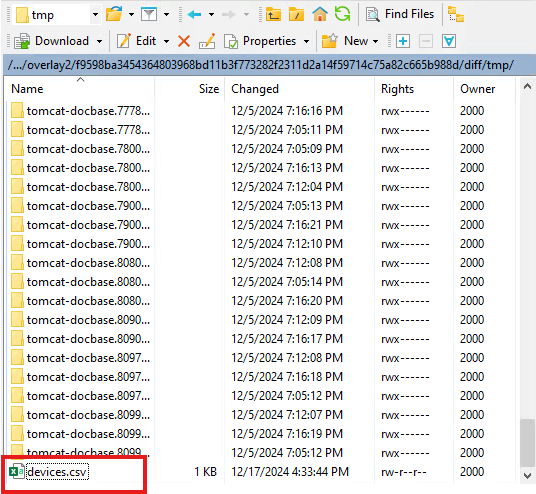
- Locate the devices.csv file and copy it to your local machine.
Affected Products
Secure Connect Gateway - Virtual EditionArticle Properties
Article Number: 000273682
Article Type: How To
Last Modified: 29 Mar 2025
Version: 2
Find answers to your questions from other Dell users
Support Services
Check if your device is covered by Support Services.