PowerProtect Data Manager: Replicate Backup Copy After Deletion Due to Asset Deletion
Summary: Learn how to replicate a backup copy after deletion in PowerProtect Data Manager by following steps to reset replicated storage targets and rerun replication.
This article applies to
This article does not apply to
This article is not tied to any specific product.
Not all product versions are identified in this article.
Instructions
Perform the following steps when PowerProtect Data Manager is idle:
- Take a snapshot of the PowerProtect Data Manager to ensure a checkpoint for restoration if there are any issues.
- Get the asset ID of the client that must be re-replicated using the command:
./ppcp assets list | grep <asset_name>
- Get the copy set ID that must be re-replicated, which is the copy with
replicatedCopy=false, using the command:
./ppcp copies list --assetid <asset_id_from_step_2>
- Verify the
replicatedStorageTargetsof the copy set using the command:
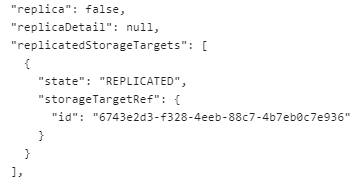
curl -XGET localhost:14300/index_protection_copy_set/_doc/<copyset_id_from_step_3>?pretty | grep -A 6 replicatedStorageTarget
The output should be similar to:
- Reset
replicatedStorageTargetsto null using the command:
curl -XPOST localhost:14300/index_protection_copy_set/_doc/<copyset_id_from_step_3>/_update?pretty=true -H "Content-Type: application/json" -d '{"doc":{"replicatedStorageTargets":[]}}'
- Verify the
replicatedStorageTargetsof the copy set again using the command:
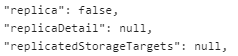
curl -XGET localhost:14300/index_protection_copy_set/_doc/<copyset_id_from_step_3>?pretty | grep -A 6 replicatedStorageTarget
The output should be similar as:
- Rerun the replication.
Affected Products
PowerProtect Data ManagerArticle Properties
Article Number: 000291017
Article Type: How To
Last Modified: 22 May 2026
Version: 3
Find answers to your questions from other Dell users
Support Services
Check if your device is covered by Support Services.