如何使用 Microsoft Configuration Manager 部署 Dell Client Device Manager
Summary: 本文透過逐步程序引導 IT 管理員為 Dell Client Device Manager (DCDM) 應用程式選取所需的模組,並使用 Microsoft Configuration Manager 進行部署。
This article applies to
This article does not apply to
This article is not tied to any specific product.
Not all product versions are identified in this article.
Instructions
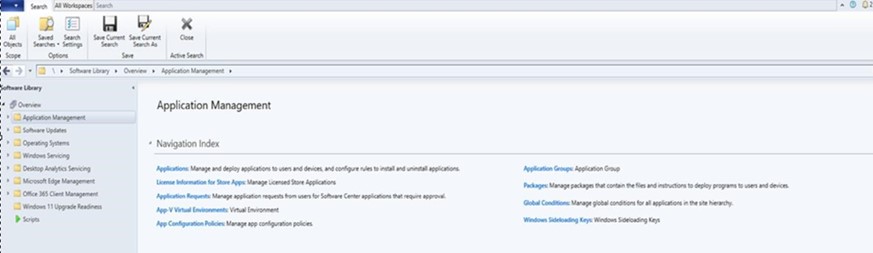
- 使用具有必要權限的帳戶來建立和部署應用程式,開啟 Microsoft Configuration Manager 主控台,然後瀏覽至軟體庫 → 應用程式管理。
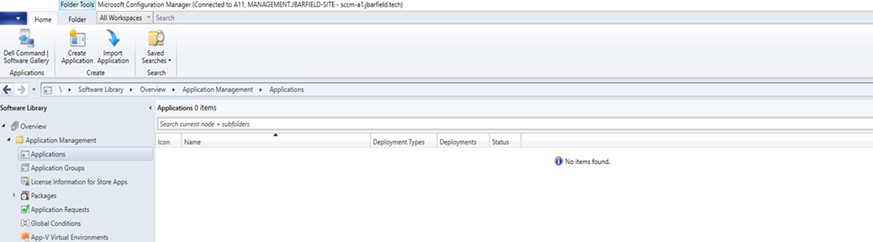
- 展開應用程式管理,按一下「應用程式」,然後按一下建立應用程式。
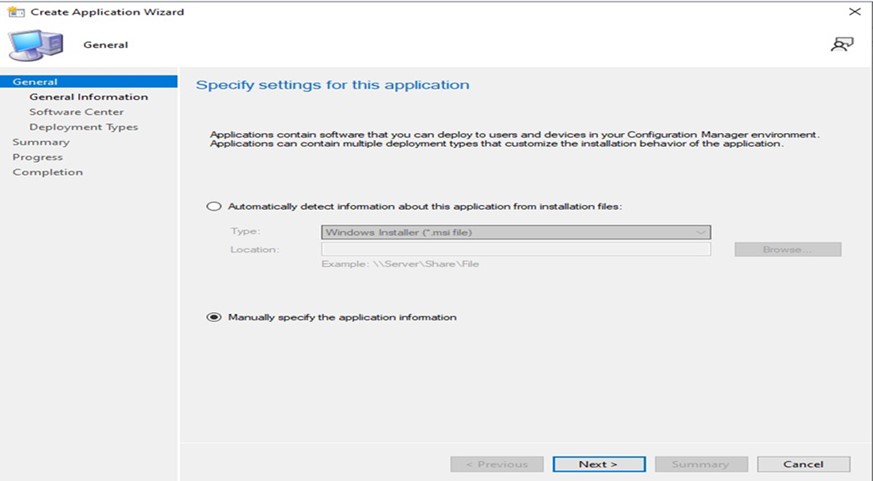
- 選取選項按鈕。手動指定應用程式資訊,然後按一下下一步。
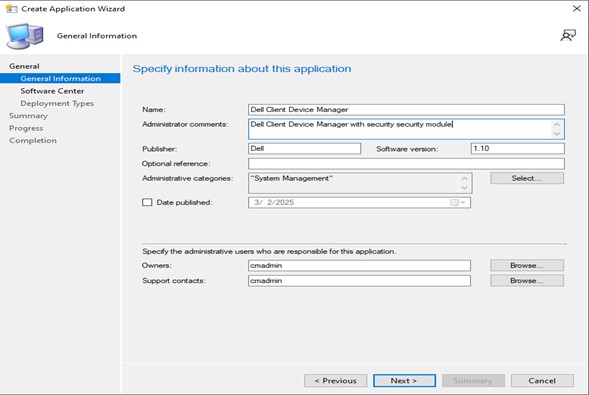
- 填入所需資訊,然後按一下下一步。
- 名稱:提供應用程式的名稱 (例如 Dell Client Device Manager)
- 系統管理員註解:新增說明 (已安裝安全性模組的 Dell Client Device Manager)
- 發行商:指定發行商 (Dell)
- 軟體版本:指定版本 (1.10)
- 擁有者:選取適當的使用者或群組。
- 支援聯絡人:選取適當的使用者或群組。
- 按一下下一步。
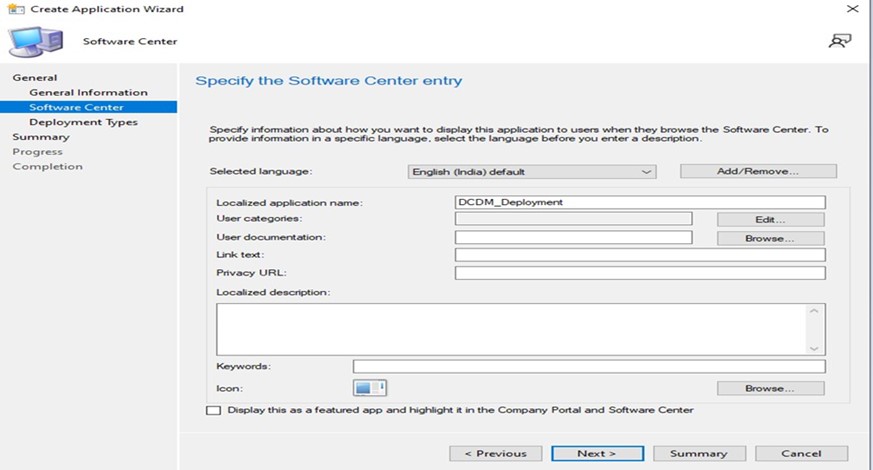
- 按一下新增。
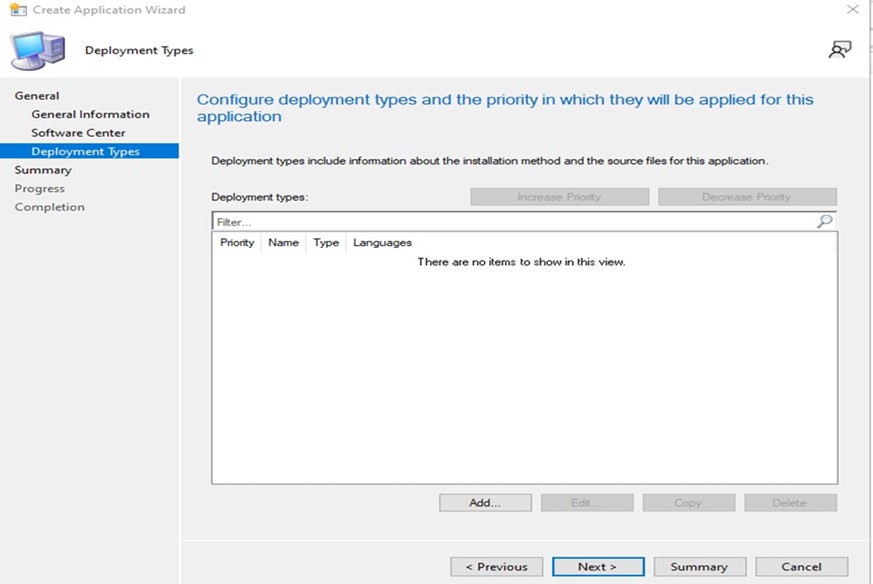
- 從類型下拉式清單中選取指令檔安裝程式,然後按一下下一步。
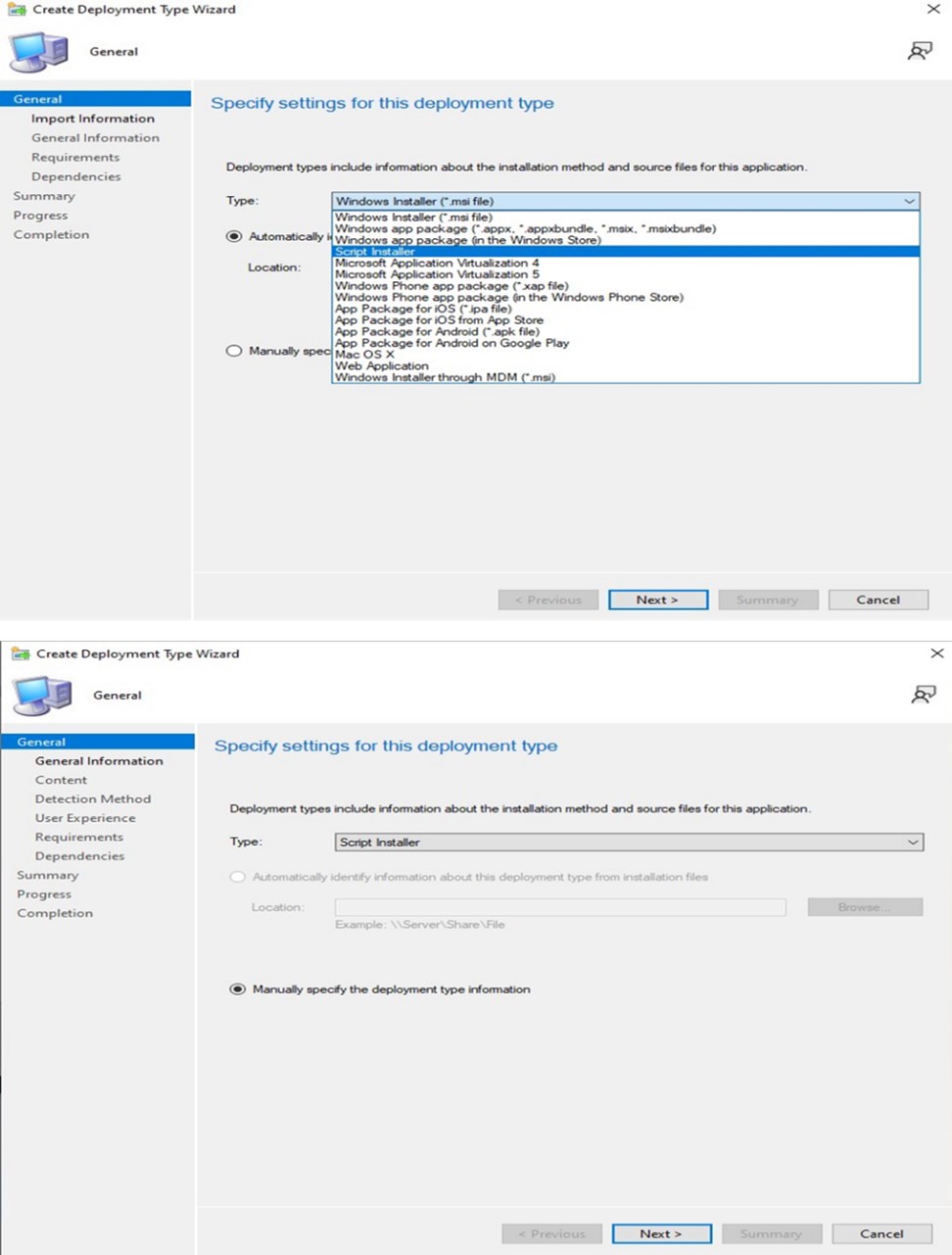
- 指定所需的名稱和系統管理員註解,然後按一下下一步。
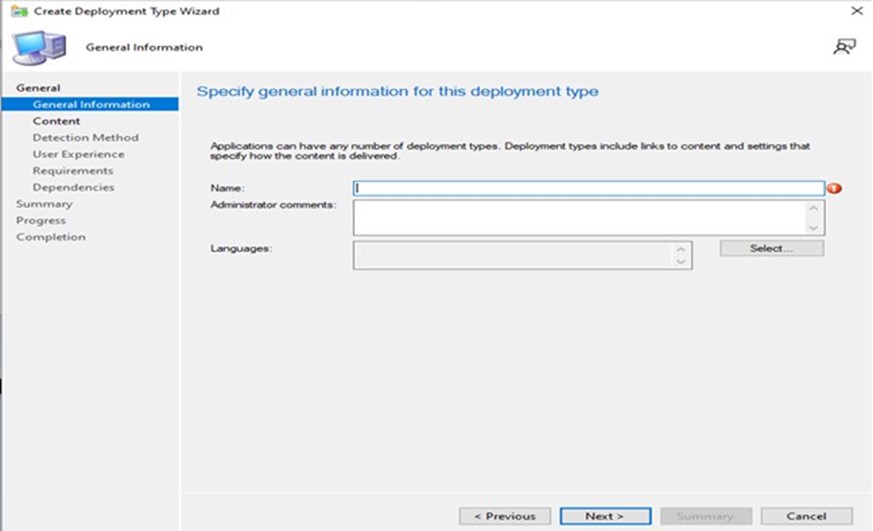
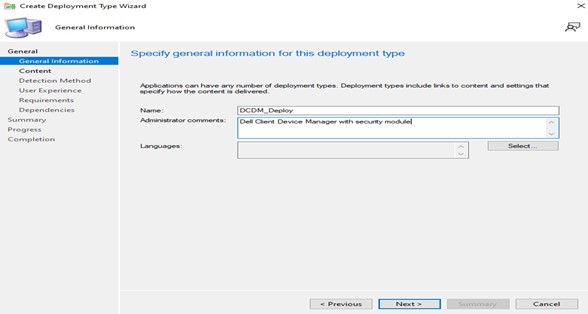
- 新增要放置內容以供部署的內容位置,並指定用於在安裝程式中安裝內容的命令,然後按一下在 64 位元用戶端上將安裝程式作為 32 位元處理序執行安裝與解除安裝程式的核取方塊,然後按一下「下一步」。
注意:可以在以下位置找到安裝參數、模組和範例的清單。
Install: powershell.exe -executionpolicy Bypass -windowstyle hidden -noninteractive -nologo -file "dcdm_deployment.ps1" -action < install / uninstall > -modules < modules to install >參數 說明 -help 選用 顯示參數的說明 -action 強制 指定要執行的動作 (安裝/解除安裝) -modules 選用 指定要包含的模組。預設值 (「DCDMCS」、「DCDMU」、「DCDMS」) -logpath 選用 預設值為「C:ProgramData\Dell\ClientDeviceManager」。指定記錄檔的路徑 -verboselog 選用 啟用主控台記錄顯示 (True 或 False) -debuglevel 選用 預設值為「全部」。指定偵錯資訊的層級 -telemetryconsent 選用 預設值為「true」。指示遙測同意 模組 說明 模組取決於 DCDMCS Dell Client Device Manager Core Services (先前稱為 Dell Core Service (DCS)) 需要 N/A 核心元件 DCDMS Dell Client Device Manager Security (先前稱為 Dell Trusted Device (DTD)) DCDMCS DCDMU Dell Client Device Manager Update (先前稱為 Dell Command Update (DCU)) DCDMCS、DCDMS 範例:
安裝/更新所有模組並為 DCDMU 傳送遙測。
powershell.exe -executionpolicy Bypass -windowstyle hidden -noninteractive -nologo -file "dcdm_deployment.ps1" -action "install"安裝/更新所有模組而不遙測。
powershell.exe -executionpolicy Bypass -windowstyle hidden -noninteractive -nologo -file "dcdm_deployment.ps1" -action "install" -telemetryconsent "false"安裝/更新 Dell Client Device Manager | Security (DCDMS)
powershell.exe -executionpolicy Bypass -windowstyle hidden -noninteractive -nologo -file "dcdm_deployment.ps1" -action "install" -modules "DCDMS"解除安裝 Dell Client Device Manager | Security (DCDMS)
powershell.exe -executionpolicy Bypass -windowstyle hidden -noninteractive -nologo -file "dcdm_deployment.ps1" -action "uninstall" -modules "DCDMS"解除安裝所有模組
powershell.exe -executionpolicy Bypass -windowstyle hidden -noninteractive -nologo -file "dcdm_deployment.ps1" -action "uninstall"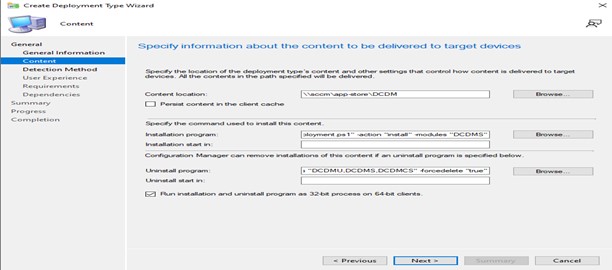
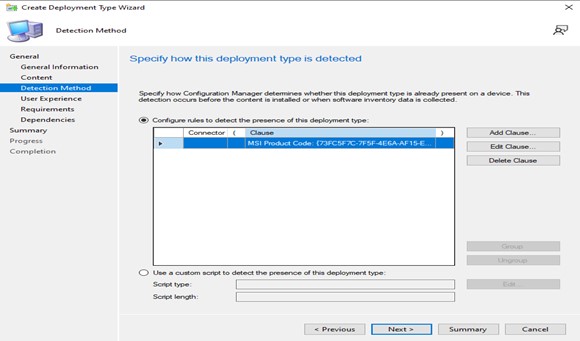
- 按一下新增子句。
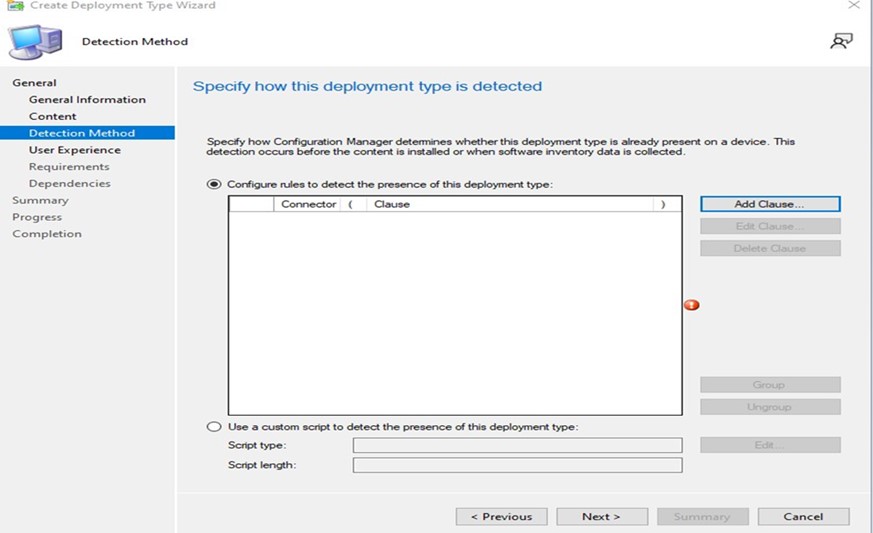
- 在類型選取資料夾。
- B) 按一下瀏覽按鈕新增內容所在的路徑,並在填入所有資料後按一下「確定」。
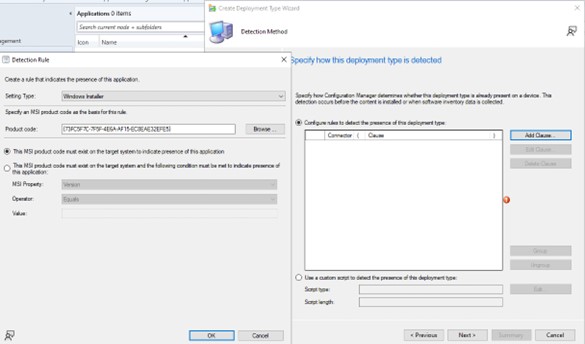
- 新增完「子句」後,按一下下一步。
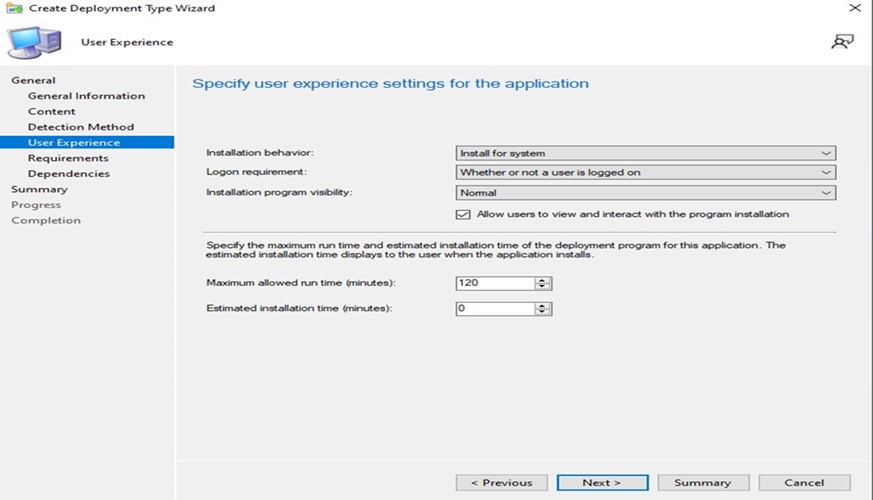
- 從「安裝行為」下拉式清單中選取「為系統安裝」,從登入需求下拉式清單中選取「使用者是否登入」,從「安裝程式可見度」選取「正常」,然後按一下下一步。
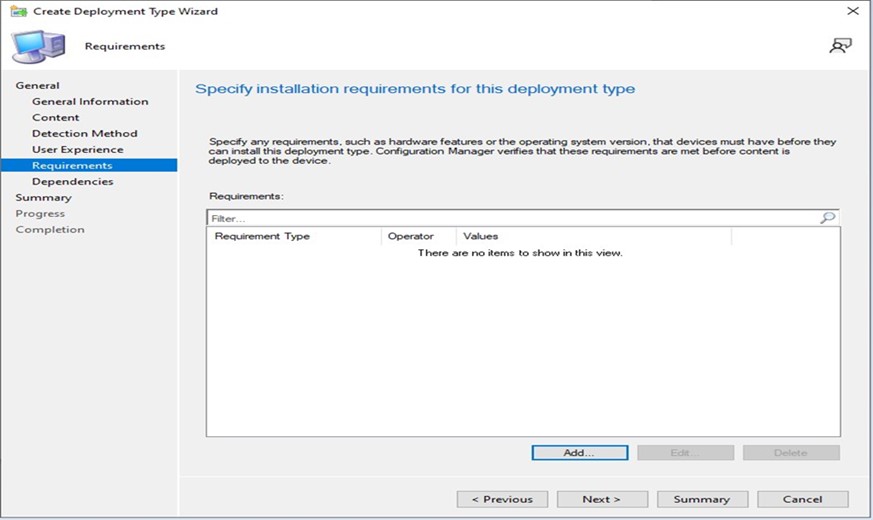
- 指定此部署類型視窗的安裝需求,按一下下一步。
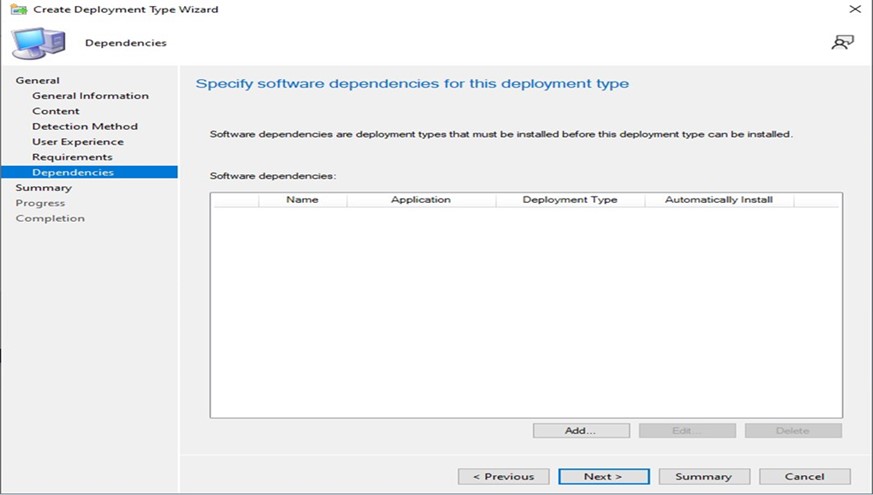
- 指定此部署類型的軟體相依性,按一下下一步。
注意:Dell Client Device Manager 需要 Microsoft .NET 8 Desktop Runtime 和 ASP.Net Core 作為相依性。
- 摘要視窗會讀取所有資料,然後按一下下一步。
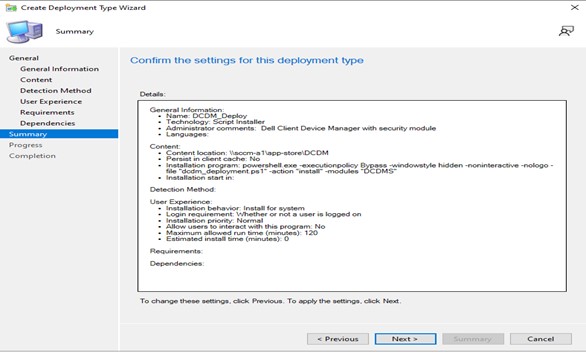
- 套裝已建立,然後按一下關閉按鈕以關閉下方視窗。
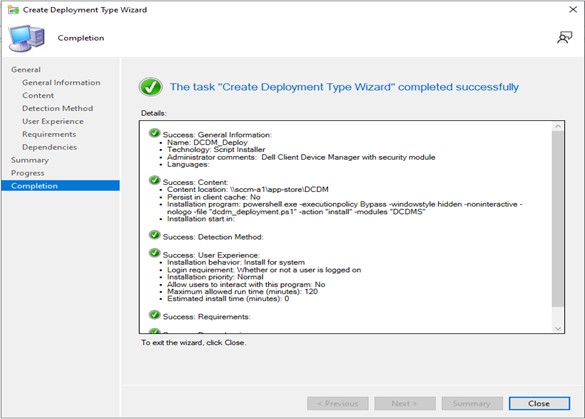
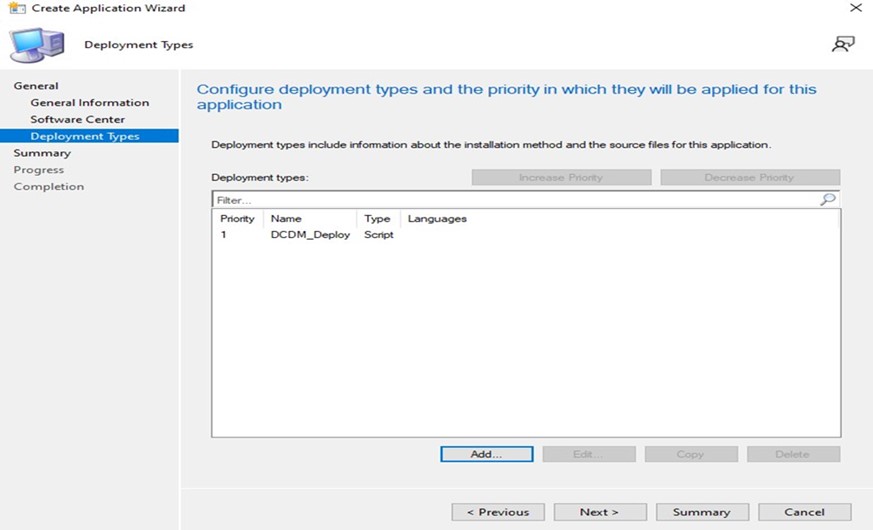
- 按一下下一步。
- 在摘要畫面上按一下下一步。
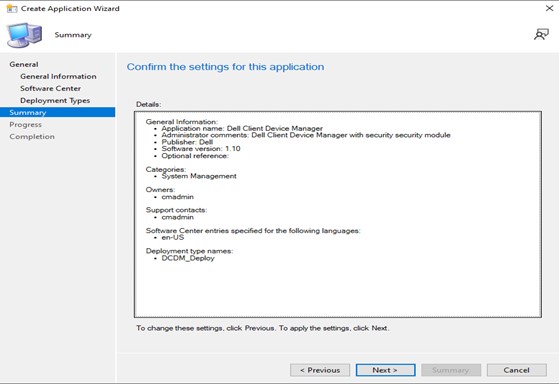
- 按一下關閉以結束建立應用程式精靈。
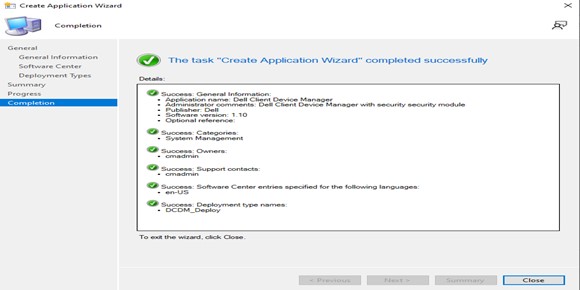
- 確定主控台中有列出應用程式。
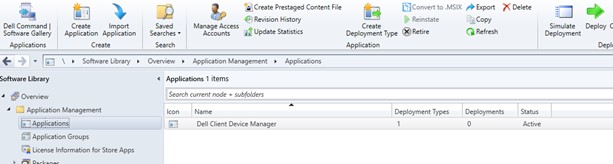
- 按一下頂部功能區中的部署按鈕以部署到適當的端點。
Affected Products
Dell Client Device ManagerArticle Properties
Article Number: 000299534
Article Type: How To
Last Modified: 22 May 2026
Version: 2
Find answers to your questions from other Dell users
Support Services
Check if your device is covered by Support Services.