Microsoft Configuration Managerを使用してDell Client Device Managerを導入する方法
Summary: この記事では、IT管理者がDell Client Device Manager (DCDM)アプリケーションに必要なモジュールを選択し、Microsoft Configuration Managerを使用して導入するための詳細な手順を説明します。
This article applies to
This article does not apply to
This article is not tied to any specific product.
Not all product versions are identified in this article.
Instructions
- アプリケーションの作成と導入に必要な権限を持つアカウントを使用してMicrosoft Configuration Managerコンソールを開き、[Software Library]>[Application Management]の順に移動します。
![[Application Management]](https://supportkb.dell.com/img/ka0Do0000002ktGIAQ/ka0Do0000002ktGIAQ_ja_1.jpeg)
- [Application Management]を展開し、[Applications]をクリックして、[Create Application]をクリックします。
![ラジオ ボタン[Manually]](https://supportkb.dell.com/img/ka0Do0000002ktGIAQ/ka0Do0000002ktGIAQ_ja_2.jpeg)
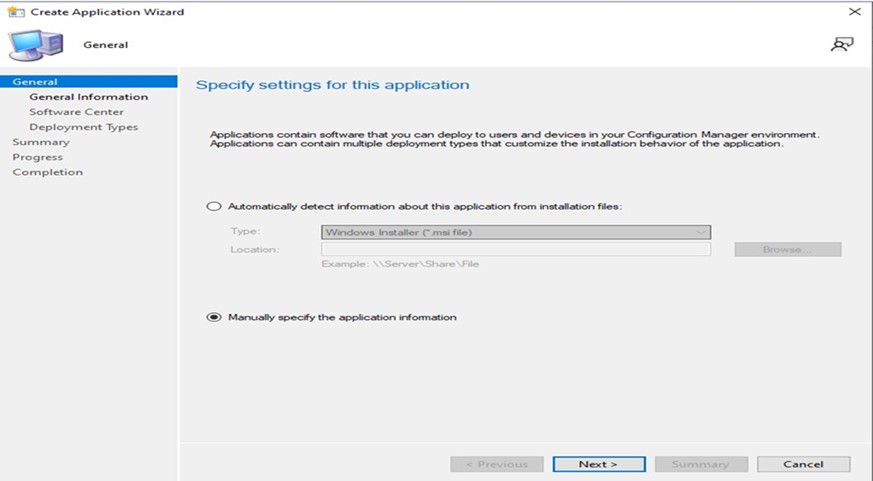
- [Manually specify the application information]ラジオ ボタンを選択し、[NEXT]をクリックします。
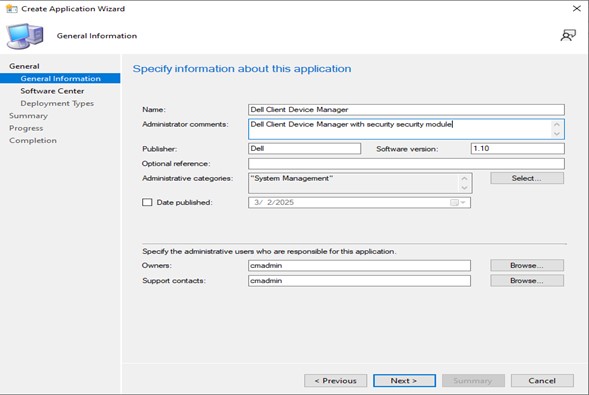
- 必要な情報を入力し、[NEXT]をクリックします。
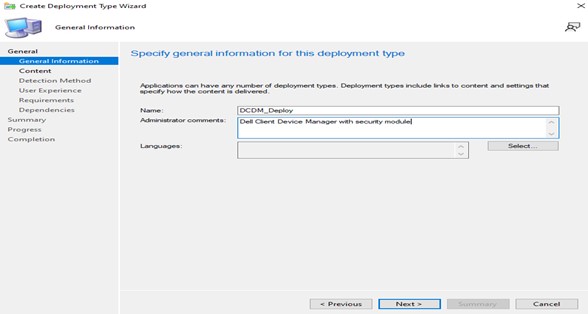
- Name: アプリケーションの名前を入力します(例:Dell Client Device Manager)。
- [Administrator comments]:説明を追加します(セキュリティ モジュールがインストールされたDell Client Device Manager)
- [Publisher]:発行者(Dell)を指定します。
- [Software Version]:バージョン(1.10)を指定します。
- [Owners]:適切なユーザーまたはグループを選択します。
- [Support Contacts]:適切なユーザーまたはグループを選択します。
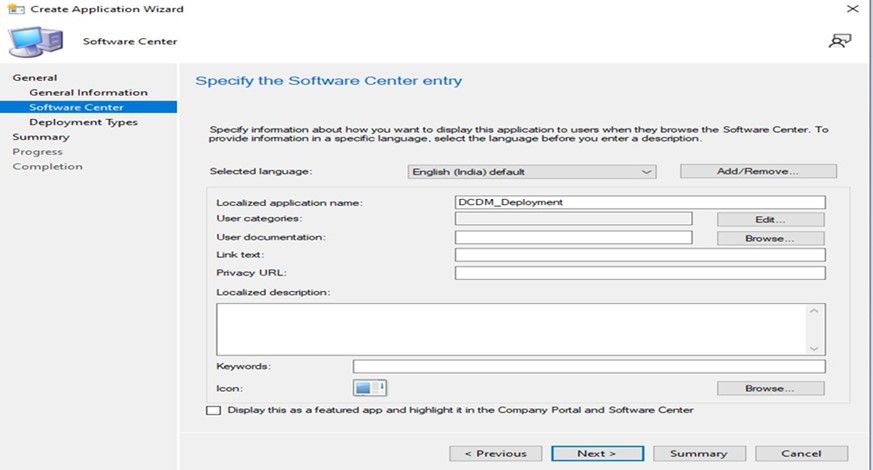
- [NEXT]をクリックします。
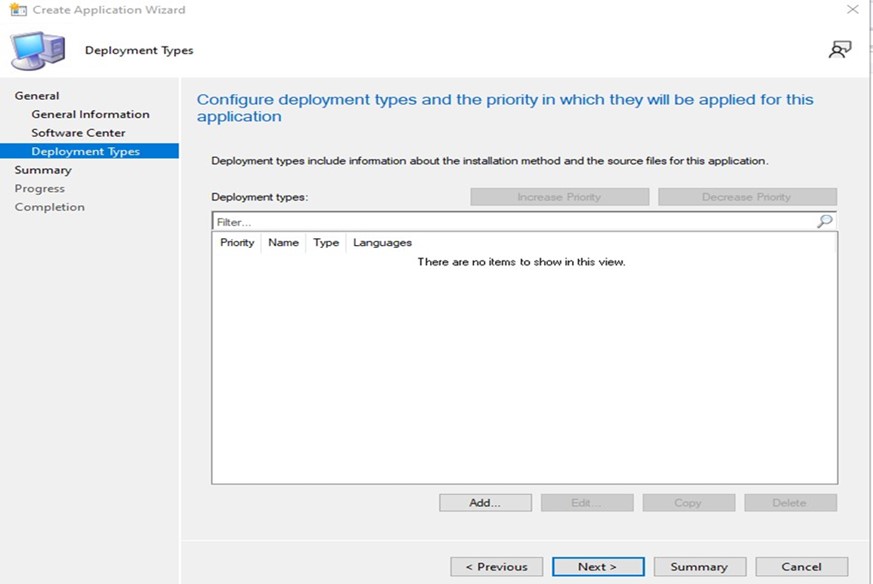
- [ADD]をクリックします。
- [Type]ドロップ ダウンから[Script Installer]を選択し、[NEXT]をクリックします。
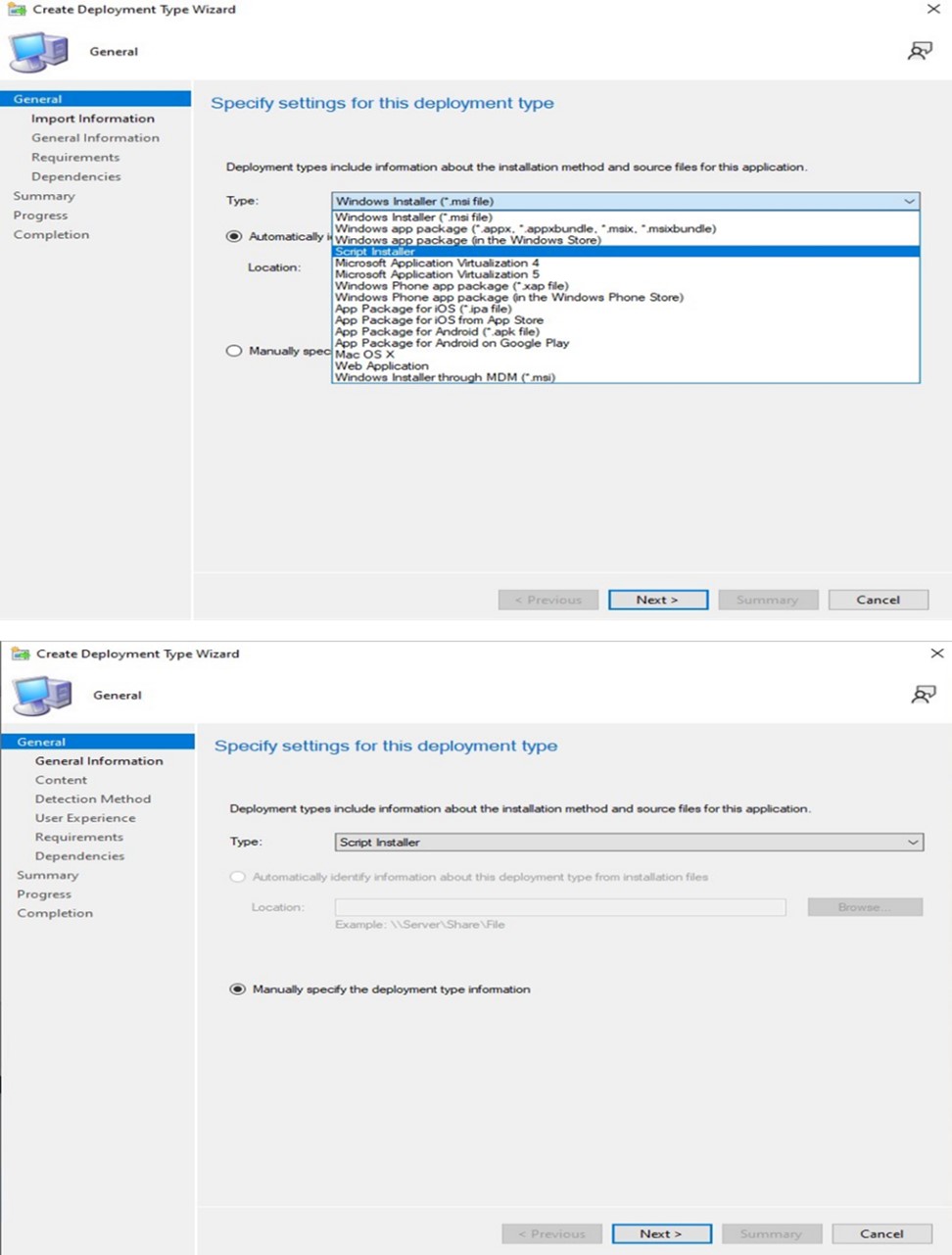
- 必要な名前と管理者のコメントを指定し、[NEXT]をクリックします。
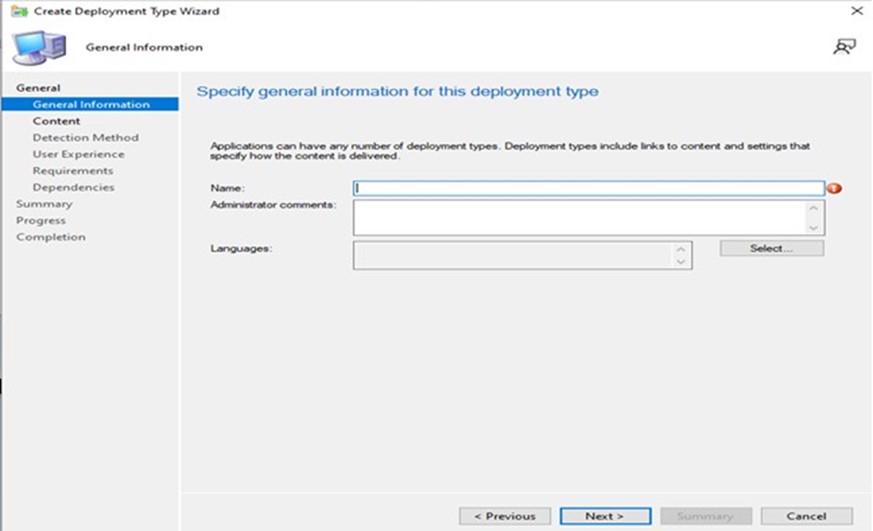
- 展開されるコンテンツを配置する場所を追加し、[Specify the Command used to install the content]で[Installation Program]を指定し、[Run installation and uninstall program as 32-bit process on 64-bit clients]チェック ボックスをクリックして、[NEXT]をクリックします。
注:インストール パラメーター、モジュール、および例のリストを以下に示します。
Install: powershell.exe -executionpolicy Bypass -windowstyle hidden -noninteractive -nologo -file "dcdm_deployment.ps1" -action < install / uninstall > -modules < modules to install >パラメータ 説明 -help オプション。パラメーターの説明を表示します -action 必須。実行するアクションを指定します(インストール/アンインストール) -modules オプション。含めるモジュールを指定します。デフォルト:「DCDMCS」、「DCDMU」、「DCDMS」 -logpath オプション。デフォルトは「C:ProgramData\Dell\ClientDeviceManager」です。ログ ファイルのパスを指定します -verboselog オプション。コンソールでのログ表示を有効にします(TrueまたはFalse) -debuglevel オプション。デフォルトは「all」です。デバッグ情報のレベルを指定します -telemetryconsent オプション。デフォルトは「true」です。テレメトリーへの同意を示します モジュール 説明 モジュールの依存先 DCDMCS Dell Client Device Managerコア サービス(旧称Dell Core Service (DCS)) 該当なし。コア コンポーネントが必要 DCDMS Dell Client Device Manager Security(旧称Dell Trusted Device (DTD)) DCDMCS DCDMU Dell Client Device Manager Update(旧称Dell Command Update (DCU)) DCDMCS、DCDMS 例:
すべてのモジュールをインストール/アップデートし、DCDMUのテレメトリーを送信します
powershell.exe -executionpolicy Bypass -windowstyle hidden -noninteractive -nologo -file "dcdm_deployment.ps1" -action "install"テレメトリーなしですべてのモジュールをインストール/アップデートします。
powershell.exe -executionpolicy Bypass -windowstyle hidden -noninteractive -nologo -file "dcdm_deployment.ps1" -action "install" -telemetryconsent "false"Dell Client Device Manager|Security (DCDMS)をインストールします。
powershell.exe -executionpolicy Bypass -windowstyle hidden -noninteractive -nologo -file "dcdm_deployment.ps1" -action "install" -modules "DCDMS"Dell Client Device Manager|Security (DCDMS)をアンインストールします。
powershell.exe -executionpolicy Bypass -windowstyle hidden -noninteractive -nologo -file "dcdm_deployment.ps1" -action "uninstall" -modules "DCDMS"すべてのモジュールをアンインストールします。
powershell.exe -executionpolicy Bypass -windowstyle hidden -noninteractive -nologo -file "dcdm_deployment.ps1" -action "uninstall"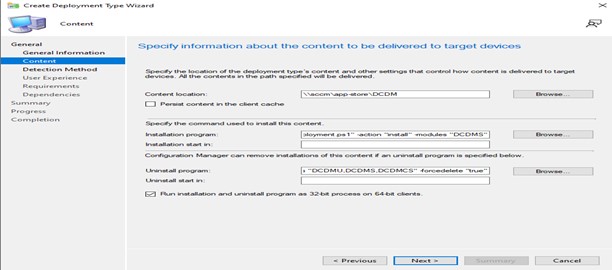
- [Add Clause]をクリックします。
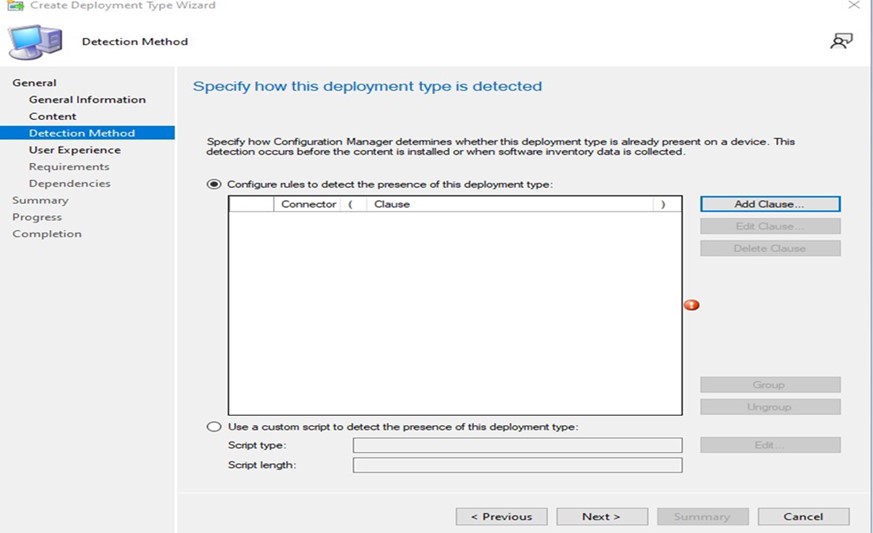
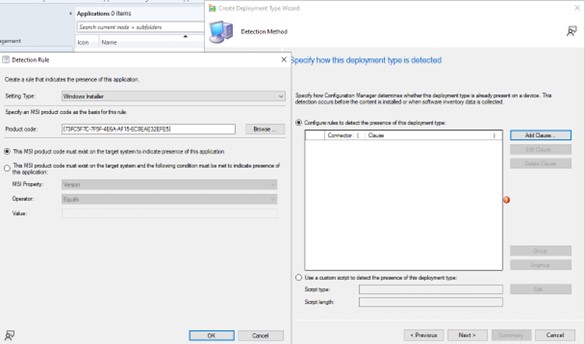
- [Type]は[Folder]を選択します。
- [Browse]ボタンをクリックして、コンテンツが配置されているパスを追加し、すべてのデータを入力したら[OK]をクリックします。
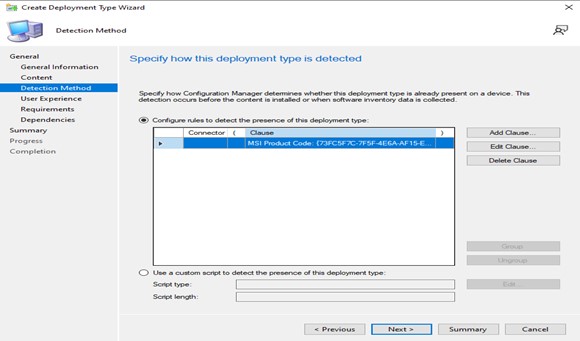
- 句を追加したら、[NEXT]をクリックします。
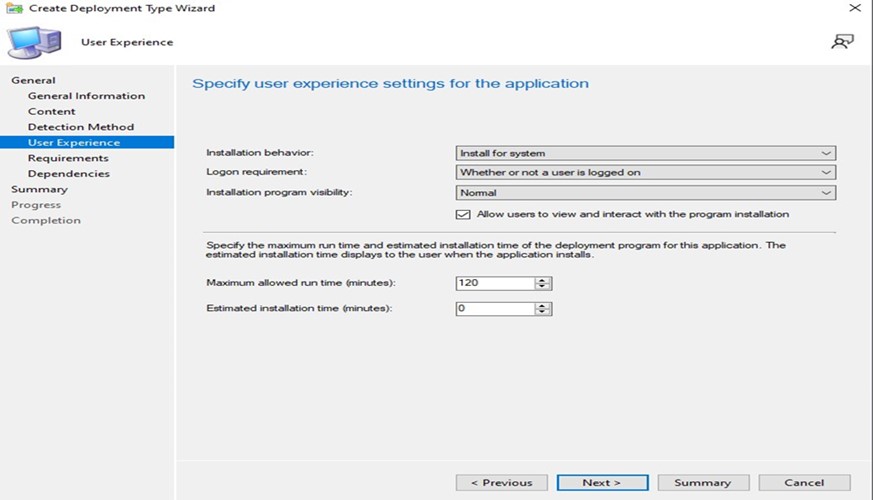
- [Installation behavior]ドロップ ダウンから[Install for system]を選択し、[Logon Requirement]ドロップ ダウンから[Whether or not a user is logged on]、[Installation program visibility]から[Normal]を選択して、[NEXT]をクリックします。
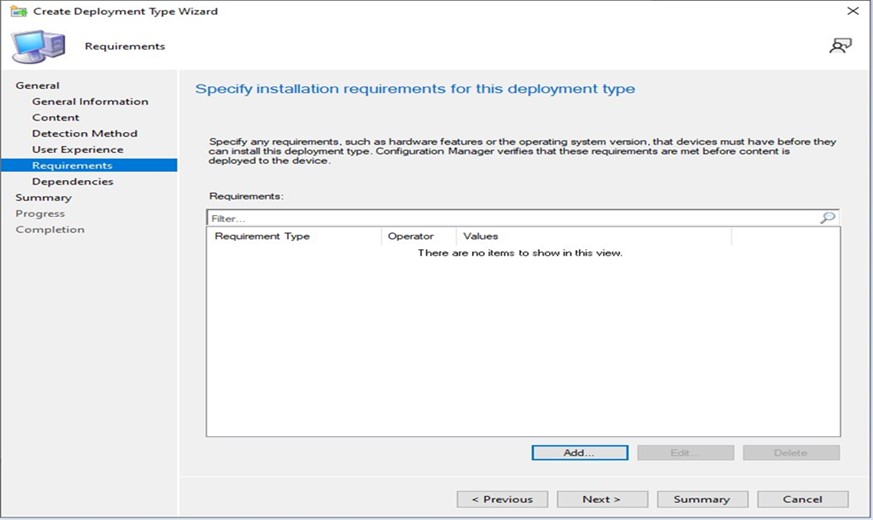
- [Specify installation requirements for this deployment type]ウィンドウで、[NEXT]をクリックします。
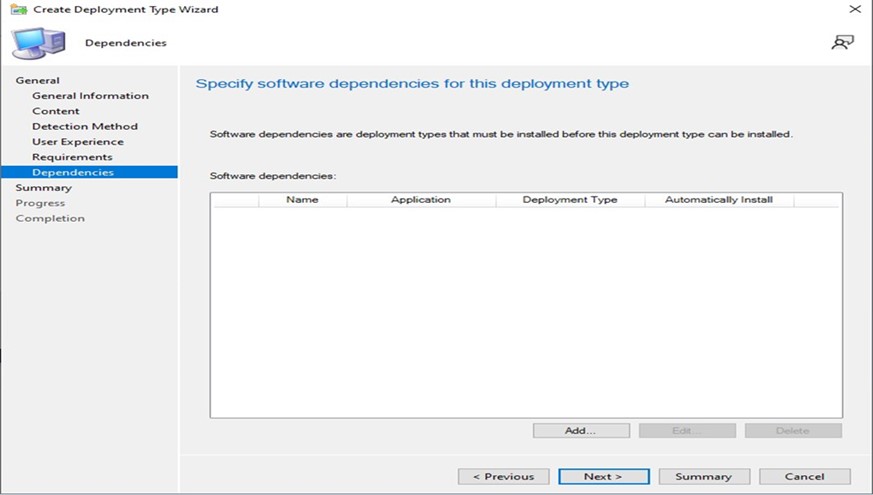
- [Specify software dependencies for this deployment type]で[NEXT]をクリックします。
注:Dell Client Device Managerでは、依存関係としてMicrosoft .NET 8 Desktop RuntimeとASP.Net Coreが必要です。
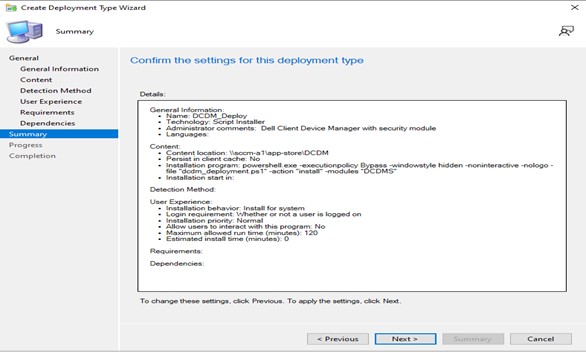
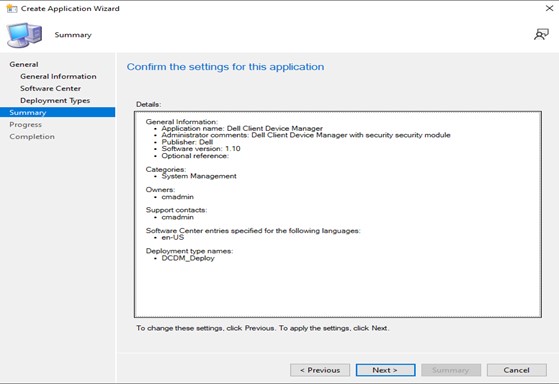
- [Summary]ウィンドウですべてのデータを確認し、[NEXT]をクリックします。
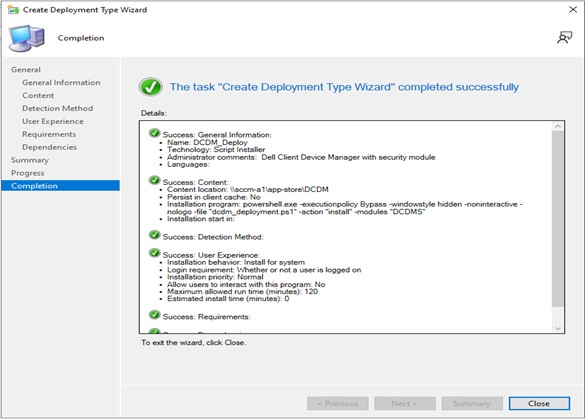
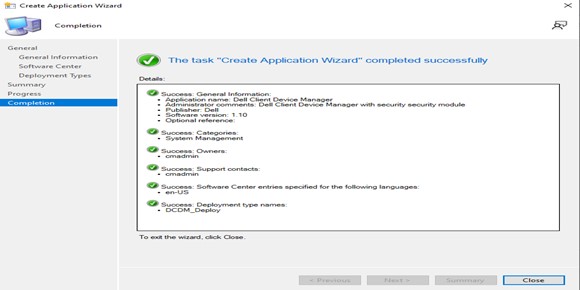
- パッケージが作成されました。[CLOSE]ボタンをクリックして、下のウィンドウを閉じます。
- [NEXT]をクリックします。
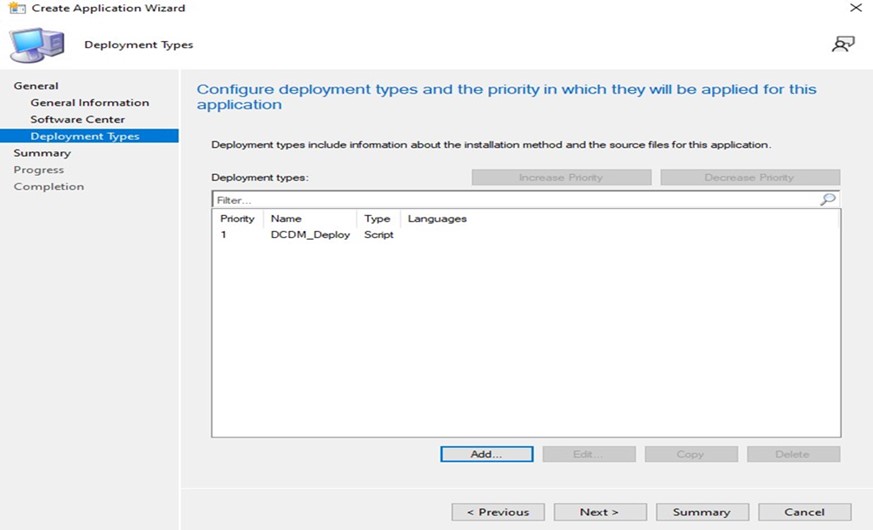
- [Summary]画面で[Next]をクリックします。
- [Close]をクリックして、Create Applicationウィザードを終了します。
- アプリケーションがコンソールに表示されていることを確認します。
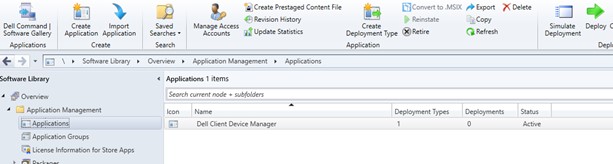
- 上部のリボンにある[Deploy]ボタンをクリックして、適切なエンドポイントに導入します。
Affected Products
Dell Client Device ManagerArticle Properties
Article Number: 000299534
Article Type: How To
Last Modified: 22 May 2026
Version: 2
Find answers to your questions from other Dell users
Support Services
Check if your device is covered by Support Services.