如何从 Windows 11 IoT 设备上的 Wyse Management Suite Cloud 检索映像
Summary: 本指南提供了使用 Wyse Management Suite (WMS) 云在远程存储库中从 Windows 11 IoT 设备检索映像的分步概述。
This article applies to
This article does not apply to
This article is not tied to any specific product.
Not all product versions are identified in this article.
Instructions
受影响的平台:
- Latitude 3440
- Latitude 5440
- OptiPlex 3000 瘦客户端
- OptiPlex 7410 一体机
- OptiPlex 7420 一体机
- OptiPlex Plus 7010 微型机
- OptiPlex Plus 7020 微型机
- 戴尔 Pro 14 PC14250
- 戴尔 Pro 24 一体机 QC24251
受影响的操作系统:
- Windows 11 IoT
通过这些步骤,可以将映像从 WMS Cloud 中的 Windows 11 IoT 设备检索到远程存储库。
下载映像的步骤:
- 在 WMS 云门户中,选择 “设备 ”选项卡
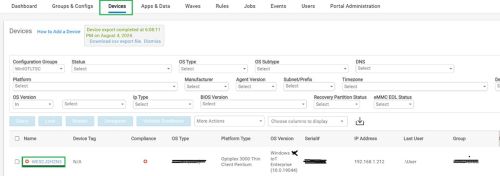
- 从设备列表中单击要拉取映像的设备
- 在设备上,转到 “更多作 ”,然后选择 “拉取映像”。
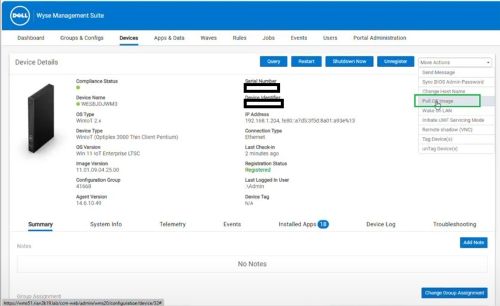
- 选择“File repository”
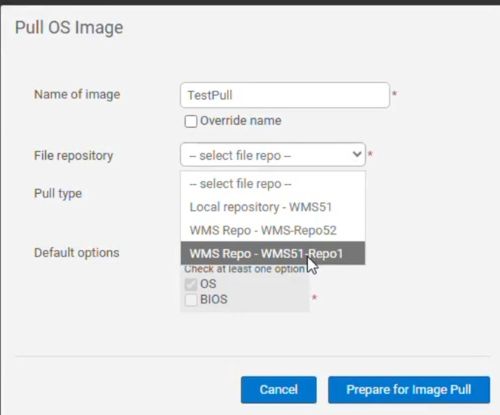
- 选择 拉取映像

在 Windows 11 IoT 设备上:
- 出现提示时,选择相关任务以拉取映像。
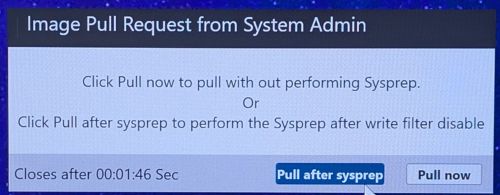
- 选择 Pull after sysprep,根据需要调整密码或域设置,然后单击 Capture image。
 提醒:此时将显示 Dell Imaging Manager 提示符。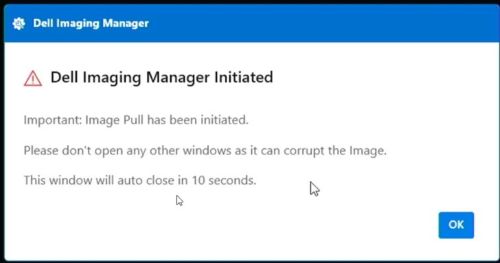
- 单击“ 确定 ”(任务开始)

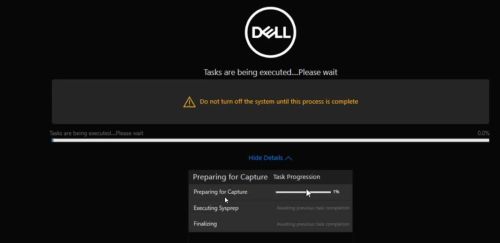
- 完成任务后,设备将自动重新启动。
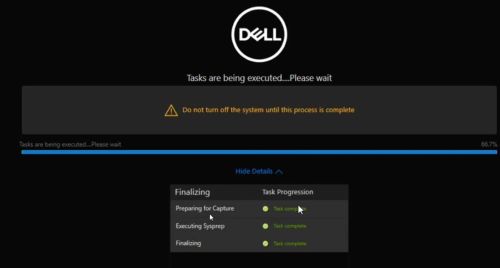
- Windows 11 IoT 设备自动以本地用户身份登录以执行以下任务:
- 在本地驱动器上创建分区。
- 捕获设备映像并将其存储在新创建的分区中。
- 设备将自动重新启动以最终完成该过程。
- 在此过程中会发生多次重新启动。
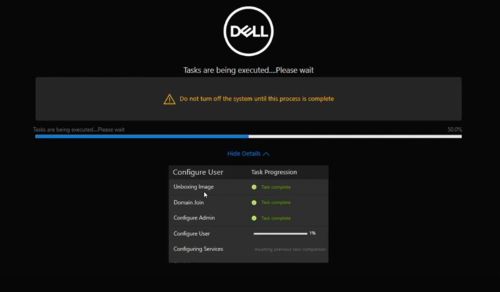
- 设备现在正在将映像上传到远程存储库。
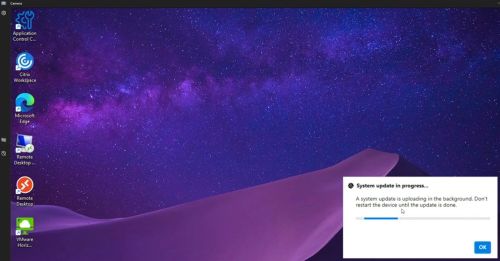
- 完成任务后,设备将自动重新启动。
- 要验证上传的映像,请执行以下作:
- 登录 到 WMS 远程存储库服务器
- 请转至
C:\WMS\RemoteRepo\repository\imagePull。- 图像通常会在五分钟内显示在暂存文件夹中。
Affected Products
Dell Pro 14 PC14250, Dell Pro 24 All-in-One QC24251, Latitude 3440, Latitude 5440, OptiPlex 3000 Thin Client, OptiPlex Micro Plus 7010, OptiPlex Micro Plus 7020, OptiPlex All-In-One 7410, OptiPlex All-in-One 7420Article Properties
Article Number: 000350783
Article Type: How To
Last Modified: 28 Jul 2025
Version: 1
Find answers to your questions from other Dell users
Support Services
Check if your device is covered by Support Services.