How to Download Secured Component Verification Certificates from My Account
Summary: Information about how to download Secured Component Verification Certificates from My Account (formerly Dell Digital Locker).
This article applies to
This article does not apply to
This article is not tied to any specific product.
Not all product versions are identified in this article.
Instructions
Note: For steps on how to access My Account, see: How to Access Your Dell Software Licenses and Digital Subscriptions
- Verify that you are in Software Licenses in My Account.
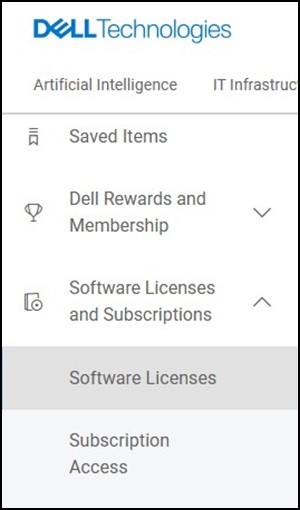
- Select Secured Component Verification from the Product Name column.

- Click Download Software.

- The certificate is saved in your browser's default download location.

To Bulk Download Certificates:
- Select Bulk Tools.
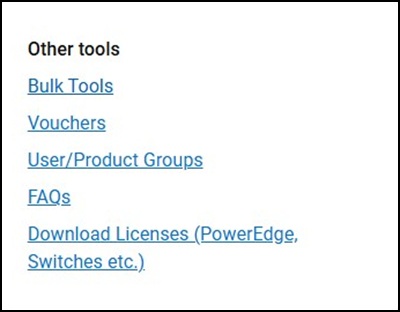
- Select Certificates.

- Select Devices.

- Click the Download Selected box.

- You will receive a confirmation box.

- Go to Bulk Files.

- Once the status shows Success, Select Actions -> Download File.

- The certificate is saved in your browser's default download location.

For more information, see: What is Secured Component Verification on Cloud and on Device
Affected Products
Dell Pro Max Micro, Dell Pro Max Slim, Dell Pro Max Tower, Dell Pro Micro, Dell Pro Slim, Dell Pro Tower, OptiPlex, XPS, Dell Pro, Dell Pro Max, Dell Pro Plus, Dell Pro Premium, Latitude, Dell Pro Rugged, XPS, Fixed Workstations, Mobile Workstations
, Dell Pro Max Micro XE FCM2250, Dell Pro Max Slim XE FCS1250, Dell Pro Max Tower T2 XE FCT2250, Dell Pro Max 14 Premium MA14250, Dell Pro Max 16 Premium MA16250, Dell Pro Max 16 Plus MB16250, Dell Pro Max 18 Plus MB18250, Dell Pro Max 16 XE MC16250, Dell Pro Micro Plus XE QBM1250, Dell Pro Slim Plus XE5 QBS1250, Dell Pro Tower Plus XE5 QBT1250
...
Article Properties
Article Number: 000398819
Article Type: How To
Last Modified: 04 Dec 2025
Version: 1
Find answers to your questions from other Dell users
Support Services
Check if your device is covered by Support Services.