How to Configure Two-Factor Authentication (2FA) for the CrowdStrike Falcon Console
Summary: Learn how to configure two-factor authentication (2FA) for the CrowdStrike Falcon Console by following these instructions for Windows, Mac, or Linux.
This article applies to
This article does not apply to
This article is not tied to any specific product.
Not all product versions are identified in this article.
Instructions
Two-factor authentication (2FA) is a type of multi-factor authentication (MFA). MFA is used to require a user to confirm their identity by using multiple factors. 2FA uses two factors to identify the user. Requiring multiple factors to authenticate a user helps keep guarded information safe from malicious threat actors. CrowdStrike requires 2FA by default, and it cannot be disabled to help protect your environment.
Affected Products:
- CrowdStrike
Affected Operating Systems:
- Windows
- Mac
- Linux
Learn more about 2FA Client Support, CrowdStrike 2FA Setup, or how to Reset CrowdStrike 2FA. Click the appropriate process for more information.
2FA Client Support
The CrowdStrike Falcon Console should be compatible with any RFC 6238 time-based one-time password (TOTP) client. For more information, refer to https://datatracker.ietf.org/doc/html/rfc6238
| 2FA Client | iOS | Android | Windows | Mac | Linux | Internet Browser |
|---|---|---|---|---|---|---|
| Google Authenticator | Yes | Yes | No | No | No | None |
| 1Password | Yes | Yes | Yes | Yes | No | None |
| Duo | Yes | Yes | No | No | No | None |
| Authy | Yes | Yes | Yes | Yes | No | Chrome |
| Token2 | Yes | Yes | No | No | No | None |
| Wikid | Yes | Yes | Yes | Yes | Yes | Chrome |
| Microsoft Authenticator | No | No | No | No | No | None |
| Oathgen | No | No | Yes | Yes | No | None |
| Authenticator | No | No | Yes | Yes | No | Chrome |
| Firekey | No | No | No | No | No | Chrome |
Note: Dell and CrowdStrike do not endorse nor support any listed third-party RFC 6238 TOTP client. The listed clients are examples of potential products that can be used. Contact the product’s manufacturer for information about setup, configuration, and management.
CrowdStrike 2FA Setup
- In a Google Chrome or Microsoft Edge browser, go to your Falcon console login URL.
- Falcon US-1: https://falcon.crowdstrike.com/login/
- Falcon US-2: https://falcon.us-2.crowdstrike.com/login/
- Falcon EU-1: https://falcon.eu-1.crowdstrike.com/login/
- Falcon US-GOV-1: https://falcon.laggar.gcw.crowdstrike.com/login/
- Falcon US-1: https://falcon.crowdstrike.com/login/
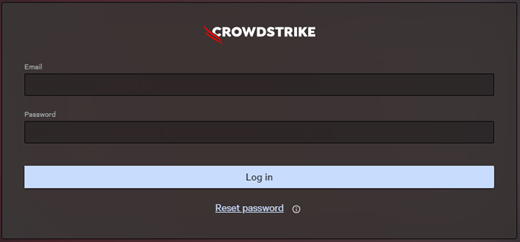
- Populate the CrowdStrike account holder’s credentials, and then click Log In.
- Scan the QR code with your time-based one-time password (TOTP) client.
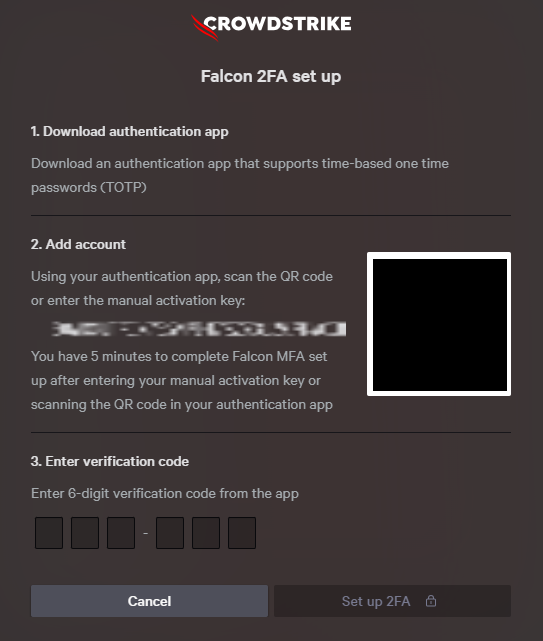
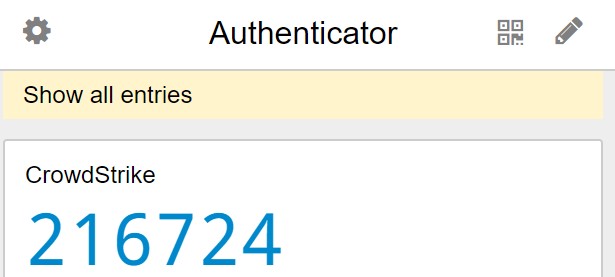
Note: The manual setup code will differ in your environment. - In the TOTP client, document the Verification Code.
 Note:
Note:- The TOTP client layout may differ in your environment.
- In the example, 216726 is the Verification Code.
- The Verification Code may also be referred to as the CrowdStrike 2FA code.
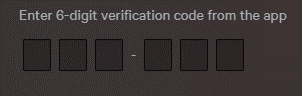
- In the CrowdStrike Falcon Console user interface (UI), populate the Verification Code and then click Setup 2FA.
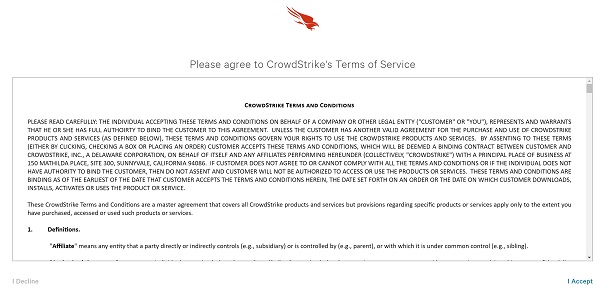
- Accept CrowdStrike’s Terms of Service.
Reset CrowdStrike 2FA
Note:
- The CrowdStrike Falcon Console administration access is required to reset a user’s 2FA.
- If administration access is unavailable, reach out to Dell support.
- In a Google Chrome or Microsoft Edge browser, go to your Falcon console login URL.
- Falcon US-1: https://falcon.crowdstrike.com/login/
- Falcon US-2: https://falcon.us-2.crowdstrike.com/login/
- Falcon EU-1: https://falcon.eu-1.crowdstrike.com/login/
- Falcon US-GOV-1: https://falcon.laggar.gcw.crowdstrike.com/login/
- Falcon US-1: https://falcon.crowdstrike.com/login/
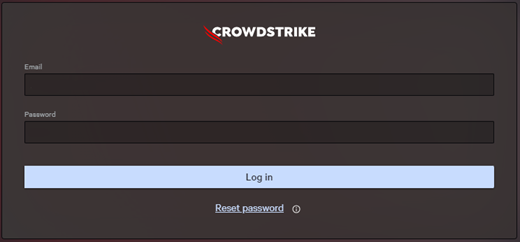
- Populate the CrowdStrike account holder’s credentials, and then click Log In.
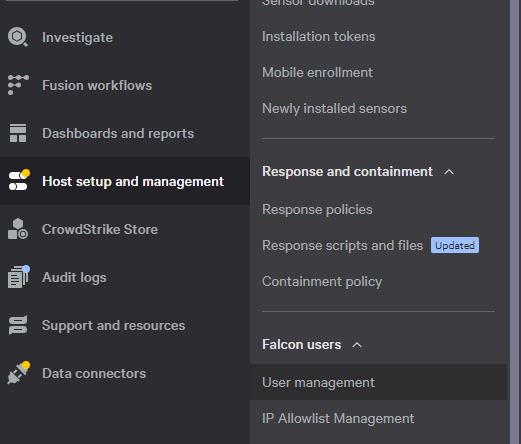
- In the CrowdStrike Falcon Console, click the three bars icon in the upper left, click Host setup and management, and then select the User management app.
- Locate the user, click the five-pin button, and then select Reset multi-factor authentication.

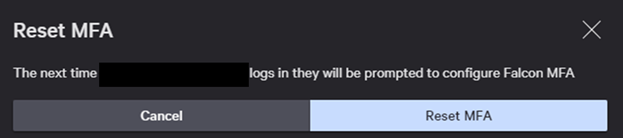
- Click Reset MFA.
- Instruct the user to complete the CrowdStrike 2FA Setup process.
Affected Products
CrowdStrikeArticle Properties
Article Number: 000126191
Article Type: How To
Last Modified: 22 Sep 2026
Version: 19
Find answers to your questions from other Dell users
Support Services
Check if your device is covered by Support Services.