MD3000/MD3000i: How to collect diagnostic logs
Summary: This article explains how to generate logs on an MD3000 or MD3000i.
This article applies to
This article does not apply to
This article is not tied to any specific product.
Not all product versions are identified in this article.
Symptoms
 Note: This article is part of the Dell PowerVault knowledge library, available here.
Cause
N/A
Resolution
To gather the diagnostic logs on MD3000/3000i storage, see the Modular Disk Storage Manager v5.0 (MDSM) and follow the steps below:
- Open the Modular Disk Storage Manager (MDSM).
- Connect to the storage device from which you want to gather support information.
- Choose the Support tab.
- Click Gather Support Information.
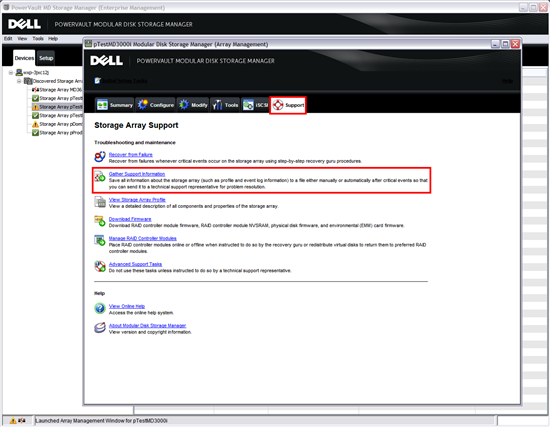
Figure 1: MDSM interface: Support Tab
- In the next dialog box, click Save Support Information.
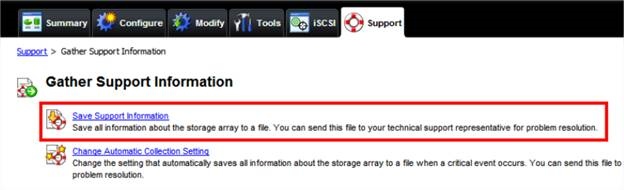
Figure 2: MDSM interface: Support Tab
- Click Browse and then select a Name and a Location to save the Support Information Report.
.png)
 Note: The system automatically names the file if not given.
- Click Start. The support information is gathered.
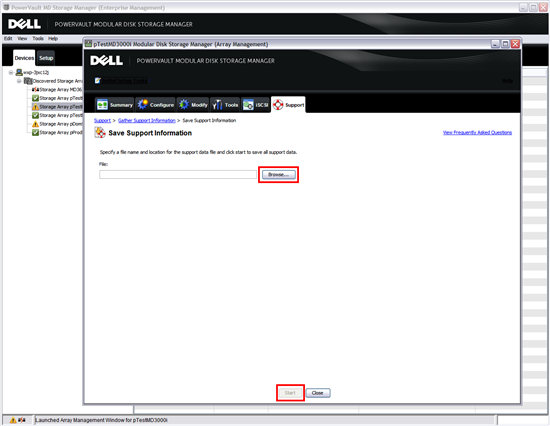
Figure 3: MDSM interface: Support Tab
- After the task completes, click Close to close the window.
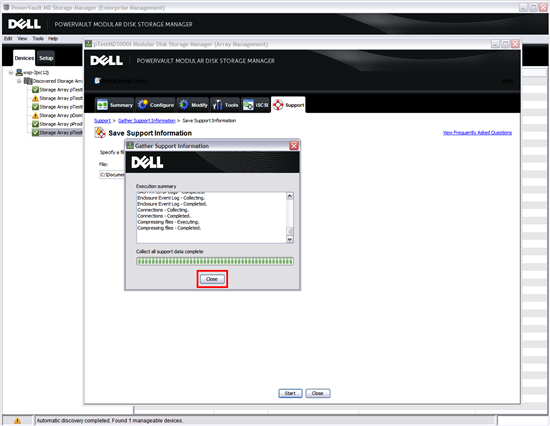
Figure 4: MDSM interface: Gather Support Information
- The report log is created at the named location as a *.zip-File.
- Send to the Technical Support this report for analysis.
 Note: The support report should not be larger than 3 MB.
Affected Products
PowerVault MD3000, PowerVault MD3000iArticle Properties
Article Number: 000132420
Article Type: Solution
Last Modified: 30 Dec 2025
Version: 7
Find answers to your questions from other Dell users
Support Services
Check if your device is covered by Support Services.