How to Subscribe to DTA and DSA Notifications
Summary: This article describes the procedure for users to get notifications of documents published on any product that has notification abilities.
This article applies to
This article does not apply to
This article is not tied to any specific product.
Not all product versions are identified in this article.
Instructions
Following the procedure to subscribe for Product Updates using the option below:
- Go to Dell Support/home
- Sign-In using the account details (the Sign-in name is visible on the right-side of the screen).
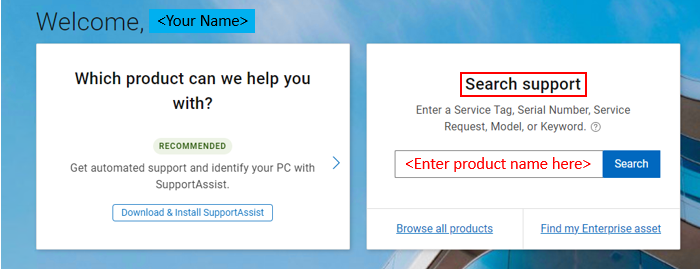
- In the Search support window on the right, enter the Dell products that you want to receive notifications for.
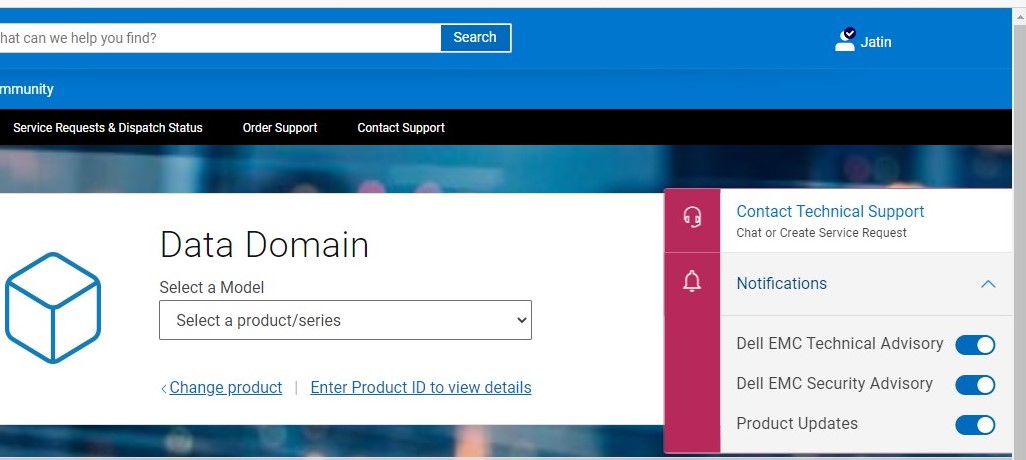
- Click Notifications on the right-side of the screen and turn on the options for Product Updates. It is highly recommended to enable Dell Technical Advisory and Dell Security Advisory also. See the screenshot for reference. If the pop-out window is not displayed, click the tags on the upper right with the head set and bell icon to see Notifications.
Example of Data Domain as the entered product
Affected Products
VxRack, VxRail, AppSync, Avamar, PowerProtect Data Protection Appliance, Atmos, CloudArray, Disk Library, ECS, Isilon, metro node, PowerMax, ScaleIO, Symmetrix, VMAX, VPLEX, XtremIO, NetWorkerArticle Properties
Article Number: 000183044
Article Type: How To
Last Modified: 10 Jun 2026
Version: 7
Find answers to your questions from other Dell users
Support Services
Check if your device is covered by Support Services.