PowerEdge: How to configure Email alerts and SNMP trap forwarding in the IDRAC console.
Summary: Systems Management How to Video that covers how to configure Email alerts and SNMP trap forwarding in the IDRAC console.
This article applies to
This article does not apply to
This article is not tied to any specific product.
Not all product versions are identified in this article.
Instructions
How to Configure iDRAC E-mail Alerts and SNMP Traps
Duration: 00:04:14 (hh:mm:ss)
When available, closed caption (subtitles) language settings can be chosen using the CC icon on this video player.
Purpose of Alerts
iDRAC alerts provide real-time notification of hardware and system events. Alerts support one-to-many management and can be sent to email recipients, ticket-creating software, or Secure Connect Gateway.
Event Filters
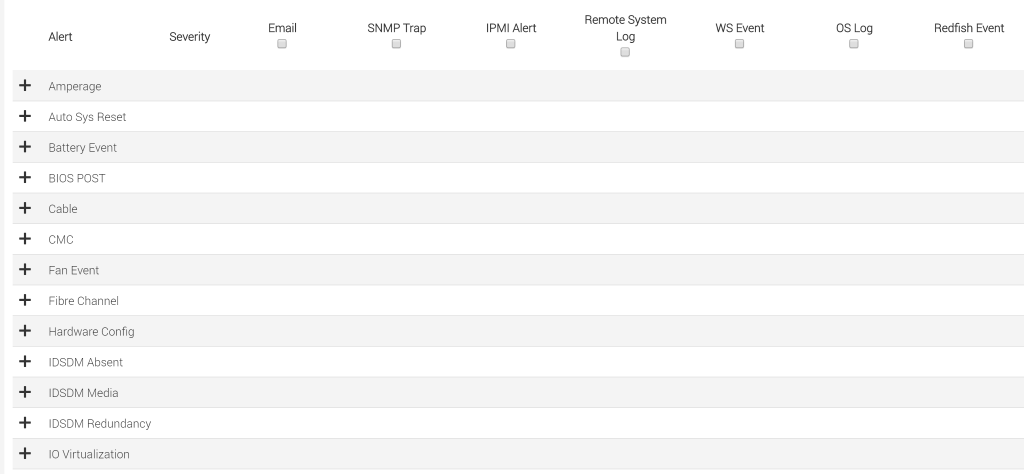
Event filters define how the iDRAC treats different types of alerts. Each alert category can be configured to send notifications through one or more channels.
Configure event filters using one of the following methods:
- Web interface: Click Configuration and then click System Settings and then click Alerts
- RACADM command:
racadm eventfilters - Server Configuration Profile clone
The following image shows the Event Filters configuration page:
Test events
To test event delivery, click Configuration and then click System Settings and then click Test Event. The test event corresponds with the Event Messages in the Lifecycle Controller Log. The iDRAC acts as if a real event occurs and logs a second entry indicating it was a test.
Alert option 1: SNMP
Simple Network Management Protocol (SNMP) is a commonly used alerting protocol:
- Uses UDP on port 162
- Supports SNMPv1 and v2 community string authentication
- Supports SNMPv3 iDRAC user account authentication
- Required for Secure Connect Gateway
- Only alert type accepted by OpenManage Enterprise
To configure SNMP alerts in the web interface, click Configuration and then click System Settings:
- Enable Alerts and configure Event Filters.
- Configure the SNMP destination, community string, and iDRAC user account.
- Set a customized port as needed.
Alert option 2: Remote Syslog
Remote Syslog sends log data over UDP port 514. This option is commonly used with third-party software such as Splunk.
To configure Remote Syslog alerts in the web interface, click Configuration and then click System Settings:
- Enable Alerts and configure Event Filters.
- Enter the Remote Syslog Server destination address.
- Customize the port as needed.
Alert option 3: Email
Email alerts are best suited for environments with few servers and no dedicated monitoring software. Email alert configuration is covered in the sections below.
Alert option 4: Redfish Event and WS-Event
These alert types are designed for custom web server listeners:
- Redfish Event subscriptions are configured only through the Redfish API
- WS-Event subscriptions are configured only through WS-MAN
Email sender address
The sender address that the iDRAC uses for email alerts depends on the iDRAC network settings. By default, the address is based on Common Settings under Network Settings.
The following table describes how the sender address is constructed:
| Condition | Email sent as |
|---|---|
| No iDRAC DNS name is populated | idrac-svctag@[ip_address] |
| iDRAC DNS name is populated, but DNS domain name is blank | DNSRacName@[ip_address] |
| iDRAC DNS name and DNS domain name are both populated | DNSRacName@DNSDomainName |
| iDRAC DNS name is populated, DNS domain name is set to DHCP | DNSRacName@DNSDomainName |
Note: On iDRAC firmware 4.00.00.00 and newer, the email sender address is configurable directly.
Email alert configuration
To configure email alerts, verify the following settings:
- Alerts are enabled
- Event filters are configured for Email
- SMTP server settings are configured (server address, port, and authentication)
- At least one SMTP email address is configured as a recipient
- DNS is configured if using an FQDN for the mail server
- Common Settings are configured (recommended)
Troubleshoot email alert error "RAC0225"
If a test email fails, the iDRAC reports the following error message:
"RAC0225"
This error means the iDRAC was unable to connect to the mail server connector. The cause can be incorrect SMTP configuration in the iDRAC, incorrect receiving connector settings on the mail server, or a connection timeout.
Troubleshooting workflow
- Rule out DNS. Verify that the iDRAC can resolve the mail server FQDN. Try using the mail server IP address instead.
- Verify that the Static DNS Domain Name field is populated under iDRAC Settings, then Connectivity, then Common Settings. A blank value in this field is a common cause of "RAC0225."
- Ensure the iDRAC can ping the mail server.
- Check the SMTP configuration in the iDRAC (server address, port, and authentication settings).
- If email alerts worked before upgrading to firmware 4.00.00.00 or newer, the issue may be caused by the default TLS encryption setting. iDRAC firmware 4.00.00.00 and newer defaults to an encrypted TLS connection for SMTP. If the mail server does not support TLS, disable connection encryption by running the following command:
racadm set iDRAC.RemoteHosts.ConnectionEncryption None
- Try sending with and without SMTP authentication enabled.
- If one iDRAC does not work, copy the SMTP configuration from a working iDRAC using a Server Configuration Profile.
- Try making the iDRAC mail sender a valid mailbox. Some mail servers or third-party mailbox providers disable anonymous sending.
- Check the mail server logs for rejected connections or authentication failures.
Office 365 workaround
Office 365 does not allow email to be sent from an invalid mailbox. Ensure that the sender address configured on the iDRAC matches an existing Office 365 email address.
Affected Products
iDRAC7, iDRAC8, iDRAC9Article Properties
Article Number: 000188048
Article Type: How To
Last Modified: 29 Sep 2026
Version: 11
Find answers to your questions from other Dell users
Support Services
Check if your device is covered by Support Services.