Nvidia Mellanox ConnectX NIC Device timeout and reset
Summary: AX and ACP For Azure customers running Azure Local solution can experience frequent NIC resets across multiple nodes after installing SBE 4.1.2506.n or 4.1.2507.n, with NIC driver 25.1.26647 ...
This article applies to
This article does not apply to
This article is not tied to any specific product.
Not all product versions are identified in this article.
Symptoms
Overview
Azure Local instances with Machines that have the NVIDIA ConnectX NIC (Network Interface Card) may experience warning level NDIS Event ID 10400 and mlx5 event ID 386 after installing SBE version 4.2.2506.n (AX) or 4.2.2507.n (MC).
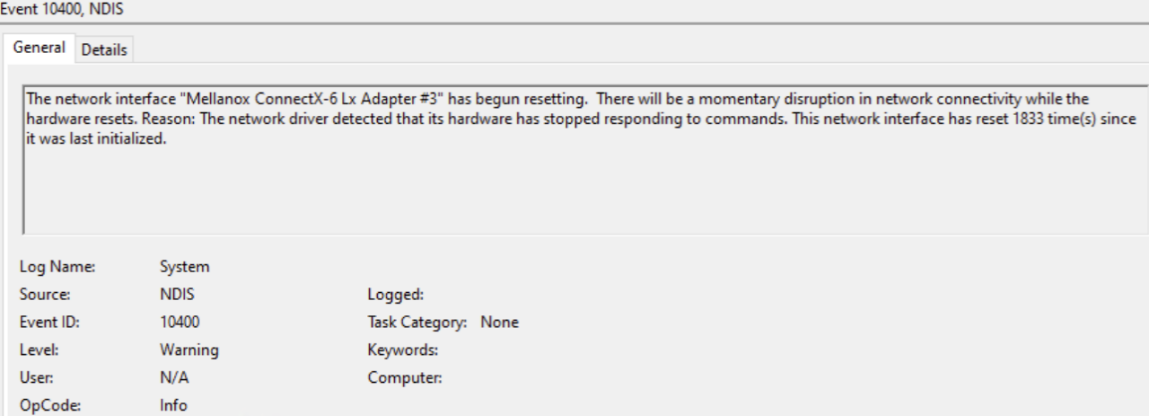
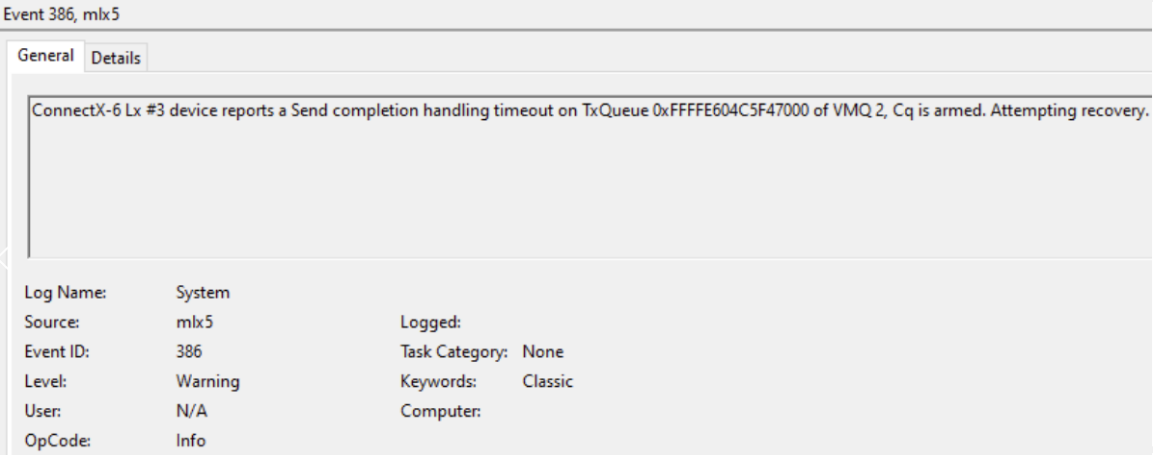
The following command can be used to search for the event log for these events:
Get-WinEvent -FilterHashtable @{LogName="System";ID=10400,386} -ErrorAction SilentlyContinue | Format-list -Property Id,TimeCreated,ContainerLog,LevelDisplayName,MessageThese events involve the ConnectX NIC resets which can result in network disruption, machine eviction from the Azure Local cluster, and occasional bugcheck events. This condition has been observed under certain workloads with mlx5.sys driver version 25.1.26647.0 and corresponding ConnectX firmware that is installed by SBE 4.2.2506.n (AX) or 4.2.2507.n (MC).
Identifying Affected Azure Local Instances
The problematic behavior may occur when all the following conditions are met:
- The machines are members of an Azure Local instance
- The machines have one or more ConnectX NICs installed
- SBE 4.2.2506.n (AX) or 4.2.2507.n (MC) is installed on the Azure Local instance
- The running ConnectX NIC driver version is 25.1.26647.0
Identifying Installed ConnectX Firmware Version
The following procedure can be performed on each machine in an Azure Local instance.
- Connect to iDRAC web interface, select System drop down and Inventory.
- Expand Firmware Inventory and look for components with the work ConnectX in the description. Note the installed firmware version.

Identifying Installed ConnectX Driver Version
The following procedure can be performed on each machine in an Azure Local instance.
- Run the following command in the host OS to identify the running ConnectX driver version:
Get-NetAdapter -InterfaceDescription “*ConnectX*” | Sort-Object -Property Name | Format-Table -Property Name, InterfaceDescription, DriverInformation

ConnectX Driver and Firmware Versions
|
Component |
Affected Version |
Remediation Version |
Remediation Version Download |
|
ConnectX Driver |
25.1.26647.0 |
24.4.26429.0 |
N/A (SBE Payload) |
|
ConnectX-6 LX FW |
26.44.10.36 |
26.41.10.00 |
|
|
ConnectX-6 DX FW |
22.44.10.36 |
22.41.10.00 |
|
|
ConnectX-5 EN/EX FW |
16.35.40.30 |
16.35.30.06 |
|
|
ConnectX-4 LX |
14.32.21.02 |
14.32.20.04 |
Cause
This condition has been observed on Dell AX and MC Azure Local solution under certain workloads with mlx5.sys driver version 25.1.26647.0 and corresponding ConnectX firmware that is installed by SBE 4.2.2506.n (AX) or 4.2.2507.n (MC).
Resolution
Implementing Remediation
Downgrading ConnectX NIC Firmware Prior to installing SBE 4.2.2509.n (AX)
Perform the following procedure on each machine in the affected Azure Local instance.
- Connect to iDRAC web interface, select Maintenance drop down and select System Update.
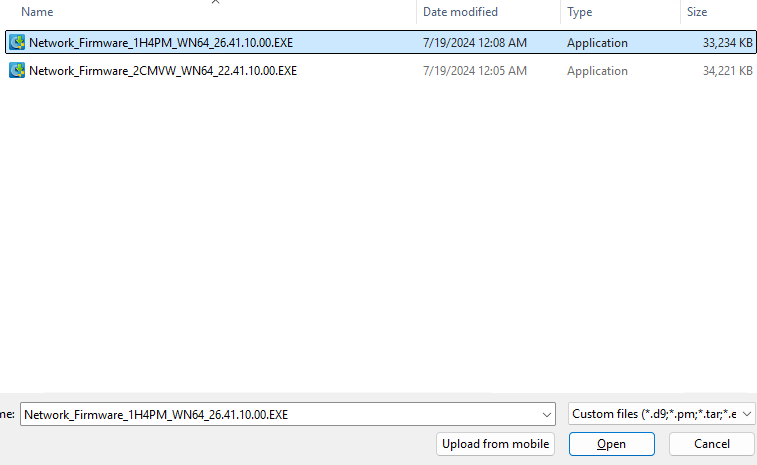
- Click Choose File button and select the firmware file executable to be installed for the ConnectX NIC in your machine. Click the Open button to complete the selection.
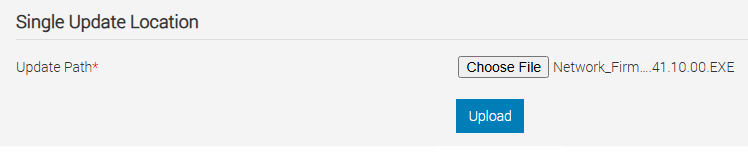
- Click the Upload button to start the upload process.
- Once the upload process completes, click the plus next to the file that was uploaded to see the components to which this firmware file applies. The currently installed firmware version and the available firmware version will be displayed. The available firmware version is the version that will be installed.
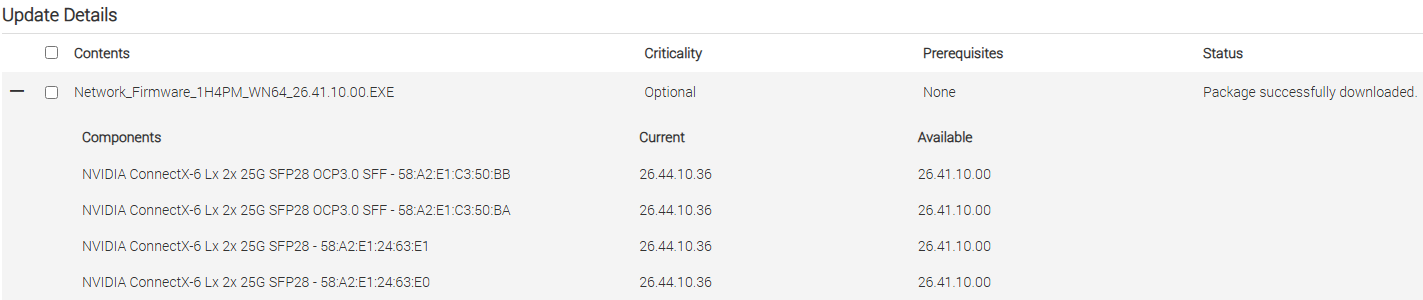
- Click the check box next to the firmware file to be installed and select install. This action will stage the ConnectX NIC firmware upgrade the firmware upgrade will be completed when the host OS is rebooted during a later step.
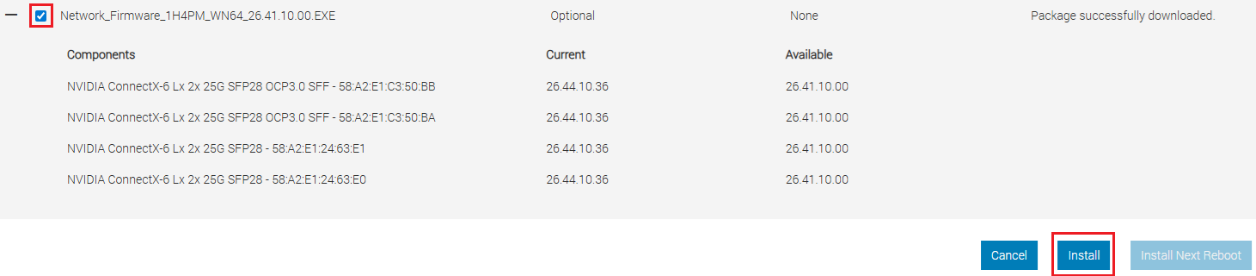
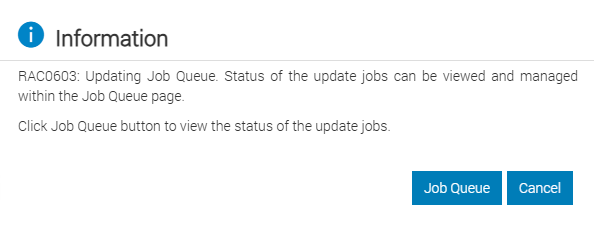
- The formation installation job will be added to the job queue. Click the Job Queue button to view the job in the job queue.
- The job progress will be displayed.

- Wait until the job status shows 100% complete. Note the indicated Server Reboot Pending status.

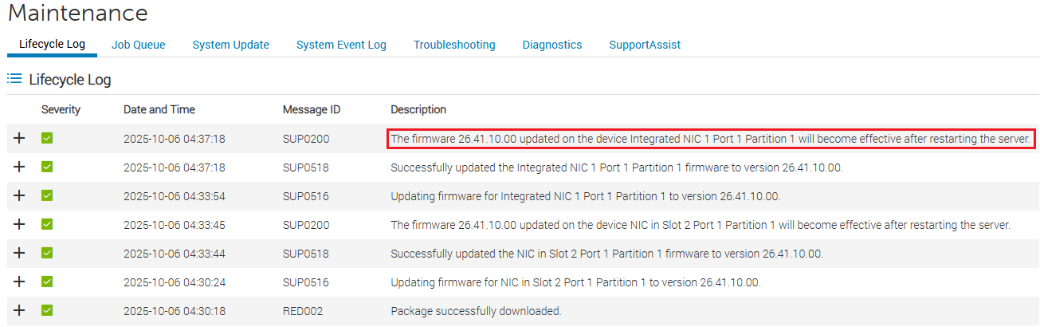
- Click the Lifecycle Log and note again that firmware update will be effective after restarting the server. The server will be restarted automatically as part of the SBE installation in a later step.
Installing SBE 4.2.2509.n
Install the SBE 4.2.2509.n using the standard SBE installation process. SBE 4.2.2509.n installation will install the invoke the installation of the staged ConnectX firmware, install SBE 4.2.2509.n driver and firmware payload. mlx5 driver version 24.4.26429.0 will also be installed as part of installing SBE 4.2.2509.n.
Verifying Successful Remediation
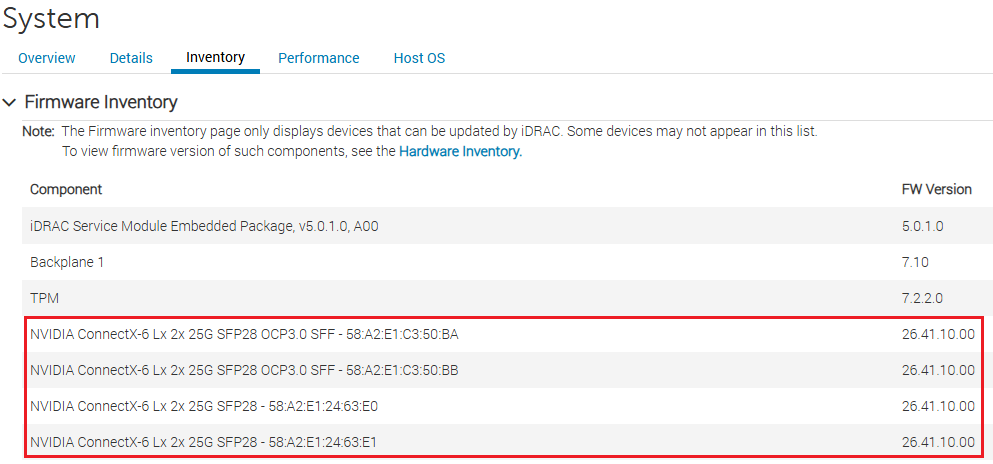
Verify the ConnectX driver and firmware version after SBE 4.2.2509.n is successfully installed.
Verify Installed ConnectX Firmware Version
The following procedure can be performed on each machine in an Azure Local instance.
- Connect to iDRAC web interface, select System drop down and Inventory.
- Expand Firmware Inventory and look for components with the work ConnectX in the description. Note the installed firmware version.
Verify Installed ConnectX Driver Version
The following procedure can be performed on each machine in an Azure Local instance.
- Run the following command in the host OS to identify the running ConnectX driver version:
Get-NetAdapter -InterfaceDescription “*ConnectX*” | Sort-Object -Property Name | Format-Table -Property Name, InterfaceDescription, DriverInformation

NOTE: For MC nodes, please use the methods in this KB to manually downgrade the Nvidia Driver and firmware until the next Apex Cloud Platform software update.
NOTE: If you already applied SBE 4.2.2509.n, but did not downgrade the Mellanox firmware, please use the steps below to downgrade the firmware to the same level as the driver.
- Pause and drain the node.
- Suspend BitLocker in C: ->
Suspend-BitLocker -MountPoint "C:" -RebootCount 0 - Follow the steps under "Implementing Remediation" section to perform firmware downgrade by invoking the appropriate DUP depending on the NIC Model and restart the system.
- Verify in IDRAC that FW downgrade has been successful.
- Verify proper connectivity in the Mellanox nics, and resume BitLocker:
Resume-BitLocker -MountPoint "C:" - Remove node from maintenance mode. Wait for Storage jobs to complete prior pausing any other node.
Affected Products
APEX MC-660, APEX MC-760, ax-650, AX-6515, AX-660, AX-750, AX-7525, AX-760Article Properties
Article Number: 000376360
Article Type: Solution
Last Modified: 10 Oct 2025
Version: 3
Find answers to your questions from other Dell users
Support Services
Check if your device is covered by Support Services.