How to Upgrade the BIOS and the Firmware on a Dell Pro Max with the Grace Blackwell System
Summary: This article describes how to run BIOS, Embedded Controller (EC), Power Delivery (PD), Trusted Platform Module (TPM) firmware upgrades on the Dell Pro Max with the Grace Blackwell system. ...
This article applies to
This article does not apply to
This article is not tied to any specific product.
Not all product versions are identified in this article.
Instructions
Run System Updates in the DGX Dashboard.
- Click the DGX Dashboard App.
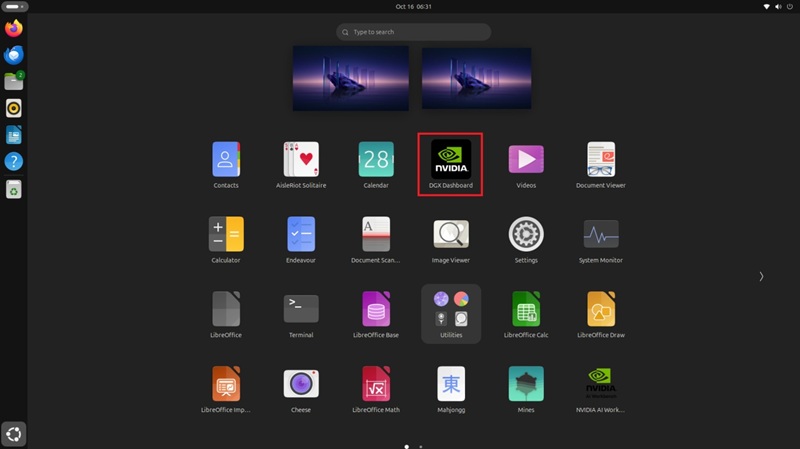
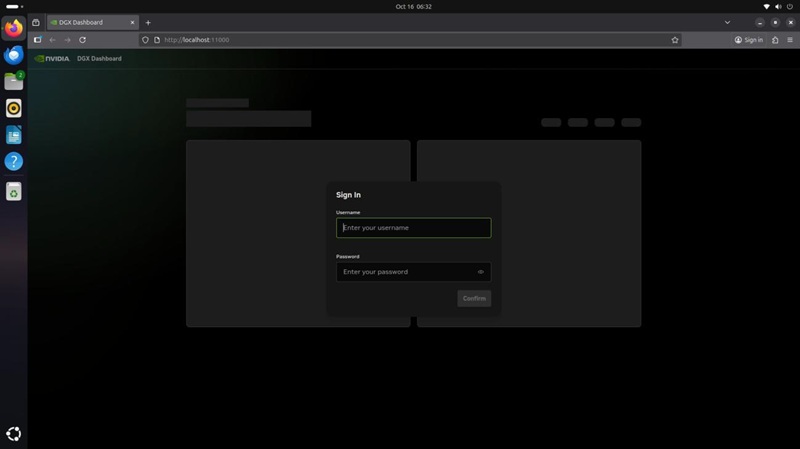
- Login with your Ubuntu Username and Password.
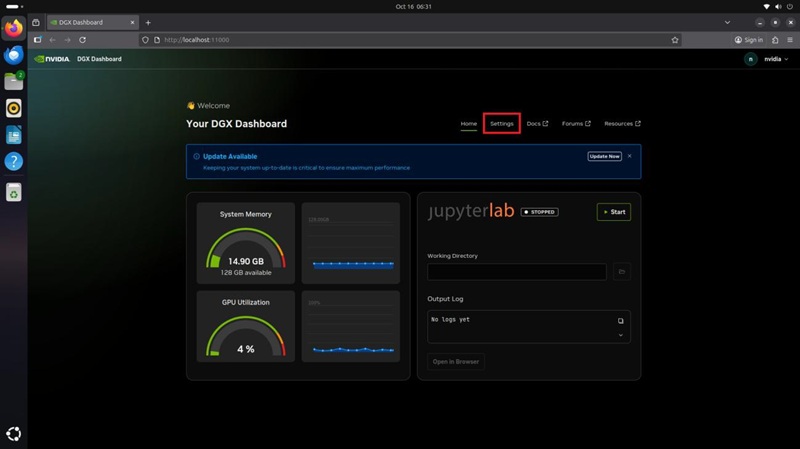
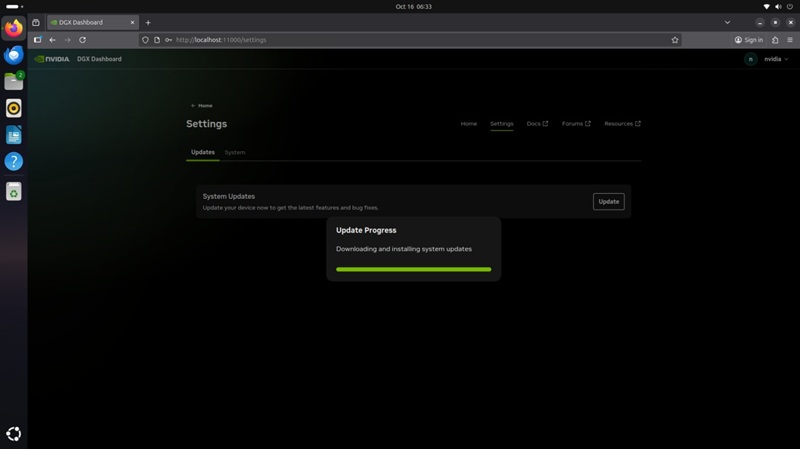
- Click Settings, select the "Update" button under System Updates, and then click "Update Now" when the Update Confirmation message appears.
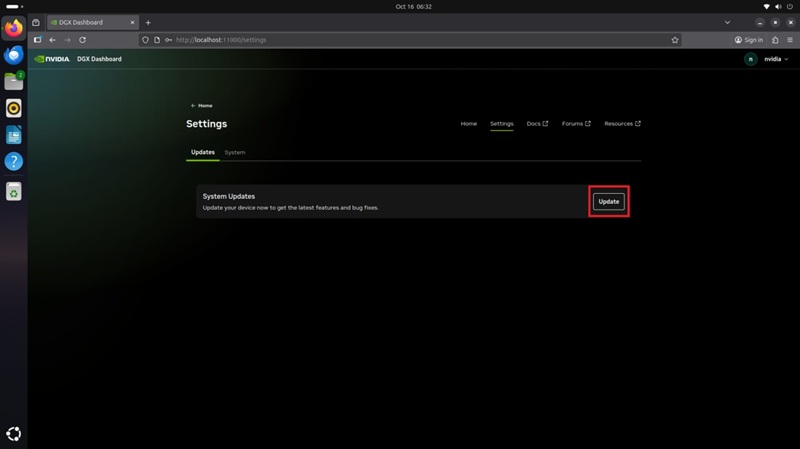
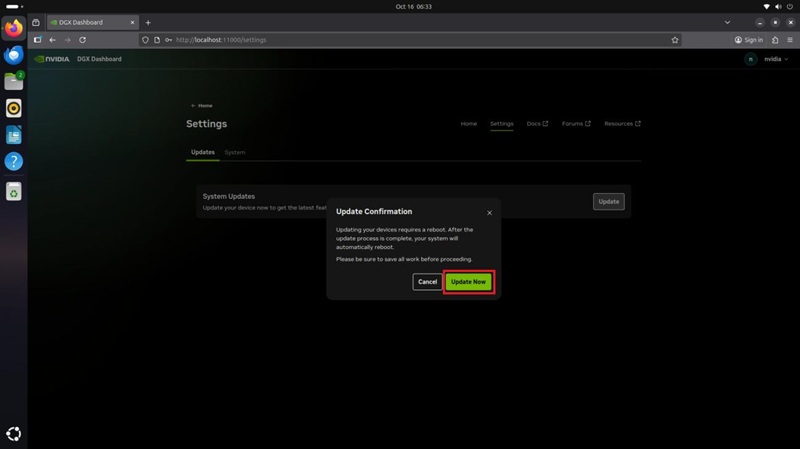
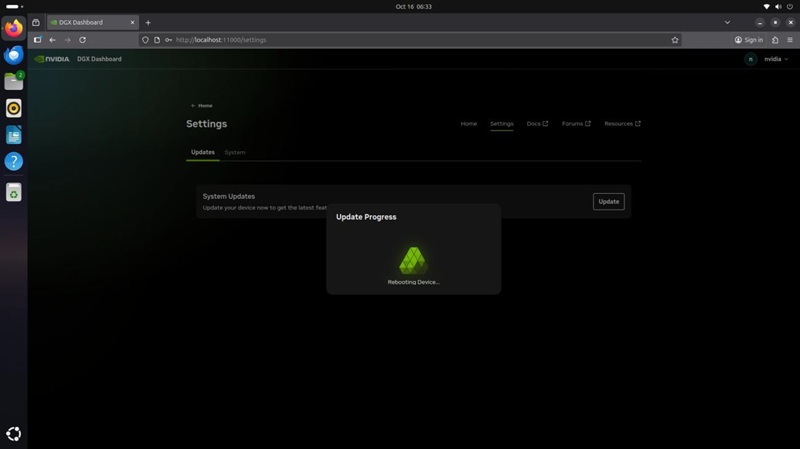
- The system will download and install the latest BIOS, EC, PD, and TPM firmware, and automatically restart the system to complete the firmware upgrade.
Update the BIOS firmware on the Dell Pro Max with the Grace Blackwell System using Terminal:
- Open Terminal (keyboard shortcut: CTRL + ALT + T).
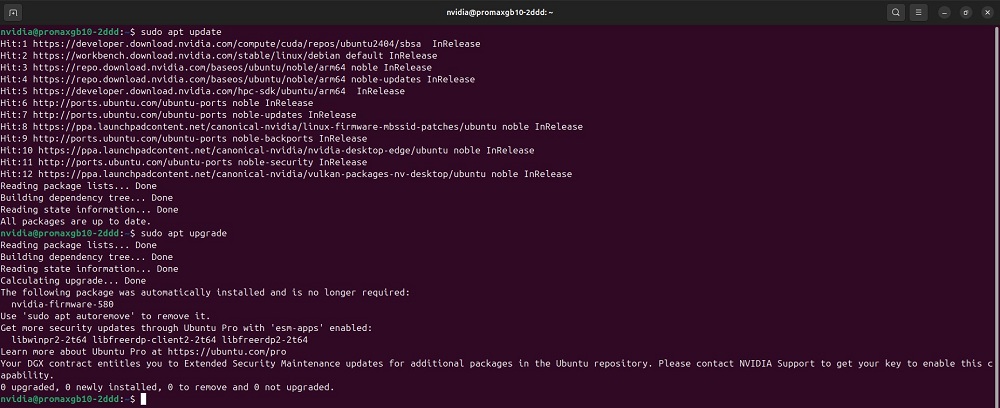
- Run the following commands to refresh the firmware metadata, check for available updates, and apply them:
sudo apt update
sudo apt upgrade
sudo fwupdmgr refresh
sudo fwupdmgr upgrade
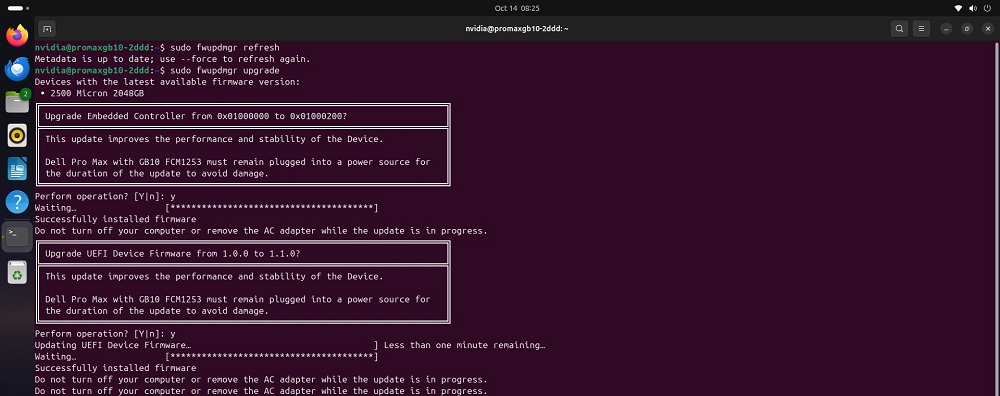

- After the update is complete, restart the system.
Affected Products
Dell Pro Max/Dell Pro Precision with GB10 FCM1253Article Properties
Article Number: 000379162
Article Type: How To
Last Modified: 24 May 2026
Version: 3
Find answers to your questions from other Dell users
Support Services
Check if your device is covered by Support Services.