Alienware Command Center 6.14.20 Blocks GPU Mode Change on Dell G16 7630
Summary: Learn what to do if Alienware Command Center 6.14.20.0 prevents the GPU from switching to discrete mode when launching a game on a Dell G16 7630.
This article applies to
This article does not apply to
This article is not tied to any specific product.
Not all product versions are identified in this article.
Symptoms
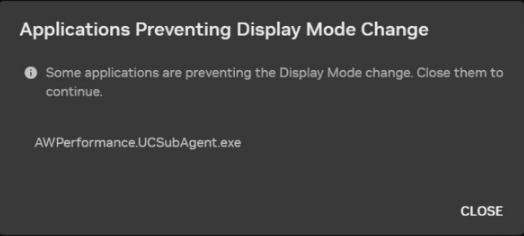
From the NVIDIA Control Panel, when the Display Mode is set to Automatic Select from the Manage Display mode section, an error may be displayed when launching a game. The error message says, "Applications Preventing Display Mode Change", and "Some applications are preventing the Display Mode change. Close them to continue.". The error message identifies AWPerformance.UCSubAgent.exe and has a Close button.
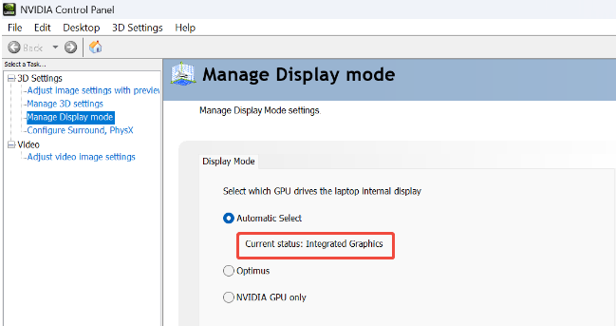
When this happens, from the NVIDIA Control Panel, the Manage Display mode setting is still set to Automatic Select with Current status: Integrated Graphics. The status does not switch to Discrete Graphics.
Affected Platforms:
- Dell G16 7630
Affected Products:
- Alienware Command Center version 6.14.20.0
Affected Operating System:
- Windows 11
Cause
Alienware Command Center uses a hidden Windows Presentation Foundation (WPF) window to listen for Windows Energy Saver events. This consumes discrete GPU resources, which causes the NVIDIA driver to detect the discrete GPU as being in use and prevents switching display modes.
Resolution
Workarounds:
Method 1:
- Open NVIDIA Control Panel and then click Manage Display mode.
- Manually select either Optimus or NVIDIA GPU only. Do not select Automatic Select.
Method 2:
- Restart the computer and then press F12 during startup to boot into the BIOS.
- Select Display, then from turn off Hybrid Graphics / Advanced Optimus.
- Click APPLY CHANGES.
- Click OK, then click EXIT.
Long-term solution:
The engineering department is working on a fix to be released in Alienware Command Center version 6.15.Y and later. The updated Alienware Command Center is posted to the computer's support page once it is made available. Alienware Command Center version 6.15.Y is expected to be released on November 23, 2026.
Affected Products
Alienware Command Center, Dell G16 7630Article Properties
Article Number: 000516347
Article Type: Solution
Last Modified: 02 Oct 2026
Version: 1
Find answers to your questions from other Dell users
Support Services
Check if your device is covered by Support Services.