How to Use Command Prompt to Verify Install Date of Microsoft Windows
Résumé: Explore step-by-step instructions to verify the original installation date of Windows on your Dell computer.
Cet article concerne
Cet article ne concerne pas
Cet article n’est associé à aucun produit spécifique.
Toutes les versions du produit ne sont pas identifiées dans cet article.
Symptômes
Cause
The computer user wants to verify the Windows original installation date.
Résolution
Note: Systems on a Domain may not show an accurate installation date. This information is provided for systems not on a Domain.
The following steps provide the most accurate way to check for the Windows installation date.
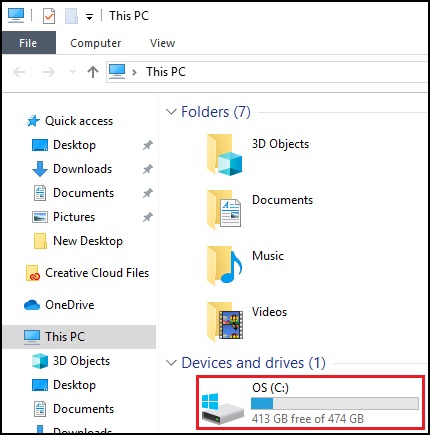
- Open File Explorer and double left click the C: Drive.
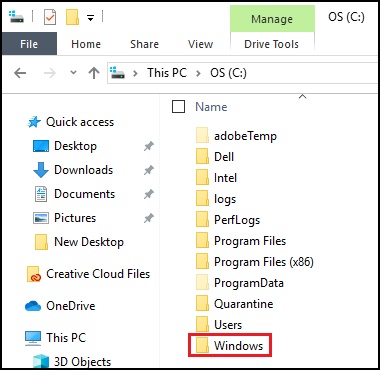
- Look for the Windows folder.
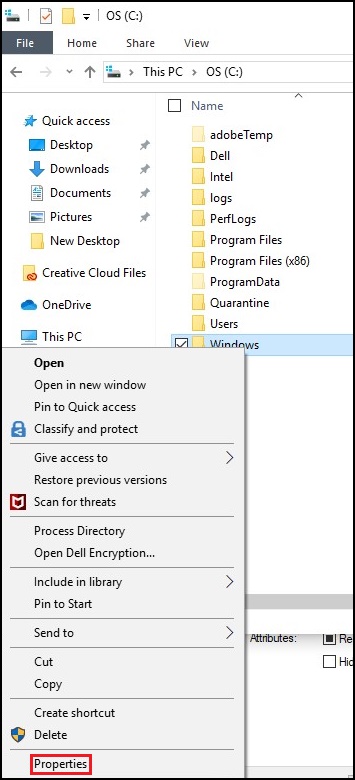
- Right click the Windows folder and select properties.
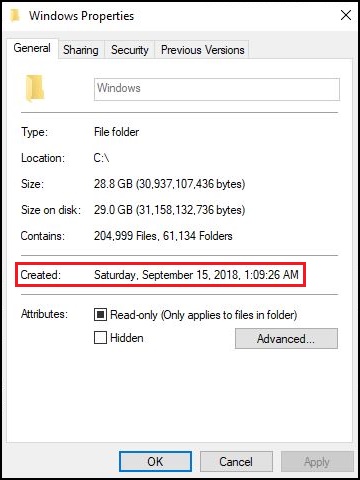
- Look for the Created date of the folder.
Alternate Method
Note: The original install date provided by System Info reflects major changes to Windows, including a "Reset This PC" or major Window updates. The method above is the preferred way of finding the installation date.
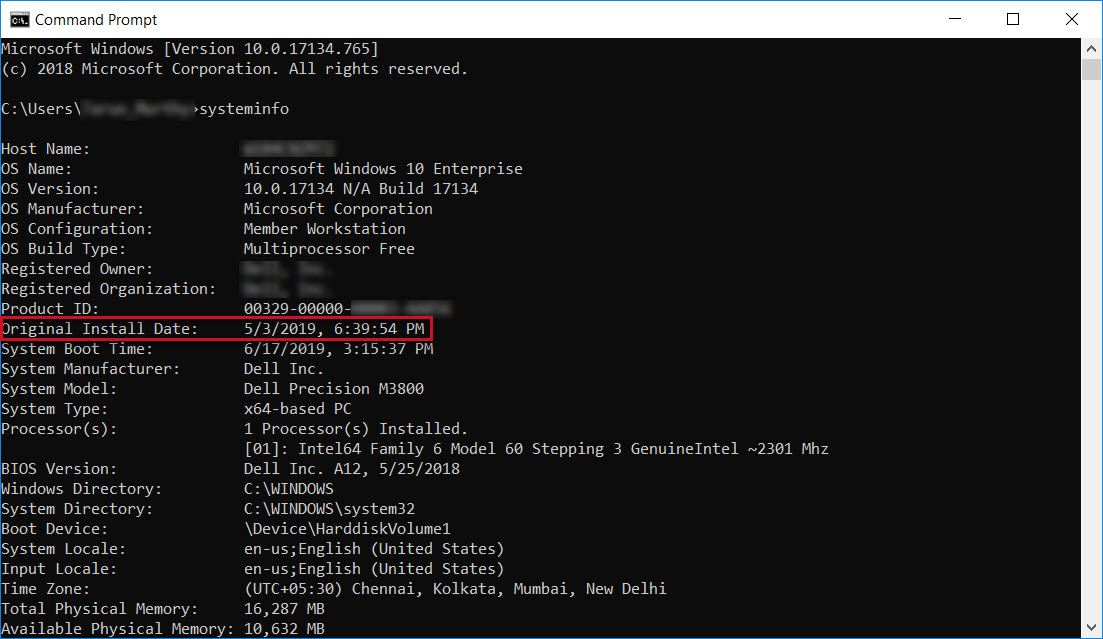
The following steps in the Command Prompt can be used to verify the installation date of Windows on your Dell system.
- Press the Windows logo + Q key on the keyboard.
- In the search box, type: CMD
- Click the Command Prompt or cmd option in the list.
- In the Command Prompt window, type: systeminfo
- Look for Original Install Date.
- This is the date when the operating system was installed on your PC.
Produits concernés
Alienware, Dell All-in-One, Dell Pro All-in-One, Dell Pro Max Micro, Dell Pro Max Slim, Dell Pro Max Tower, Dell Pro Micro, Dell Pro Slim, Dell Pro Tower, Dell Slim, Dell Tower, Inspiron, OptiPlex, Vostro, XPS, G Series, G Series, Alienware
, Dell Laptops, Dell Plus, Dell Pro, Dell Pro Max, Dell Pro Plus, Dell Pro Premium, Inspiron, Latitude, Dell Pro Rugged, Vostro, XPS, Fixed Workstations, Mobile Workstations, Dell Pro Max Micro XE FCM2250, Dell Pro Max Slim XE FCS1250, Dell Pro Max Tower T2 XE FCT2250, Dell Pro Max 16 XE MC16250, Dell Pro Micro Plus XE QBM1250, Dell Pro Slim Plus XE5 QBS1250, Dell Pro Tower Plus XE5 QBT1250
...
Propriétés de l’article
Numéro d’article: 000131940
Type d’article: Solution
Dernière modification: 11 juil. 2025
Version: 11
Trouvez des réponses à vos questions auprès d’autres utilisateurs Dell
Services de support
Vérifiez si votre appareil est couvert par les services de support.