Dell EMC Unity: How to use Unisphere CLI (UEMCLI) commands
Résumé: The article describes how to start using UEMCLI on Unity arrays for array management, configuration or monitoring.
Cet article concerne
Cet article ne concerne pas
Cet article n’est associé à aucun produit spécifique.
Toutes les versions du produit ne sont pas identifiées dans cet article.
Instructions
Goal:
This article contains helpful information in order to start using Unisphere CLI (UEMCLI). This includes:- The tool / utility you need to install before being able to run UEMCLI commands from a management station or PC.
- How to access UEMCLI commands as a service user over SSH, without the need to install the Unisphere CLI utility.
- UEMCLI command examples.
- UEMCLI command guide reference.
Facts:
Dell EMC Unity arrays can be managed and monitored through the Unisphere GUI, Unisphere CLI or the REST API. This article discusses the Unisphere CLI option.Solution:
You can run UEMCLI commands in two methods:
-
From a host or PC which has the Unisphere CLI tool installed.
-
Through SSH.
Both methods require that you're on the same management network as the Storage Processors.
Using the Unisphere CLI tool:
-
Go to Downloads in the Unity product support page.
-
Expand Product Tool sub-menu.
-
You'll find multiple available tools, including Unisphere CLI, available for different Operating Systems.
-
Click the one which matches your OS to download the tool.
-
Install the tool, steps will vary depending on your OS.
After installation, and the installation directory being added to the PATH system variable, you can now launch UEMCLI.
On Windows, in a command line prompt / shell, type: uemcli.exe
On Linux, in a terminal window, type: /usr/bin/uemcli
This should show a help page showing various available options to run.
In order to make contact with the Unity primary SP and issue commands, you need the syntax to be as follows:
uemcli.exe -d <management IP> -u <user> -p <password> <object path> <action>
You can also have additional object and action qualifiers for more control over which objects to address.
Using SSH:
Alternatively, you can directly connect to the primary SP using an SSH client. However before you do, SSH access must be enabled on the Unity array. This can be done through the Unisphere GUI; under System > Service > Service Tasks > Enable SSH > Execute.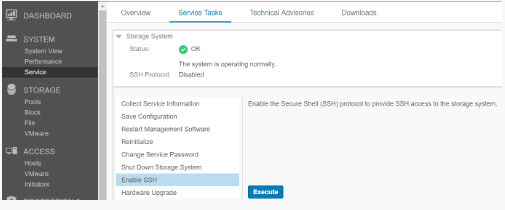
This will prompt you to enter the service account password.
Once enabled, use an SSH client to connect to the management IP address of the Unity array, and log in using the service user credentials.
Now you can run UEMCLI commands directly on SSH, you do not need to user the IP address or user credentials options in the command syntax.
UEMCLI command syntax and usage:
UEMCLI command structure always needs an object path, in order to be able to view or configure the particular object you want. For example, if you want to view storage pools on the system, the command syntax would be:
uemcli /stor/config/pool show
The /stor/config/pool is the object path part of the command, and show is the action to run on all objects under that path.
Here is a further breakdown of a more detailed command:
To see all the available object paths, type in uemcli / --help
To see available actions to run on a certain object, type in uemcli <object path> --help
Produits concernés
Dell EMC UnityPropriétés de l’article
Numéro d’article: 000205901
Type d’article: How To
Dernière modification: 19 mai 2023
Version: 11
Trouvez des réponses à vos questions auprès d’autres utilisateurs Dell
Services de support
Vérifiez si votre appareil est couvert par les services de support.