NetWorker: gstclreport fails with "JAVA_HOME to a valid JRE location"
Résumé: The NetWorker Management Console (NMC) "Reports" gstclreport command fails. The error provided is "JAVA_HOME to a valid JRE location"
Cet article concerne
Cet article ne concerne pas
Cet article n’est associé à aucun produit spécifique.
Toutes les versions du produit ne sont pas identifiées dans cet article.
Symptômes
NetWorker Management Console (NMC) "Reports" are generated from command-line using the gstclreport command on the NMC server.
The command reports that JAVA_HOME is not set:
Linux example:
[root@lnx-srvr02 bin]# ./gstclreport
% JAVA_HOME is not set.
% Java Runtime Environment 8  or higher is required to run this script.
% Please read comments at the top of gstclreport file to set
% JAVA_HOME to a valid JRE location.
Windows example:
PS C:\Program Files\EMC NetWorker\Management\GST\bin> .\gstclreport.bat
Your current JAVA_HOME is

Java Runtime Environment Version 8 or higher is required to run this script.
Please read comments at the top of gstclreport.bat file to set
JAVA_HOME to a valid JRE location.
Cause
The gstclreport command relies on Java. The Java path is called in the command using variable JAVA_HOME. If it is not defined in the gstclreport file, or as an environment variable, gstclreport returns "JAVA_HOME is not set"
Résolution
Linux NMC Server:
Identify what Java platform that you are using for NetWorker. The preferred platform is the NetWorker Runtime Environment (NRE).
- If NRE is installed, you have
/opt/nre/java/latestwhich links to the latest version of Java used by your NRE version. - If you are using Oracle Java Runtime Environment (JRE), identify the java installation path
rpm -qa | grep "jre\|jdk"ordpkg -l | grep -Ei "jdk|jre|java"readlink -f $(which java)
Use one of the following options. Choose your preferred option.
Option One. Define JAVA_HOME in the gstclreport file:
- Use a text editor to modify the
gstclreportfile:
vi /opt/lgtonmc/bin/gstclreport
- Add the JAVA_HOME variable defining the path to your java installation:
NOTE: There is a comment near the top of the file regarding the JAVA_HOME variable, you can add the variable beneath the comment.
# For example: JAVA_HOME=/usr/java/jre8
JAVA_HOME=/opt/nre/java/latest
- Save the file.
Option Two. Create an environment variable on the OS:
- Create a dedicated Java environment file
vi /etc/profile.d/java.sh
- At the end of the file, add the JAVA_HOME variable specifying your java installation:
JAVA_HOME=/opt/nre/java/latest
export JAVA_HOME
PATH=$JAVA_HOME/bin:$PATH
export PATH
- Save the file.
- Apply the changes.
source /etc/profile.d/java.sh
- Verify the changes:
echo $JAVA_HOME
which java
After performing either of the above options, the gstclreport command should now return the Java environment and function correctly.
Windows NMC Server:
Identify what Java platform that you are using for NetWorker. The preferred platform is the NetWorker Runtime Environment (NRE).
- The default NRE installation path is "
C:\Program Files\NRE\java." This folder contains a different Java version folder depending on the NRE version installed. - If you are using Oracle Java Runtime Environment (JRE), the Java installation path is defined in the Java Control Panel:
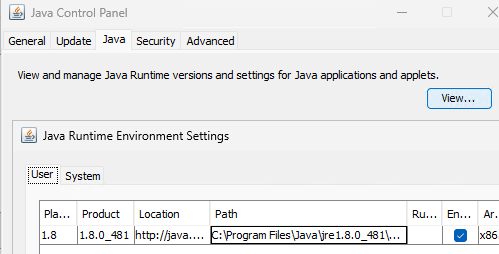
Use one of the following options. Choose your preferred option.
Option One. Define JAVA_HOME in the gstclreport.bat file:
- Use a text editor to modify
gstclreport.bat. The default location is "C:\Program Files\EMC NetWorker\Management\GST\bin." If you installed the NMC in another location, thegstclreport.batfile is in thebinfolder of your NMC install path. - Add the JAVA_HOME variable defining the path to your java installation:
NOTE: There is a comment near the top of the file regarding the JAVA_HOME variable, you can add the variable beneath the comment.
REM For example: SET JAVA_HOME=C:\Program Files\Java\jre8
SET JAVA_HOME="C:\Program Files\NRE\java\jre1.8.0_471"
- Save the file.
Option Two. Create an environment variable on the OS:
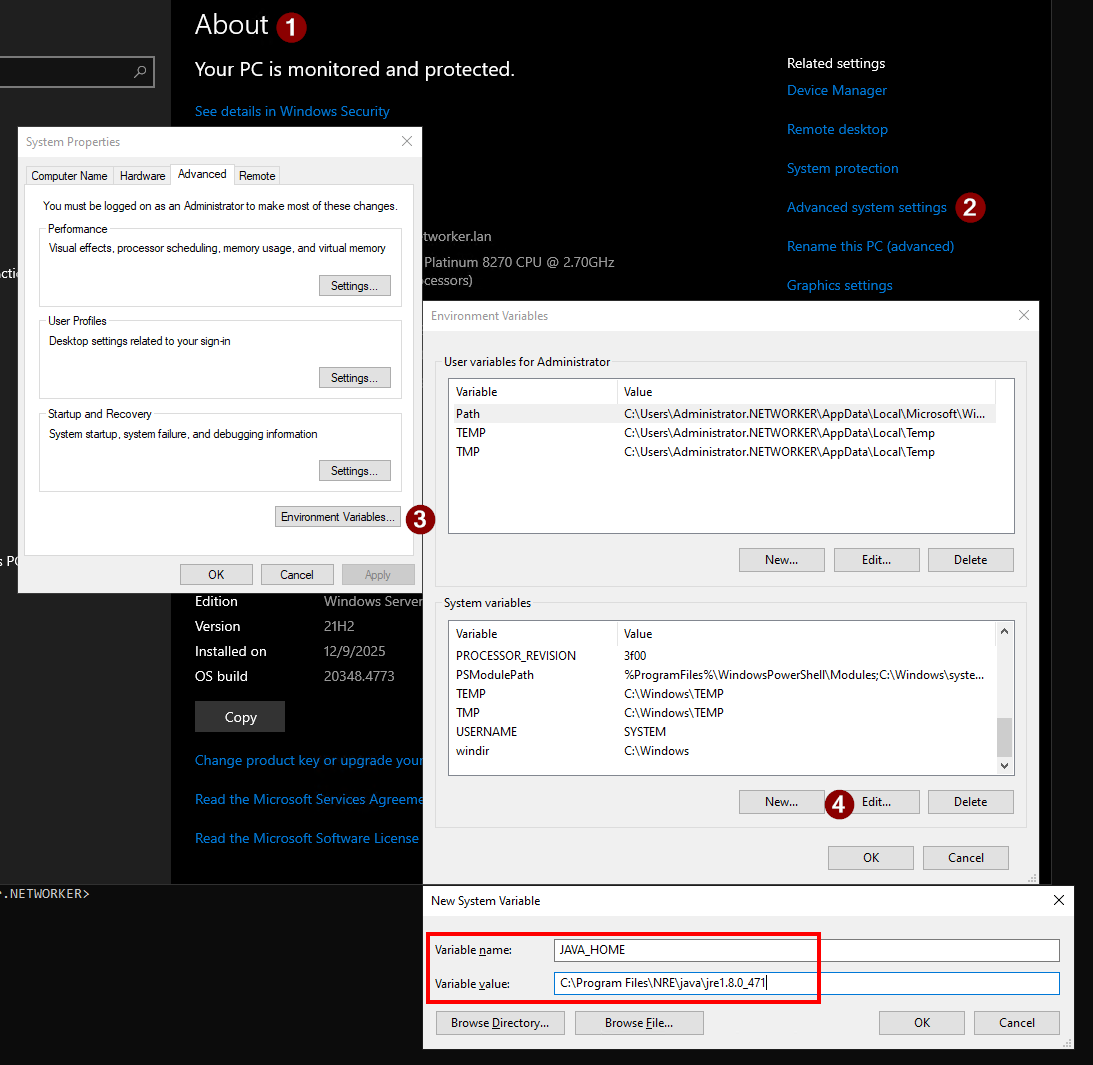
- From the Windows search bar, search About and click the About option.
- From the "About" window, click Advanced System Settings on the right-side of the window.
- From the "System Properties" window, click Environment Variables in the Configuration tab.
- Under "System Variables," click New and create an environment variable for JAVA_HOME, specifying the path to your Java folder:
- Click OK to save the variable.
- Click OK to close out of the Environment Variable settings.
- Open a new elevated PowerShell prompt and change-directory (
cd) to the NMCbindirectory.
cd "C:\Program Files\EMC NetWorker\Management\GST\bin"
After performing either of the above options, the gstclreport.bat command should now return the Java environment and function correctly.
WARNING: You must update the
gstclreport.bat file or environment variable after updating NRE or java. Once NRE or Java is updated, a new Java version folder is created and the variable setting is no longer be correct.
Informations supplémentaires
nve:/opt/lgtonmc/bin # ./gstclreport
java version "17.0.17" 2025-10-21 LTS
Java(TM) SE Runtime Environment (build 17.0.17+8-LTS-360)
Java HotSpot(TM) 64-Bit Server VM (build 17.0.17+8-LTS-360, mixed mode, sharing)
java version "17.0.17" 2025-10-21 LTS
Java(TM) SE Runtime Environment (build 17.0.17+8-LTS-360)
Java HotSpot(TM) 64-Bit Server VM (build 17.0.17+8-LTS-360, mixed mode, sharing)
usage: gstclreport [-h] -r reportname -u username
     [-C parameters] [-P password] [-a chartselector]
     [-c charttype] [-f filename] [-n fontfamily]
     [-o orientation] [-v viewtype] [-x exporttype]
where:
    -h                          Print this help message
    -r  reportname      The name of the report to run, or full path name like "/Reports/Users/User List"
    -u  username        Log into GST server with given name
    -C  parameters      The parameters will vary based on reportname.
    -P  password        Log into GST server with given password
    -a  chartselector   The set of Y axis to display in a chart
    -c  charttype       The chart type [bar | pie | plot | "stacking bar"]
    -f  filename        The name of the export file
    -n  fontfamily      A font family to override the default(COURIERNEW). Please note if invalid
    -o  orientation     The orientation [portrait | landscape]
    -v  viewtype        The view type [table | chart]
    -x  exporttype      The type of export [ pdf | postscript | html | csv | print]
Produits concernés
NetWorkerProduits
NetWorker Family, NetWorker Management ConsolePropriétés de l’article
Numéro d’article: 000430081
Type d’article: Solution
Dernière modification: 19 févr. 2026
Version: 4
Trouvez des réponses à vos questions auprès d’autres utilisateurs Dell
Services de support
Vérifiez si votre appareil est couvert par les services de support.