NetWorker: Device in Write Protected
Summary: NetWorker devices are in a write-protected (read-only) state. Backups or clone jobs writing to the "read-only" do not start or fail.
Ez a cikk a következő(k)re vonatkozik:
Ez a cikk nem vonatkozik a következő(k)re:
Ez a cikk nem kapcsolódik egyetlen konkrét termékhez sem.
Ez a cikk nem azonosítja az összes termékverziót.
Symptoms
- Data Domain disk-volume is mounted in write-protected mode.
- No Backups can be written to the disk.
- The NetWorker Management Console (NMC) alerts window shows the below error.
Error:- media Rd=xxxxxxxxx mounted Data Domain disk xxxxxxxx (write protected)
Cause
The volume is set to "read-only."
The nsrmm command shows the volume as mounted, but "write protected:"
[root@nsr ~]# nsrmm
Data Domain disk nsr.amer.lan.dddefault.002 mounted on ddve01.amer.lan_BackupDevice02, write protected
This can also be seen from the NetWorker Management Console (NMC), under Media -> Disk Volumes: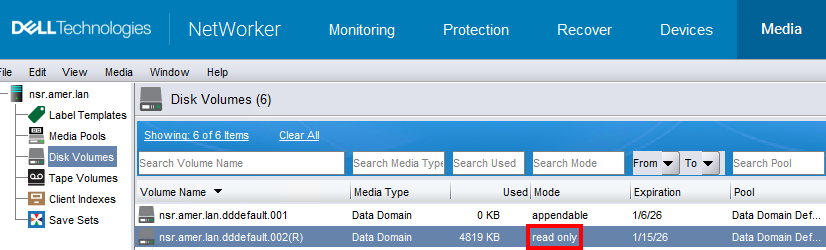
The volume name has a (R) suffix and shows as read-only.
The volume may have been manually set to "read-only" by the backup administrator. Volumes may also be set to "read-only" following a NetWorker Server Disaster Recovery (NSRDR).
Resolution
The volume must be set back to "appendable" in order to write backups. This is possible from the NetWorker server command-line or from the NMC.
NOTE: The device must be unmounted before changing the volume state.
Command-Line:
- Open an elevated command prompt or shell on the NetWorker server.
- Make not of the devices associated with volumes showing "write protected:"
nsmm - Umount the device:
nsrmm -f DEVICE_NAME -u - Set the volume as
notreadonly(which means appendable):nsrmm -o notreadonly VOLUME_NAME - Mount the device:
nsrmm -f DEVICE_NAME -m
Example:
[root@nsr ~]# nsrmm
Data Domain disk nsr.amer.lan.dddefault.002 mounted on ddve01.amer.lan_BackupDevice02, write protected
...

[root@nsr ~]# nsrmm -f ddve01.amer.lan_BackupDevice02 -u
Unmounted device: ddve01.amer.lan_BackupDevice02

[root@nsr ~]# nsrmm -o notreadonly nsr.amer.lan.dddefault.002
Mark Data Domain disk nsr.amer.lan.dddefault.002 as not readonly? y

[root@nsr ~]# nsrmm -f ddve01.amer.lan_BackupDevice02 -m
Data Domain disk nsr.amer.lan.dddefault.002 mounted on ddve01.amer.lan_BackupDevice02, write enabled
NetWorker Management Console (NMC):
- Log in to the NMC as an administrative account. For example, the default "Administrator" account.
- Go to Devices -> Devices and unmount the device associated with the "read-only" volume. Right-click the device and select unmount.
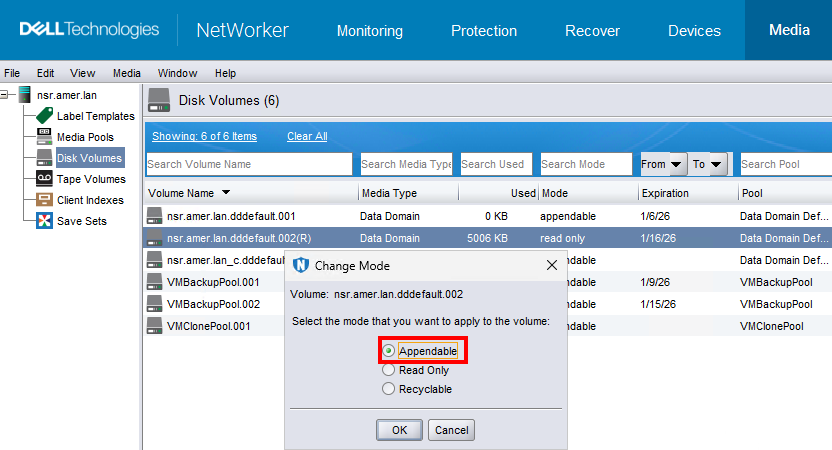
- Go to the Media -> Disk Volumes tap and select the volume marked "read-only." Right-click the volume and select change mode.
- A window appears, displaying the modes.
- Select Appendable in the window, then click OK.
- Return to the Devices -> Devices window and remount the device. Right-click the device and select mount.
Érintett termékek
NetWorkerTermékek
NetWorker FamilyTermék tulajdonságai
Article Number: 000038283
Article Type: Solution
Utoljára módosítva: 09 jan. 2026
Version: 5
Választ kaphat kérdéseire más Dell-felhasználóktól
Támogatási szolgáltatások
Ellenőrizze, hogy a készüléke rendelkezik-e támogatási szolgáltatással.