ViPR SRM 4.01: Unable to access the SRM GUI using https
Summary: Unable to access the SRM GUI using https
Ez a cikk a következő(k)re vonatkozik:
Ez a cikk nem vonatkozik a következő(k)re:
Ez a cikk nem kapcsolódik egyetlen konkrét termékhez sem.
Ez a cikk nem azonosítja az összes termékverziót.
Symptoms
Unable to load the SRM GUI interface using ssl interface using the URL as: https://<ipaddress>:58443/APG
We get the error message as:
ERR_SSL_OBSOLETE_CIPHER
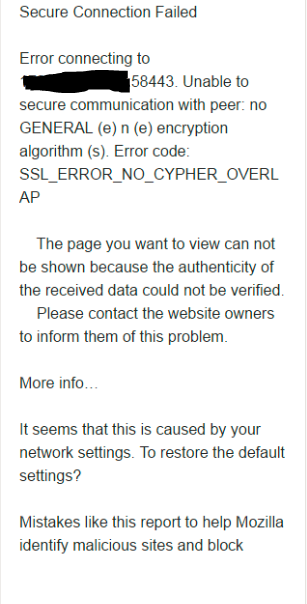
The issue is present for all the browsers, i.e. Chrome, Firefox and IE.
We get the error message as:
ERR_SSL_OBSOLETE_CIPHER
The issue is present for all the browsers, i.e. Chrome, Firefox and IE.
Cause
The cause occurs due to upgrade of the browsers. The ciphers used earlier is not updated to new.
earlier the cipher under server.xml file:
earlier the cipher under server.xml file:
ciphers="TLS_DHE_RSA_WITH_AES_128_CBC_SHA, TLS_DHE_RSA_WITH_AES_256_CBC_SHA"The correct ciphers in upgraded server.xml shuld be:
ciphers="TLS_ECDHE_RSA_WITH_AES_256_GCM_SHA384, TLS_RSA_WITH_AES_256_GCM_SHA384, TLS_ECDH_RSA_WITH_AES_256_GCM_SHA384, TLS_ECDHE_RSA_WITH_AES_128_CBC_SHA, TLS_ECDHE_RSA_WITH_AES_128_CBC_SHA256, TLS_ECDHE_RSA_WITH_AES_128_GCM_SHA256"
Resolution
Perform the below steps:
1. Login to SRM frontend server to the location: /opt/APG/Web-Servers/Tomcat/Default/conf
2. vi server.xml
3. Under the section the ciphers present are:
connector should be using the OpenSSL style configuration
described in the APR documentation -->
4. Modify the ciphers section as below:
6. Go to the path: /opt/APG/bin
7. Restart the tomcat service with the command: ./manage-modules.sh service restart tomcat
8. Open the browser window and check for the login using URL: https://<ipaddress>:58443/APG
9. This will load the SRM GUI interface successfully.
1. Login to SRM frontend server to the location: /opt/APG/Web-Servers/Tomcat/Default/conf
2. vi server.xml
3. Under the section the ciphers present are:
TLS_DHE_RSA_WITH_AES_128_CBC_SHA, TLS_DHE_RSA_WITH_AES_256_CBC_SHA
<!-- Define a SSL HTTP/1.1 Connector on port 8443
This connector uses the JSSE configuration, when using APR, the
connector should be using the OpenSSL style configuration
described in the APR documentation -->
   <Connector port="58443" protocol="HTTP/1.1" SSLEnabled="true"
               maxThreads="150" scheme="https" secure="true"
               compression="2048" compressableMimeType="text/"
               clientAuth="false" sslProtocols="TLSv1.2"
               sslEnabledProtocols="TLSv1.2" URIEncoding="UTF-8"
               keystoreFile="/opt/APG/Web-Servers/Tomcat/Default/conf/.keystore"
              keystorePass="watch4net"
               ciphers="TLS_DHE_RSA_WITH_AES_128_CBC_SHA, TLS_DHE_RSA_WITH_AES_256_CBC_SHA"
               SSLDisableCompression="true" />
4. Modify the ciphers section as below:
ciphers="TLS_ECDHE_RSA_WITH_AES_256_GCM_SHA384, TLS_RSA_WITH_AES_256_GCM_SHA384, TLS_ECDH_RSA_WITH_AES_256_GCM_SHA384, TLS_ECDHE_RSA_WITH_AES_128_CBC_SHA, TLS_ECDHE_RSA_WITH_AES_128_CBC_SHA256, TLS_ECDHE_RSA_WITH_AES_128_GCM_SHA256"5. Save the file.
6. Go to the path: /opt/APG/bin
7. Restart the tomcat service with the command: ./manage-modules.sh service restart tomcat
8. Open the browser window and check for the login using URL: https://<ipaddress>:58443/APG
9. This will load the SRM GUI interface successfully.
Érintett termékek
SRMTermék tulajdonságai
Article Number: 000065198
Article Type: Solution
Utoljára módosítva: 01 okt. 2025
Version: 4
Választ kaphat kérdéseire más Dell-felhasználóktól
Támogatási szolgáltatások
Ellenőrizze, hogy a készüléke rendelkezik-e támogatási szolgáltatással.