Access Device Manager in Windows 10 and 11 Using Shortcuts and CMD Commands
Summary: Learn how to open Device Manager using shortcuts, commands, and CMD. Covers device manager shortcut, device manager command, and how to get to Device Manager in Windows 11 and Windows 10. ...
Ez a cikk a következő(k)re vonatkozik:
Ez a cikk nem vonatkozik a következő(k)re:
Ez a cikk nem kapcsolódik egyetlen konkrét termékhez sem.
Ez a cikk nem azonosítja az összes termékverziót.
Instructions
Note: Microsoft will end support for Windows 10 on October 14, 2025. See our Microsoft Windows 10 End of Support Announcement for more information.
Device Manager Background
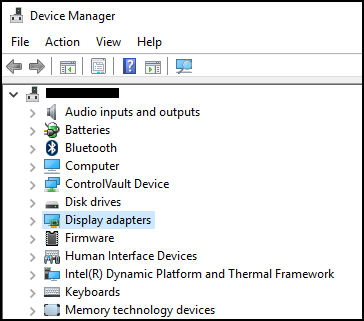
Device Manager is a Control Panel applet in Microsoft Windows that you can use to view and control the hardware that is attached to the computer. If drivers are not installed correctly, the device may not appear on the Device Manager list. Problems with drivers can also be highlighted in Device Manager.
Note: There are many methods to access the Device Manager, but this article lists the simplest methods.
Run Box Method
The following method should work with Windows 10 and 11.
- To open Device Manager. Press the Windows logo key and the R key simultaneously. This should open a Run Box.
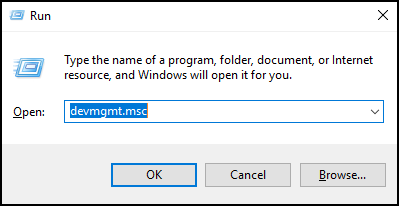
- Type:
devmgmt.msc - Click OK or press the Enter key.
- Device Manager opens.
Command Prompt Method
If your keyboard does not have a Windows Logo Key. Using the Command Prompt is an alternate method.
- Click the Start Menu or the Search Bar.
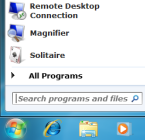
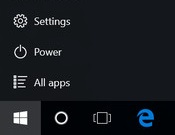
- Type CMD and this should bring up a Command Prompt.
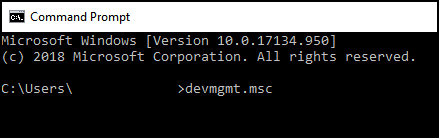
- Type
devmgmt.msc - Press the Enter key.
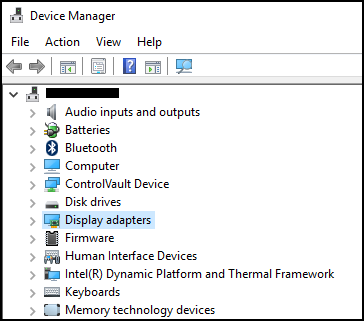
- Device Manager opens.
Érintett termékek
Alienware, Dell All-in-One, Dell Pro All-in-One, Inspiron, OptiPlex, Vostro, XPS, G Series, G Series, Alienware, Dell Plus, Dell Pro, Dell Pro Max, Dell Pro Plus, Dell Pro Premium, Inspiron, Latitude, Dell Pro Rugged, Vostro, XPS, Fixed Workstations
, Mobile Workstations
...
Termék tulajdonságai
Article Number: 000123570
Article Type: How To
Utoljára módosítva: 14 júl. 2025
Version: 10
Választ kaphat kérdéseire más Dell-felhasználóktól
Támogatási szolgáltatások
Ellenőrizze, hogy a készüléke rendelkezik-e támogatási szolgáltatással.