Data Domain:验证网络连接是否按预期工作
Riepilogo: 本文介绍如何检查 DDOS 中的 NIC 物理连接和配置以确保 CIFS 或 NFS 共享在网络上可用的基本信息。
Questo articolo si applica a
Questo articolo non si applica a
Questo articolo non è legato a un prodotto specifico.
Non tutte le versioni del prodotto sono identificate in questo articolo.
Istruzioni
验证网络连接是否正常工作。
症状:
- 如果网络连接未按预期工作,则备份性能出现问题,或者根本无法通过网络访问 CIFS 或 NFS 共享。
- 恢复器不可用。
- 备份应用程序报告写入错误。
- 找不到网络路径。
- 警报消息:
Error: : RPC: Unable to send; errno = Broken pipe
适用对象:
- 所有 Data Domain 系统
- 所有软件版本
分辨率:
物理连接:
将网线连接至 DDR 上的有效 NIC 端口。NIC 可以位于主板上,也可以位于可选的扩展卡上。恢复设备的 NIC 位置可能略有不同,具体取决于型号,但它们的相对位置是相同的。
提醒:建议使用 5e 类或 6 类。
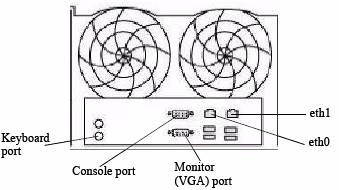
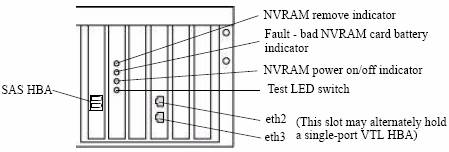
假设我们在 DDR 盒上的 eth0 上连接了网线:
- 从背面看时,eth0 连接到 DDR 背面的左侧端口)
- 另一端连接到交换机。
设置和确认 IP 地址:
在我们的示例中,eth0配置了以下信息:
- IP 地址 = 192.168.4.138
- 子网 = 255.255.255.0
- 网关 = 192.168.4.1
- DNS = 192.168.4.2, 192.168.4.3
提醒:在分配 IP 地址之前,请确保尚未在网络上分配该地址。
在另一台计算机上,对要配置为 eth0 的 IP 地址使用“ping”命令(使用 Ctrl+C 停止):
ping 192.168.4.138

PING 192.168.4.138 (192.168.4.138) 56(84) bytes of data.
From 192.168.4.138 icmp_seq=1 Destination Host Unreachable
From 192.168.4.138 icmp_seq=2 Destination Host Unreachable
From 192.168.4.138 icmp_seq=3 Destination Host Unreachable
^C
如果 IP 地址响应,则表示它正在使用中,必须分配另一个 IP 地址。
在 DDR 机箱上,我们使用“net” 命令来验证 NIC 端口 eth0 的状态。
- 以下命令为我们提供了有关物理线缆(已连接或未连接)、NIC 是否为 10/100/10/100/1000、NIC 端口的 MAC 地址、速度、双工和 NIC 卡类型的信息。
net show hardware

Port    Speed      Duplex    Supp Speeds    Hardware Address    Physical   Cable
-----   --------   --------  ------------   ------------------  -------    -----
eth0    1000Mb/s   full      10/100/1000    00:xx:xx:xx:xx:4c   Copper     yes
eth1    unknown    unknown   10/100/1000    00:xx:xx:xx:xx:e1   Copper     no
-----   --------   --------  ------------   ------------------  -------    -----
从上面的例子中,我们可以看到 eth0 可以支持 1000MB/s 全双工,物理类型为 Copper,网线已连接。
- “net config”命令用于配置 eth0。输入命令“net config set?” 为您的 DDOS 版本提供了正确的语法。Example:
net config set ?

Commands matching "net config":
  net config <ifname> [type {floating | fixed}]
                {[<ipaddr>] [netmask <mask>] | [<ipv6addr>] |
                [dhcp {yes [ipversion {ipv4|ipv6}]|no}]}
                {[autoneg] | [duplex {full | half} speed {10|100|1000|10000}]}
                [up | down] [mtu {<size> | default}]
                [txqueuelen <size>]
                                       Configure an Ethernet interface. Create
                                       an alias by giving an address to a new
                                       alias number. Destroy an alias by
                                       giving an address of zero. "Note:
                                       Change of link parameters like speed,
                                       duplex or autoneg on the DD VE is not
                                       supported."
  net config addresses [type {floating | fixed}]
                                       Convert IP addresses to another type.
- 在我们的示例中:
- 以下命令用于设置 IP 地址和子网掩码:
net config eth0 192.168.4.138 netmask 255.255.255.0
- 以下命令用于设置默认网关:
route set gateway 192.168.4.1默认网关为:192.168.4.1
- 以下命令用于设置 DNS
net set dns 192.168.4.2, 192.168.4.3

The Name (DNS) server list is:
        192.168.4.2, 192.168.4.3
验证 IP 地址
要验证接口 eth0 是否已启动并具有正确的 IP 地址和网络掩码,请使用以下命令:
net show config eth0

eth0      Link encap:Ethernet  HWaddr 00:xx:xx:xx:xx:4c
          inet addr:192.168.4.138  Bcast:192.168.4.255  Mask:255.255.255.0
          inet6 addr: beef::250:56ff:abcd:954c/64 Scope:Link
          UP BROADCAST RUNNING MULTICAST  MTU:1500  Metric:1
          RX packets:6564330 errors:0 dropped:0 overruns:0 frame:0
          TX packets:3156402 errors:0 dropped:0 overruns:0 carrier:0
          collisions:0 txqueuelen:1000
          RX bytes:1614169232 (1.5 GiB)  TX bytes:3093309111 (2.8 GiB)
要验证它是否在网络上,请执行以下操作:
- 从同一子网/网络掩码上的另一台计算机使用“ping”命令(网关是良好目标)使用 Ctrl+C 停止。
ping 192.168.4.1

PING 192.168.4.1 (192.168.4.1) 56(84) bytes of data.
64 bytes from 192.168.4.1: icmp_seq=1 ttl=64 time=0.512 ms
64 bytes from 192.168.4.1: icmp_seq=2 ttl=64 time=0.296 ms
64 bytes from 192.168.4.1: icmp_seq=3 ttl=64 time=0.284 ms
64 bytes from 192.168.4.1: icmp_seq=4 ttl=64 time=0.275 ms
64 bytes from 192.168.4.1: icmp_seq=5 ttl=64 time=0.295 ms
^C
- 从网络上的另一台计算机 ping 到 eth0 IP(例如,之前用于验证 IP 地址的计算机是否未在使用中)
ping 192.168.4.138

PING 192.168.4.138 (192.168.4.138 ) 56(84) bytes of data.
64 bytes from 192.168.4.138 : icmp_seq=1 ttl=64 time=0.512 ms
64 bytes from 192.168.4.138 : icmp_seq=2 ttl=64 time=0.316 ms
64 bytes from 192.168.4.138 : icmp_seq=3 ttl=64 time=0.294 ms
64 bytes from 192.168.4.138 : icmp_seq=4 ttl=64 time=0.285 ms
64 bytes from 192.168.4.138 : icmp_seq=5 ttl=64 time=0.295 ms
^C
Prodotti interessati
Data DomainProdotti
Data DomainProprietà dell'articolo
Numero articolo: 000015001
Tipo di articolo: How To
Ultima modifica: 17 apr 2026
Versione: 8
Trova risposta alle tue domande dagli altri utenti Dell
Support Services
Verifica che il dispositivo sia coperto dai Servizi di supporto.