SourceOne for File System - Restoring files using "add to restore list" failed for Isilon SMB share
Riepilogo: SourceOne-for-File-System-Restoring-files-using-add-to-restore-list-failed-for-Isilon-SMB-share
Questo articolo si applica a
Questo articolo non si applica a
Questo articolo non è legato a un prodotto specifico.
Non tutte le versioni del prodotto sono identificate in questo articolo.
Sintomi
Restoring files using "add to restore list" fails for files located on a Isilon SMB share, while it works for files located on Windows share folders.
On the ExJBRestore, the following errors are shown:CExFileSystem::iWriteFileProperties|
VERBOSE|
iWriteFileProperties calling ::CreateDirectory with perm for \\?\UNC\SMBPath\sourceone_test\|
CExFileSystem::iWriteFileProperties|
VERBOSE|
Checking that user 'SourceOneServiceAccount' has write permissions to the directory '\\\?\UNC\SMBPath\sourceone_test\'|
CExFileSystem::iWriteFileProperties|
ERROR|
Error encountered checking permissions (0x80072147)|
CoExFileProvider::StoreDoc|
ERROR|
Failed to restore file to original location (MessageID). (0x86044701) The specified property 20 does not exist (0x86044002)|
CExRestoreThread::ProcessRun|
WARNING|
Failed restore item: Unable to verify that the user has required file system permissions to restore the file. Try restoring to an alternate location. (0x86044710)|
CExRestoreThread::ProcessRun|
ERROR|
CExRestoreThread failed msgid: MessageID result hr=86044710|
Causa
Connect to OneFS and checked the SMB share. No user for SourceOne service account is present in the SourceOne share. The service account needs to be there.
This is caused by a lack of permission from the Isilon side for SourceOne Service account. Isilon needs a point of reference for authentication, it can be LDAP, NIS or local users. It needs to have a source on UIDs to recognise.
This is caused by a lack of permission from the Isilon side for SourceOne Service account. Isilon needs a point of reference for authentication, it can be LDAP, NIS or local users. It needs to have a source on UIDs to recognise.
Risoluzione
Connect to OneFS. If there is no user for SourceOne service account you have to create it using the following procedure:
Steps to create the SourceOne user:
1- From your OneFs, go to "Access, and then click on "Membership & Roles"
2- Select Current Access Zone: System
3- Click "user" tab and then select your provider: "LOCAL: System"
4- Click on Create a User on the right.
5- Fill the following:
Username: "service Account name"
Password: "service account password"
Full Name: SourceOne Service Account
Primary Group: --->Click select group, then select Provider "LOCAL:system" and start search. Here, select "Isilon Users"
Click Create User.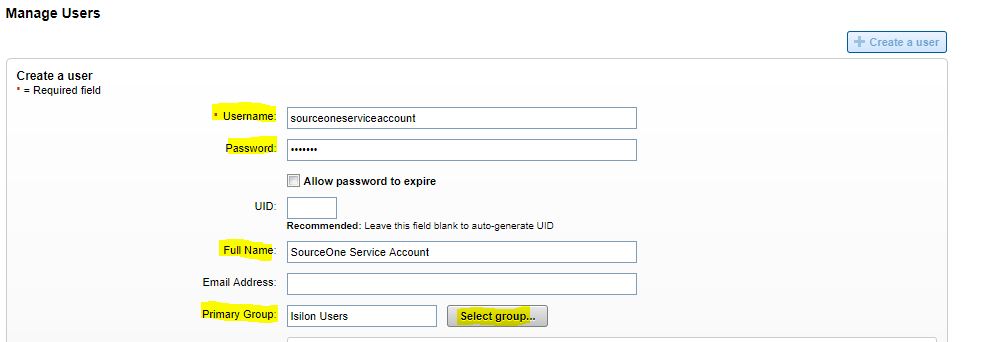
6- Enable the user
Now you will need to add that user to the SMB Share:
1- Go to Protocol, and then SMB Share.
2- Select Current Access Zone: System
3- On your SourceOne SMB Share, select Edit
4- Edit Users and groups and then select "Add a user or Group". Select the Local: system provider, and you will find the SourceOne service account created previously. Give full permission and add the user. Put Service account in first and save.
5- Now the permission are good from OneFS Side
Prodotti interessati
SourceOne for File SystemsProdotti
SourceOne for File SystemsProprietà dell'articolo
Numero articolo: 000064614
Tipo di articolo: Solution
Ultima modifica: 27 giu 2025
Versione: 3
Trova risposta alle tue domande dagli altri utenti Dell
Support Services
Verifica che il dispositivo sia coperto dai Servizi di supporto.