Comment réinstaller des applications modernes individuelles incluses dans Windows 10
Riepilogo: Cet article fournit des informations sur la réinstallation d’applications modernes individuelles incluses dans Windows 10.
Questo articolo si applica a
Questo articolo non si applica a
Questo articolo non è legato a un prodotto specifico.
Non tutte le versioni del prodotto sono identificate in questo articolo.
Sintomi
Causa
Aucune information sur la cause n’est disponible.
Risoluzione
Réinstallation d’applications modernes individuelles
Ce guide ne doit être utilisé que pour tenter de résoudre des problèmes liés à des applications individuelles.
Comment réinstaller une application individuelle
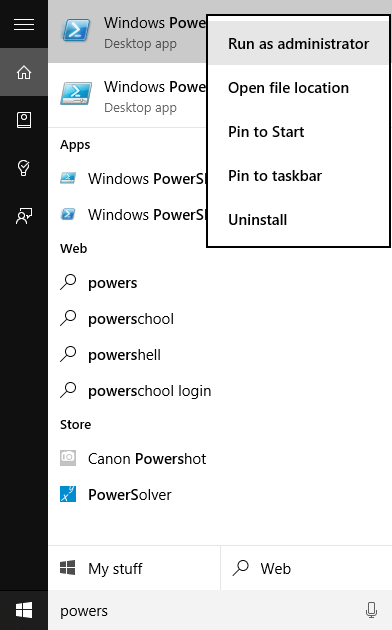
- Ouvrez Windows PowerShell en tant qu’administrateur en saisissant Powers dans la zone de recherche de votre barre des tâches. En regard du bouton Démarrer (voir l’image ci-dessous), cliquez avec le bouton droit de la souris ou maintenez appuyé puis sélectionnez Exécuter en tant qu’administrateur dans la liste déroulante.
- Saisissez la commande suivante répertoriée dans le tableau ci-dessous sous la colonne « Supprimer la commande PowerShell » pour supprimer l’application native associée.
| Application native | Commande Remove de PowerShell | Nom de l’application dans le Store |
|---|---|---|
| Alarmes et horloges | get-appxpackage *Microsoft.WindowsAlarms* | remove-appxpackage |
Alarmes et horloge Windows  |
| Calculatrice | get-appxpackage *Microsoft.WindowsCalculator* | remove-appxpackage |
Calculatrice Windows |
| Caméra | get-appxpackage *Microsoft.WindowsCamera* | remove-appxpackage |
Caméra Windows |
| Groove Musique | get-appxpackage *Microsoft.ZuneMusic* | remove-appxpackage |
Groove Musique |
| Courrier et calendrier | get-appxpackage *microsoft.windowscommunicationsapps* | remove-appxpackage |
Courrier et calendrier |
| Cartes | get-appxpackage *Microsoft.WindowsMaps* | remove-appxpackage |
Cartes Windows |
| Films et TV | get-appxpackage *Microsoft.ZuneVideo* | remove-appxpackage |
Films et TV |
| OneNote | get-appxpackage *Microsoft.Office.OneNote* | remove-appxpackage |
OneNote |
| Contacts | get-appxpackage *Microsoft.People* | remove-appxpackage |
Contacts Microsoft |
| Photos | get-appxpackage *Microsoft.Windows.Photos* | remove-appxpackage |
Photos Microsoft |
| Enregistreur vocal | get-appxpackage *Microsoft.WindowsSoundRecorder * | remove-appxpackage |
Enregistreur vocal Windows |
| Xbox | get-appxpackage *Microsoft.XboxApp* | remove-appxpackage |
Xbox |

L’application peut être réinstallée à l’aide de l’application Store ou en suivant le lien indiqué dans le tableau ci-dessous. Quittez l’application Store si elle est déjà ouverte avant de réinstaller l’application.
Prodotti interessati
Alienware, Dell All-in-One, Dell Pro All-in-One, Dell Pro Max Micro, Dell Pro Max Slim, Dell Pro Max Tower, Dell Pro Micro, Dell Pro Slim, Dell Pro Tower, Dell Slim, Dell Tower, Inspiron, OptiPlex, Vostro, XPS, G Series, G Series, Alienware
, Dell Laptops, Dell Plus, Dell Pro, Dell Pro Max, Dell Pro Plus, Dell Pro Premium, Inspiron, Latitude, Dell Pro Rugged, Vostro, XPS, Fixed Workstations, Mobile Workstations, Dell Pro Max Micro XE FCM2250, Dell Pro Max Slim XE FCS1250, Dell Pro Max Tower T2 XE FCT2250, Dell Pro Max 16 XE MC16250, Dell Pro Micro Plus XE QBM1250, Dell Pro Slim Plus XE5 QBS1250, Dell Pro Tower Plus XE5 QBT1250
...
Proprietà dell'articolo
Numero articolo: 000125529
Tipo di articolo: Solution
Ultima modifica: 16 lug 2025
Versione: 7
Trova risposta alle tue domande dagli altri utenti Dell
Support Services
Verifica che il dispositivo sia coperto dai Servizi di supporto.