How to Uninstall Dell Data Protection Security Tools
Riepilogo: Learn how to uninstall Dell Data Protection Security Tools by following these step-by-step instructions.
Questo articolo si applica a
Questo articolo non si applica a
Questo articolo non è legato a un prodotto specifico.
Non tutte le versioni del prodotto sono identificate in questo articolo.
Istruzioni
Note: As of February 2018, Dell Data Protection | Security Tools has reached End of Support. This product and its articles are no longer updated by Dell. For more information, reference Product Life Cycle (End of Support and End of Life) Policy for Dell Data Security. If you have any questions on alternative articles, either reach out to your sales team or contact endpointsecurity@dell.com.
Dell Data Protection | Security Tools may require uninstallation to:
- Meet environment requirements
- Troubleshoot the product
- Address operating system incompatibility
This article covers the steps to uninstall the product.
Affected Products:
- Dell Data Protection | Security Tools
Affected Versions:
- v1.0 and Later
Affected Operating Systems:
- Windows
Uninstalling Dell Data Protection Security Tools
Duration: 00:03:59
When available, closed caption (subtitles) language settings can be chosen using the CC icon on this video player.
The uninstall steps differ between v1.10 to 1.12, v1.6 to 1.9.1, v1.2 to 1.5.1, and v1.0 to 1.1. Select the appropriate version for more information. Refer to How to Identify the Dell Data Protection Security Tools Version for more information about identifying the Dell Data Protection Security Tools version.
v1.10 to 1.12
- Right-click the Windows start menu and then click Run.

- In the Run UI, type
appwiz.cpland then press OK. This opens Programs and Features. - Double-click Dell Data Protection | Client Security Framework.
 Note: Alternatively, customers may use Dell Data Security Uninstaller to remove Dell Data Protection Security Tools if the software is not listed in Programs and Features. For more information, reference How to Run the Dell Data Security Uninstaller.
 - Click Yes.

- Click Yes to restart the computer.

- Log in to the computer and then go to Programs and Features (steps 1 and 2).
- Double-click Dell Data Protection | Security Tools Authentication.

- Click Yes or No to preserve user data.

- Click OK to acknowledge that a restart is required.

- Double-click Dell Data Protection | Security Tools.
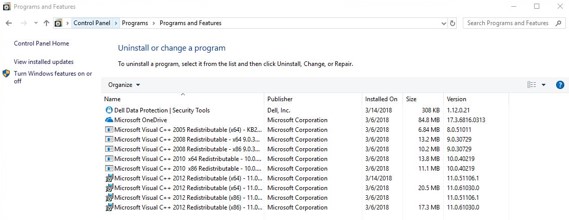
- Click Yes to remove Dell Data Protection Security Tools.

- On uninstall, select Yes, I want to restart my computer now and then click Finish.

v1.6 to 1.9.1
- Right-click the Windows start menu and then click Run.

- In the Run UI, type
appwiz.cpland then press OK. This opens Programs and Features.
- Double-click Dell Data Protection | Client Security Framework.
 Note: Alternatively, customers may use Dell Data Security Uninstaller to remove Dell Data Protection Security Tools if the software is not listed in Programs and Features. For more information, reference How to Run the Dell Data Security Uninstaller.
 - Click Yes to confirm the removal of Dell Data Protection Client Security Framework.

- Click Yes to restart the computer.

- Log in to the computer and then go to Programs and Features (steps 1 and 2).
- Double-click Dell Data Protection | Security Tools Authentication.

- Click either Yes or No to preserve user data.

- Click OK to acknowledge that a restart is required.

- On removal of Dell Data Protection Security Tools Authentication, double-click Dell Data Protection | Security Tools.

- Click Yes to completely remove Dell Data Protection Security Tools.

- On uninstall, select Yes, I want to restart my computer now and then click Finish.

v1.2 to 1.5.1
- Right-click the Windows start menu and then click Run.

- In the Run UI, type
appwiz.cpland then press OK. This opens Programs and Features.
- Double-click Dell Data Protection | Client Security Framework.
 Note: Alternatively, customers may use Dell Data Security Uninstaller to remove Dell Data Protection Security Tools if the software is not listed in Programs and Features. For more information, reference How to Run the Dell Data Security Uninstaller.
 - Click Yes to confirm the removal of Dell Data Protection Client Security Framework.

- Click OK to acknowledge that a restart is required.

- Click Yes to restart the computer.

- Log in to the computer and then go to Programs and Features (steps 1 and 2).
- Double-click Dell Data Protection | Security Tools Authentication.

- Click Yes to confirm the removal of Dell Data Protection Security Tools Authentication.

- Click either Yes or No to preserve user data.

- Click OK to acknowledge that a restart is required.

- On removal of Dell Data Protection Security Tools Authentication, double-click Dell Data Protection | Security Tools.

- Click Yes to remove the application.

- On uninstall, select Yes, I want to restart my computer now and then click Finish.

v1.0 to 1.1
- Right-click the Windows Start menu and then click Run.

- In the Run UI, type
appwiz.cpland then press OK. This opens Programs and Features.
- Double-click Dell Data Protection | Client Security Framework.
 Note: Alternatively, customers may use Dell Data Security Uninstaller to remove Dell Data Protection Security Tools if the software is not listed in Programs and Features. For more information, reference How to Run the Dell Data Security Uninstaller.
 - Click Yes to confirm the removal of Dell Data Protection Client Security Framework.

- Click OK to acknowledge that a restart is required.

- Click Yes to restart the computer.

- Log in to the computer and then go to Programs and Features (steps 1 and 2).
- Double-click Dell Data Protection | Security Tools Authentication.

- Click Yes to confirm the removal of Dell Data Protection Security Tools Authentication.

- Click either Yes or No to preserve user data.

- Click OK to acknowledge that a restart is required.

- On removal of Dell Data Protection Security Tools Authentication, double-click Dell Data Protection | Security Tools.

- Click Yes to remove the application.

- On uninstall, select Yes, I want to restart my computer now and then click Finish.

To contact support, reference Dell Data Security International Support Phone Numbers.
Go to TechDirect to generate a technical support request online.
For additional insights and resources, join the Dell Security Community Forum.
Prodotti interessati
Dell Security ToolsProprietà dell'articolo
Numero articolo: 000126859
Tipo di articolo: How To
Ultima modifica: 22 ago 2025
Versione: 11
Trova risposta alle tue domande dagli altri utenti Dell
Support Services
Verifica che il dispositivo sia coperto dai Servizi di supporto.