如何卸载Dell Data Protection Security Tools
Riepilogo: 按照这些分步说明了解如何卸载 Dell Data Protection Security Tools。
Questo articolo si applica a
Questo articolo non si applica a
Questo articolo non è legato a un prodotto specifico.
Non tutte le versioni del prodotto sono identificate in questo articolo.
Istruzioni
提醒:截至 2018 年 2 月,Dell Data Protection | Security Tools 已到达支持结束阶段。戴尔不再更新本产品及其文章。有关详细信息,请参阅 Dell Data Security 产品生命周期(结束支持和停售)政策。如果您对其他文章有任何疑问,请联系您的销售团队或联系 endpointsecurity@dell.com。
您可能需要卸载 Dell Data Protection | Security Tools 以实现以下目的:
- 满足环境要求
- 对产品进行故障处理
- 解决操作系统不兼容性
本文介绍了产品的卸载步骤。
受影响的产品:
- Dell Data Protection | Security Tools
受影响的版本:
- v1.0 及更高版本
受影响的操作系统:
- Windows
卸载 Dell Data Protection Security Tools
持续时间:00:03:59
如果可用,可以使用此视频播放器上的 CC 图标选择隐藏式字幕(字幕)语言设置。
卸载步骤在 v1.10 到 1.12、 v1.6 到 1.9.1、 v1.2 到 1.5.1 和 v1.0 到 1.1 之间有所不同。选择相应的版本以了解更多信息。有关确定 Dell Data Protection Security Tools 版本的更多信息,请参阅如何确定 Dell Data Protection Security Tools 版本 。
v1.10 至 v1.12
- 右键单击 Windows 的“开始”菜单,然后单击运行。

- 在 “运行 ”UI 中,键入
appwiz.cpl然后按 OK。这将打开 “程序和功能”。 - 双击 Dell Data Protection | Client Security Framework。
 提醒:或者,如果该软件未在 “程序和功能”中列出,客户也可以使用 Dell Data Security 卸载程序来删除 Dell Data Protection Security Tools。有关详细信息,请参阅如何运行 Dell Data Security Uninstaller(英文版)。
 - 单击 Yes。

- 单击 Yes 以重新启动计算机。

- 登录到计算机,然后转至 “程序和功能 ”(步骤 1 和 2)。
- 双击 Dell Data Protection | Security Tools Authentication。

- 单击 Yes 或 No,以保留用户数据。

- 单击 OK 以确认需要重新启动。

- 双击 Dell Data Protection | Security Tools。
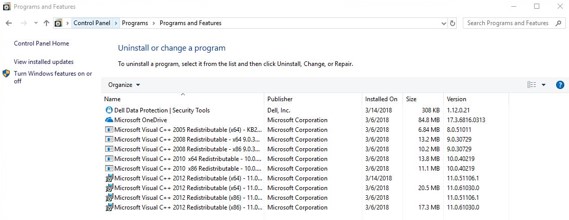
- 单击 Yes 以删除 Dell Data Protection Security Tools。

- 在卸载时,选择 Yes, I want to restart my computer now,然后单击 Finish。

v1.6 至 v1.9.1
- 右键单击 Windows 的“开始”菜单,然后单击运行。

- 在 “运行 ”UI 中,键入
appwiz.cpl然后按 OK。这将打开 “程序和功能”。
- 双击 Dell Data Protection | Client Security Framework。
 提醒:或者,如果该软件未在 “程序和功能”中列出,客户也可以使用 Dell Data Security 卸载程序来删除 Dell Data Protection Security Tools。有关详细信息,请参阅如何运行 Dell Data Security Uninstaller(英文版)。
 - 单击是以确认删除 Dell Data Protection Client Security Framework。

- 单击 Yes 以重新启动计算机。

- 登录到计算机,然后转至 “程序和功能 ”(步骤 1 和 2)。
- 双击 Dell Data Protection | Security Tools Authentication。

- 单击 Yes 或 No,以保留用户数据。

- 单击 OK 以确认需要重新启动。

- 在删除 Dell Data Protection Security Tools Authentication 时,双击 Dell Data Protection |安全工具。

- 单击 Yes 以完全删除 Dell Data Protection Security Tools。

- 在卸载时,选择 Yes, I want to restart my computer now,然后单击 Finish。

v1.2 至 v1.5.1
- 右键单击 Windows 的“开始”菜单,然后单击运行。

- 在 “运行 ”UI 中,键入
appwiz.cpl然后按 OK。这将打开 “程序和功能”。
- 双击 Dell Data Protection | Client Security Framework。
 提醒:或者,如果该软件未在 “程序和功能”中列出,客户也可以使用 Dell Data Security 卸载程序来删除 Dell Data Protection Security Tools。有关详细信息,请参阅如何运行 Dell Data Security Uninstaller(英文版)。
 - 单击是以确认删除 Dell Data Protection Client Security Framework。

- 单击 OK 以确认需要重新启动。

- 单击 Yes 以重新启动计算机。

- 登录到计算机,然后转至 “程序和功能 ”(步骤 1 和 2)。
- 双击 Dell Data Protection | Security Tools Authentication。

- 单击 Yes 以确认删除 Dell Data Protection Security Tools Authentication。

- 单击 Yes 或 No,以保留用户数据。

- 单击 OK 以确认需要重新启动。

- 在删除 Dell Data Protection Security Tools Authentication 时,双击 Dell Data Protection |安全工具。

- 单击 Yes,以删除该应用程序。

- 在卸载时,选择 Yes, I want to restart my computer now,然后单击 Finish。

v1.0 至 v1.1
- 右键单击 Windows 的“开始”菜单,然后单击运行。

- 在 “运行 ”UI 中,键入
appwiz.cpl然后按 OK。这将打开 “程序和功能”。
- 双击 Dell Data Protection | Client Security Framework。
 提醒:或者,如果该软件未在 “程序和功能”中列出,客户也可以使用 Dell Data Security 卸载程序来删除 Dell Data Protection Security Tools。有关详细信息,请参阅如何运行 Dell Data Security Uninstaller(英文版)。
 - 单击是以确认删除 Dell Data Protection Client Security Framework。

- 单击 OK 以确认需要重新启动。

- 单击 Yes 以重新启动计算机。

- 登录到计算机,然后转至 “程序和功能 ”(步骤 1 和 2)。
- 双击 Dell Data Protection | Security Tools Authentication。

- 单击 Yes 以确认删除 Dell Data Protection Security Tools Authentication。

- 单击 Yes 或 No,以保留用户数据。

- 单击 OK 以确认需要重新启动。

- 在删除 Dell Data Protection Security Tools Authentication 时,双击 Dell Data Protection |安全工具。

- 单击 Yes,以删除该应用程序。

- 在卸载时,选择 Yes, I want to restart my computer now,然后单击 Finish。

要联系支持部门,请参阅 Dell Data Security 国际支持电话号码。
转至 TechDirect,在线生成技术支持请求。
要获得更多见解和资源,请加入戴尔安全社区论坛。
Informazioni aggiuntive
Video
Prodotti interessati
Dell Security ToolsProprietà dell'articolo
Numero articolo: 000126859
Tipo di articolo: How To
Ultima modifica: 22 ago 2025
Versione: 11
Trova risposta alle tue domande dagli altri utenti Dell
Support Services
Verifica che il dispositivo sia coperto dai Servizi di supporto.