How to Use and Troubleshoot the Dell Universal Dock D6000S
Riepilogo: Learn how to setup, use, and troubleshoot Dell Universal Dock D6000S. Find information about drivers, setting up multiple monitors and steps to resolve common issues.
Questo articolo si applica a
Questo articolo non si applica a
Questo articolo non è legato a un prodotto specifico.
Non tutte le versioni del prodotto sono identificate in questo articolo.
Istruzioni
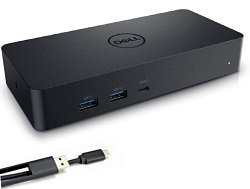
Dell Universal Dock D6000S links all your electronic devices to your laptop. It uses a single cable that supports both Thunderbolt 3 (USB Type-C) or USB 3.0. When you connect the laptop to the docking station, you can gain access to all your peripherals without having to plug each one into the laptop. (For example: The mouse, keyboard, stereo speakers, external hard drive, and large-screen displays.)
Dell Universal Dock D6000S works with DisplayLink technology that enables docking features over USB. The universal docking solution enables multiple displays, audio, Ethernet, and other USB peripherals to be connected to computers through USB.
For help with specifications, setup, connecting an external monitor, troubleshooting common issues, and so on see an expanding section below.
| Personal computer Connectivity |
|
|---|---|
| Video ports |
NOTE: Dell Universal Dock D6000S supports up to three displays when connected to your personal computer. It uses the Thunderbolt 3 USB Type-C cable and up to two displays using the USB 3.0 cable.
|
| Audio ports (D6000S only) |
NOTE: Audio pass-through is not supported on the D6000S series Dock.
|
| Network ports |
|
| USB ports |
|
NOTE: This dock supports USB 3.1 Gen 1. In this article, USB 3.1 Gen 1, and USB 3.0 are synonymous.
| Minimum System Requirements for Productivity and Web Usage |
|
|---|---|
| Minimum Requirements for Full-Screen Video Playback |
|
| Operating system |
|
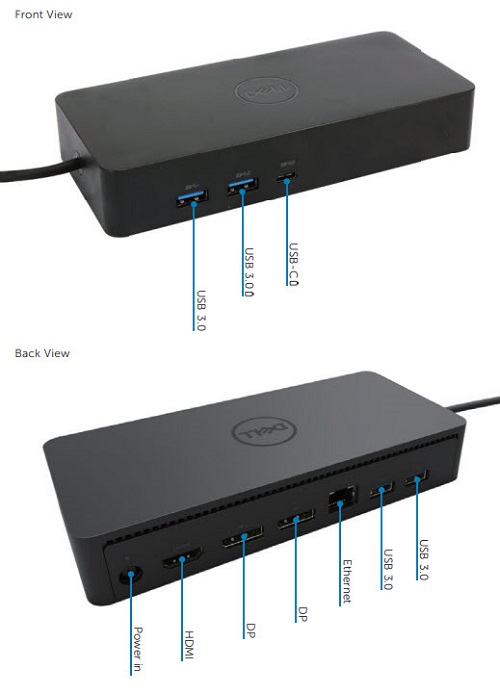
Figure 1: Dell Universal Dock (D6000S) Ports
Dell Universal Dock D6000S works with DisplayLink technology that enables docking features over USB. The universal docking solution enables multiple displays, audio, Ethernet, and other USB peripherals to be connected to computers through USB.
NOTE: For optimal performance, Dell Technologies recommends updating the BIOS and Chipset driver on your computer before installing the DisplayLink driver for the docking station. You need Admin Rights on your computer to install the DisplayLink driver.
- Download and install the latest DisplayLink driver from the Dell Drivers & Downloads page
- Follow the screen instructions until the installation is complete
- Restart the computer
- Connect all the external devices to the docking station
- Connect the docking station to your computer
NOTE: Latest DisplayLink driers for supported Operating systems including Corporate installers can also be found at displaylink.com/downloads 
Microsoft Windows operating system includes the VGA graphics drivers only. For optimum graphics performance, install the Dell graphics drivers applicable for your computer from the Dell Drivers & Downloads website under the "Video" section.
Connect the monitor to the docking station using the HDMI and/or DisplayPort cable provided with the monitor. Dell Universal Dock D6000S supports up to three displays when connected to your computer. It uses the Thunderbolt 3 USB Type-C cable and up to two displays using the USB 3.0 cable. See the Display Resolution Table below for more details about the supported resolution when connecting multiple monitors to the docking station.
To learn more about setting up and troubleshooting issues with multiple monitor setups, see these Dell knowledge-base articles: How to Setup Multiple Monitors or How to Troubleshoot Multiple Monitor Issues
Display resolution table
| Docking station connected to personal computer using USB Type-C | |||||
|---|---|---|---|---|---|
| Input | Output | ||||
| DP 1 | DP 2 | HDMI | DP 1 | DP 2 | HDMI |
| DP 1 | DP 2 | HDMI | 4K @ 60 Hz | 4K @ 60 Hz | 4K @ 30 Hz |
| DP 1 | DP 2 | HDMI | 5K @ 60 Hz | 4K @ 30 Hz | |
| DP 1 | DP 2 | 4K @ 60 Hz | 4K @ 60 Hz | ||
| DP 1 | HDMI | 4K @ 60 Hz | 4K @ 60 Hz | ||
| DP 2 | HDMI | 4K @ 60 Hz | 4K @ 60 Hz | ||
| DP 1 | 4K @ 60 Hz | ||||
| DP 2 | 4K @ 60 Hz | ||||
| HDMI | 4K @ 60 Hz | ||||
| Docking station connected to personal computer using USB 3.0 Type-A | |||||
|---|---|---|---|---|---|
| Input | Output | ||||
| DP 1 | DP 2 | HDMI | DP 1 | DP 2 | HDMI |
| DP 1 | DP 2 | HDMI | 4K @ 60 Hz | 4K @ 60 Hz | N.A.** |
| DP 1 | DP 2 | HDMI | 5K @ 60 Hz | N.A.** | |
| DP 1 | DP 2 | 4K @ 60 Hz | 4K @ 60 Hz | ||
| DP 1 | HDMI | 4K @ 60 Hz | 4K @ 60 Hz | ||
| DP 2 | HDMI | 4K @ 60 Hz | 4K @ 60 Hz | ||
| DP 1 | 4K @ 60 Hz | ||||
| DP 2 | 4K @ 60 Hz | ||||
| HDMI | 4K @ 60 Hz | ||||
**: No support for Alt-mode
| Symptom | Possible Solution |
|---|---|
| There is no video on the monitor attached to the dock. |
NOTE: Video is not available outside the operating system or in a pre-boot environment such as the BIOS.
|
| The video on the attached monitor is distorted or corrupted. |
|
| The video on the attached monitor is not displayed in extended mode. |
|
| The audio jacks are not functioning. (D6000S only) |
|
| USB ports are not functioning on the dock. |
|
| HDCP content is not able to display on the attached monitor. |
|
| DisplayLink Driver is not able to install. | You can download the latest DisplayLink driver from:
|
| Laptop failed to boot with dock connected. |
|
| First-time Internet access causing error message |
|
| Insufficient system resources exist to complete the requested service. | This can occur when entering extend mode with low system resources. The computer does not have enough memory to start an extended display.
|
| Incompatible Display Driver | This message appears if the primary graphics card drivers installed are not WDDM compatible. Windows 7 onwards is not designed to operate without WDDM drivers.
|
| The laptop failed to wake up from the Ethernet port. |
|
| The laptop fails to power charge when the dock is connected to your computer. |
|
| No video on the monitors attached to High Definition Multimedia Interface (HDMI), or DisplayPort (DP) port on the dock |
|
Frequently asked questions
You can download the latest DisplayLink driver from:
- Dell Drivers & Downloads
Or - displaylink.com/downloads
Or - Run Windows Update with the dock connected to the personal computer (by using Wi-Fi or Ethernet of your laptop)
No. Dell Universal Dock D6000S USB cable is attached to the dock and is not replaceable. However, Dell provides a 1-year standard warranty which covers the Dock and cable. (If purchased as a tied laptop accessory, the Dell Universal Dock D6000S shares the system warranty.)
Dell Universal Dock D6000S works with any personal computer equipped with USB 3.0 Type-A, USB Type-C, or Thunderbolt 3. However, bandwidth is capped at USB 3.1 Gen1 (5 Gbps).
The DisplayLink solution offered with the Dell Universal Dock D6000S is a "USB Graphic" solution which uses software compression. The compression is using the CPU process power but not using the discrete GFx card power for video processing. Also, the DisplayLink solution does not support UMA-GFx card switching resulting in not being able to take advantage of GFx hardware acceleration. For Precision users, the work performed typically requires real-time rendering, Dell's Thunderbolt Dock TB16 or WD15 docking solutions may offer a better experience.
Dell Universal Dock D6000S uses DisplayLink technology, and should work with most PCs equipped with USB 3.0 Type-A, USB Type-C, or Thunderbolt 3. However, bandwidth is capped at USB3.1 Gen1 (5 Gbps). The drivers on older computers must be updated to ensure compatibility with the DisplayLink driver.
Yes, however certain Dell features of the Dell Universal Dock D6000S might not function on third-party computers including power charging over 60 W and management features. Also, due to certain computer manufacturer’s designs limited or no functionality for video, USB, and so on
Yes, any Dell computer that supports Display Port over USB Type-C or Thunderbolt 3 can connect to the Dell Dock with the USB Type-C non-Thunderbolt cable. (Ships with the Dell dock.)
Some Dell Precision models may require more than the 65 W that the Dell Universal Dock D6000S can deliver to charge the laptop. You can still use the D6000S series dock to charge the laptop. However, it may take a longer time to fully charge compared with using the computers power adapter.
There are two ways to remove the error message.- Boot with the power adapter connected to the computer in addition to the dock connected using USB Type-C.
- Disable the warning in the BIOS.
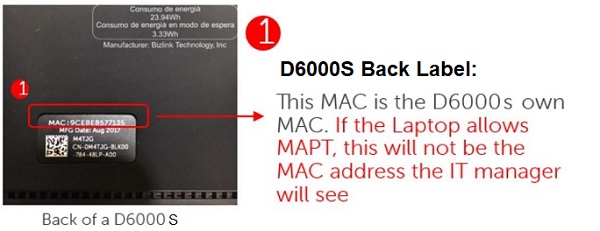
The D6000S series does not support business-class features such as PXE boot or Wake-on-LAN. For docks using DisplayLink, like the D6000S series, not all functions work outside of the operating system or BIOS. Dell offers WD15 and TB16 docking solutions which have the full suite of enterprise features for customers that require enterprise features. (For example: PXE boot, Wake-on-LAN (WOL), and other business-class features for deployment in large enterprises.) The Dell Universal Dock D6000S does offer MAC-address-pass-through (MAPT).
For more information about MAPT, see the Dell knowledge-base article What is MAC Address pass through? Latitude, Mobile Precision Workstation, XPS, USB Type-C
Yes, the Dell Universal Dock D6000S has a media access control (MAC) identifier that can be passed through for network identification. Each dock typically has its own MAC address. However, with a Dell computer, a system-unique MAC address is passed through from the computer to the dock to make it unique to assist IT.
PowerShare allows you to charge your phone or tablet without the laptop being turned on. Power Delivery is used with the USB PD charging spec for USB Type-C devices. Power Delivery means a product (AC adapter or docking station) can provide enough charging power to charge the device with up to 65 W.
Yes, if the laptop manufacturer enabled charging capability using USB Type-C.
*Industry standard is:
- USB PD rev 2.0 v1.1 Power Delivery at 15 W (5 V@3A)
- 60 W (19.5 V@3A) USB Power Delivery exceeding 60 W* for Dell connected devices
NOTE: Not all USB Type-C connections offer the same functionality. Some USB Type-C connections may deliver only data, for instance.
Can the Dell Universal Dock D6000S provide charging to the laptop through the USB Type-A connection?
The USB Type-A adapter on the end of the cable does not deliver power to the laptop when in use. This adapter cannot deliver power as USB Type-A plugs and receptacles do not have Power Delivery capability.
Dell-on-Dell features are not offered. The D6000S is designed for use with any laptops that support industry standard USB Type-C, and for use in a hoteling and/or hot-desk environment.
This is seeing the maximum recommended surrounding temperature where the Dell Universal Dock D6000S operates normally.
No, this is not recommended as charging and USB features may not work with third-party add-on adapters.
Windows determines whether to switch between wired LAN or wireless depending on the strength of the signal, and according to its priority list. You can change this behavior within the Settings of your Wireless Network Card.
The Window operating system decides to switch to wired LAN or WiFi when docked according to a priority list. You can change how Windows detects the wireless connection when docked to a LAN connection. Use the instructions in the Dell knowledge-base article: How to disable a wireless network connection when a wired connection is detected
- Up to three displays using USB Type-C connection: 1 x 5K; 2 x 4K; 3 x 4K
- Up to two displays using USB Type-A connection
- 5120 x 2880 @60Hz (two DP cables required to be plugged in) / 3840 x 2160 @60Hz (single DP/HDMI cable required)
- Three display out only available using USB Type-C connection Maximum two display out for USB 3.0 Type-A connection
Display resolution table
| Docking station connected to personal computer using USB Type-C | |||||
|---|---|---|---|---|---|
| Input | Output | ||||
| DP 1 | DP 2 | HDMI | DP 1 | DP 2 | HDMI |
| DP 1 | DP 2 | HDMI | 4K @ 60 Hz | 4K @ 60 Hz | 4K @ 30 Hz |
| DP 1 | DP 2 | HDMI | 5K @ 60 Hz | 4K @ 30 Hz | |
| DP 1 | DP 2 | 4K @ 60 Hz | 4K @ 60 Hz | ||
| DP 1 | HDMI | 4K @ 60 Hz | 4K @ 60 Hz | ||
| DP 2 | HDMI | 4K @ 60 Hz | 4K @ 60 Hz | ||
| DP 1 | 4K @ 60 Hz | ||||
| DP 2 | 4K @ 60 Hz | ||||
| HDMI | 4K @ 60 Hz | ||||
| Docking station connected to personal computer using USB 3.0 Type-A | |||||
|---|---|---|---|---|---|
| Input | Output | ||||
| DP 1 | DP 2 | HDMI | DP 1 | DP 2 | HDMI |
| DP 1 | DP 2 | HDMI | 4K @ 60 Hz | 4K @ 60 Hz | |
| DP 1 | DP 2 | HDMI | 5K @ 60 Hz | ||
| DP 1 | DP 2 | 4K @ 60 Hz | 4K @ 60 Hz | ||
| DP 1 | HDMI | 4K @ 60 Hz | 4K @ 60 Hz | ||
| DP 2 | HDMI | 4K @ 60 Hz | 4K @ 60 Hz | ||
| DP 1 | 4K @ 60 Hz | ||||
| DP 2 | 4K @ 60 Hz | ||||
| HDMI | 4K @ 60 Hz | ||||
Dell Universal Dock D6000S, using the DisplayLink solution, DOES NOT support MST Daisy Chain. There is NO MST chipset in the Dell Universal Dock D6000S. If the D6000S connects using DP to an MST monitor, the second MST monitor in the Daisy Chain loop shows a DUPLICATE of the first monitor. The D6000S does not control the second monitor behavior in this scenario, it duplicates the video signal from the first display.
Prodotti interessati
Dell Universal Dock - D6000SProprietà dell'articolo
Numero articolo: 000191969
Tipo di articolo: How To
Ultima modifica: 28 feb 2025
Versione: 4
Trova risposta alle tue domande dagli altri utenti Dell
Support Services
Verifica che il dispositivo sia coperto dai Servizi di supporto.