VNX1/VNX2: How to Install VNX Launcher that has Embedded Java and Firefox (User Correctable)
요약: If Java is not installed or Java 9 has been installed on a workstation or personal computer, then Unisphere Launcher is required to open Unisphere.
이 문서는 다음에 적용됩니다.
이 문서는 다음에 적용되지 않습니다.
이 문서는 특정 제품과 관련이 없습니다.
모든 제품 버전이 이 문서에 나와 있는 것은 아닙니다.
지침
What is the VNX Launcher?
VNX Launcher is the Unisphere Client for Windows, it is a host-based version of the Unisphere management tool.
This version of the Unisphere client includes a browser with a self-contained Java Runtime Environment (JRE) and does not require Java to be installed.
Older versions of the Unisphere Client application and on-array Unisphere do not support Java 9. If the Windows management station is upgraded to Java 9, this Unisphere Client version is required for use with VNX1 and VNX2 arrays.
How to install the VNX Launcher that has embedded Java and Firefox:
- Download VNX Launcher using the link below and follow the installation wizard:
https://dl.dell.com/downloads/1PHV6_Unisphere-Client-1.3.21.1.0322-(self-contained-JRE)-for-Windows---English.exe - Once installation is complete, configure Java. This is a one-time setup.
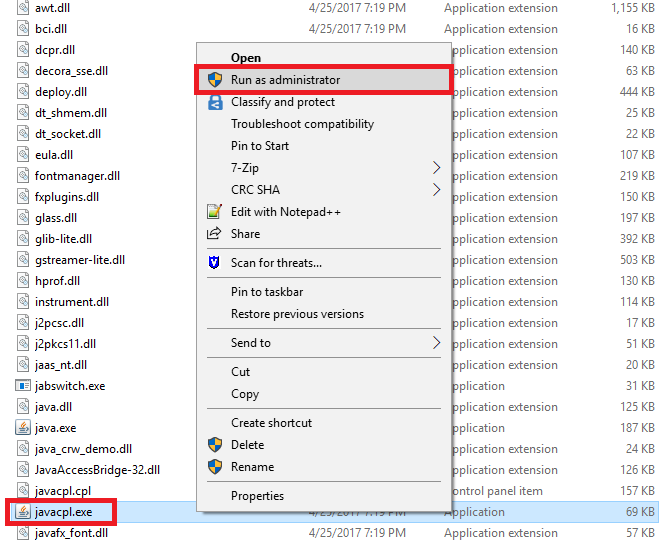
- Open the Java control panel by running javacpl.exe as administrator. This is located in the VNX Launcher install folder, "C:\Program Files (x86)\EMC\Unisphere VNX Management Launcher\CommonFiles\Java\bin"
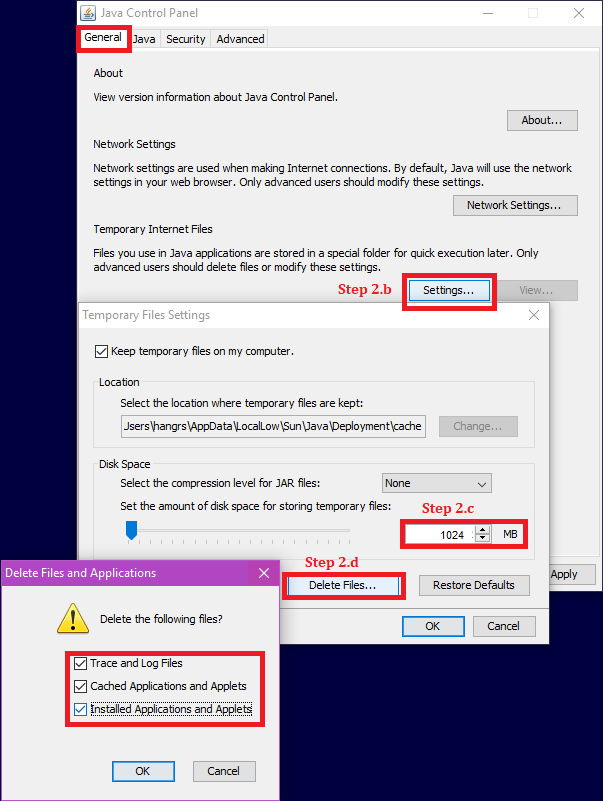
- Under the General tab, go to Settings.
- Adjust disk space to 1024.
- Click Delete Files..., check all boxes, then click OK.
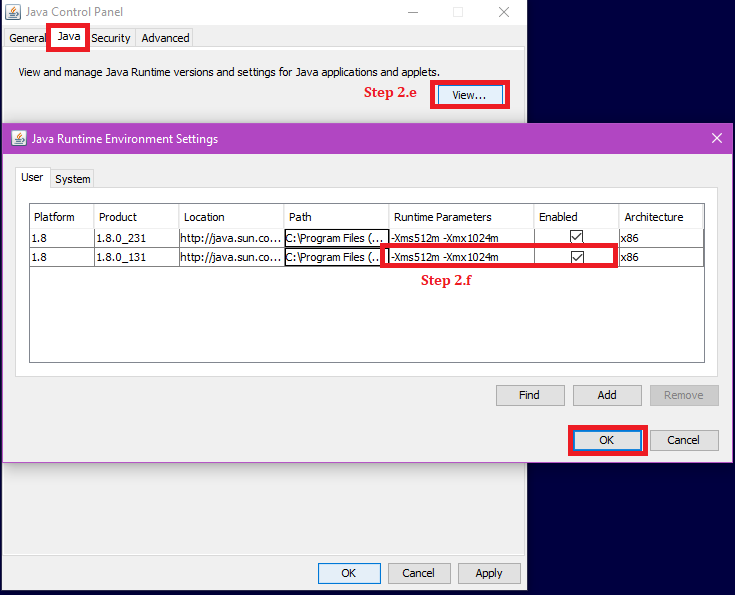
- Select the Java tab, then click View.
- On the Java Runtime Environment Settings window, add
-Xms512m -Xmx1024mto the Runtime Parameters, then click OK.- Note: If there is any 64-bit Java installed, disable that version.
- Java 1.8.0_131 is the embedded Launcher version.
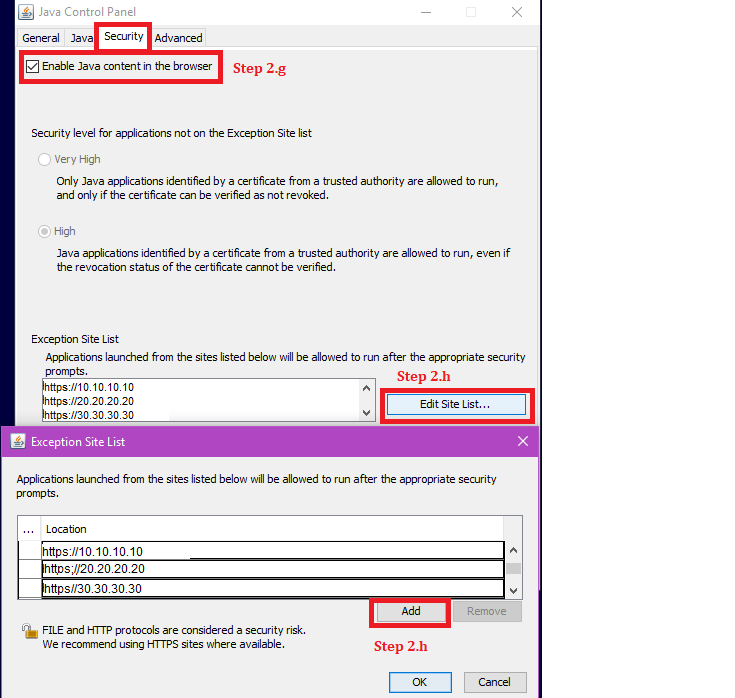
- Select the Security tab, and then confirm the checkbox for Enable Java content in the browser is checked.
- Under the Security tab, click Edit Site Lists… to add the array URL to the Exception Site List, then click OK. The array URL can be the IP of a Control Station, Storage Processor A, or Storage Processor B.
For example: https://10.10.10.10
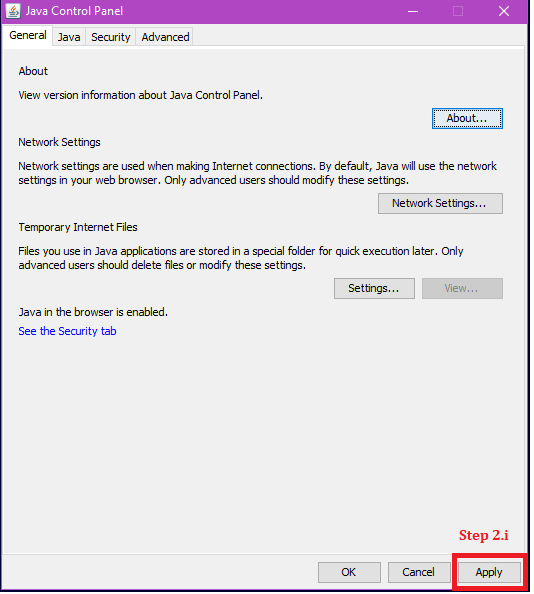
- Click Apply
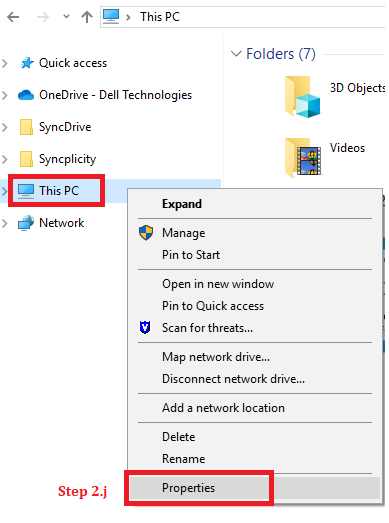
- Open File Explorer, right-click This PC, then go to Properties
- Go to Advanced System Setting
- Under the Advanced tab, click Environment Variables
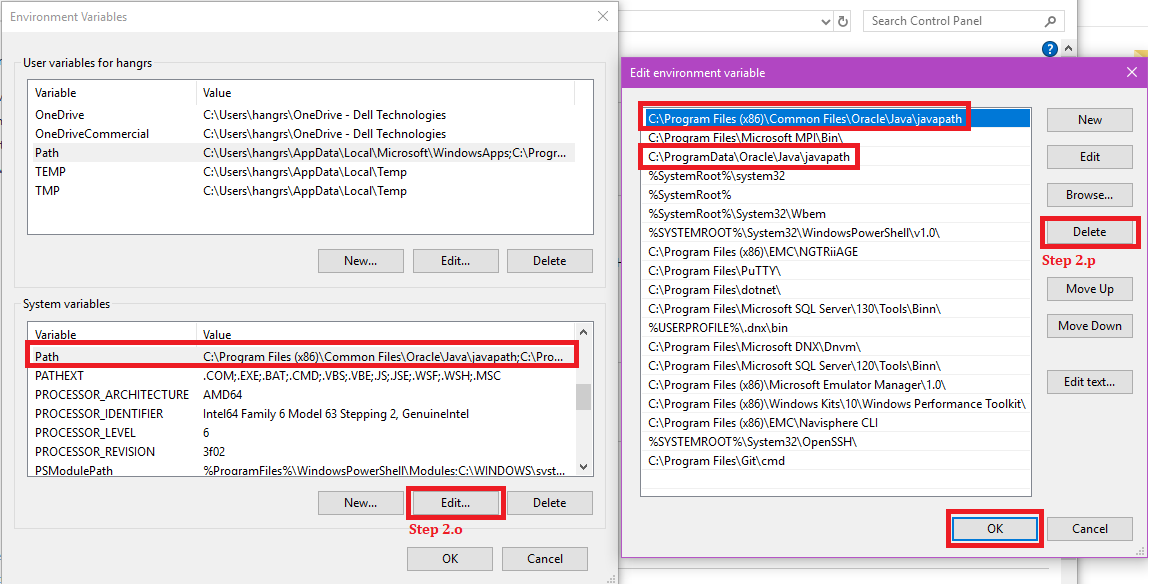
- Under System variables, click Edit on Path
- Add the VNX Launcher Java path: "C:\Program Files (x86)\EMC\Unisphere VNX Management Launcher\CommonFiles\Java\bin\" and move the path to the top of the list, then click OK.

- Note: If there is any Java path entry that no longer exists, it should be deleted.
- Under System variables, Select Path and click Edit
- Delete the invalid Java path entries, then click OK. For example:
- Open the Java control panel by running javacpl.exe as administrator. This is located in the VNX Launcher install folder, "C:\Program Files (x86)\EMC\Unisphere VNX Management Launcher\CommonFiles\Java\bin"
- Run VNX Launcher
- Open VNX Launcher
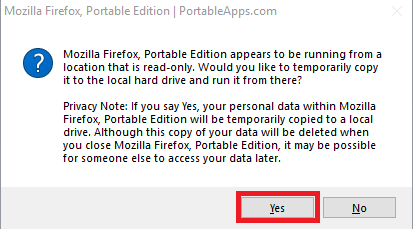
- If there is a warning about Firefox to be opened from a location that is read-only, select Yes to continue.
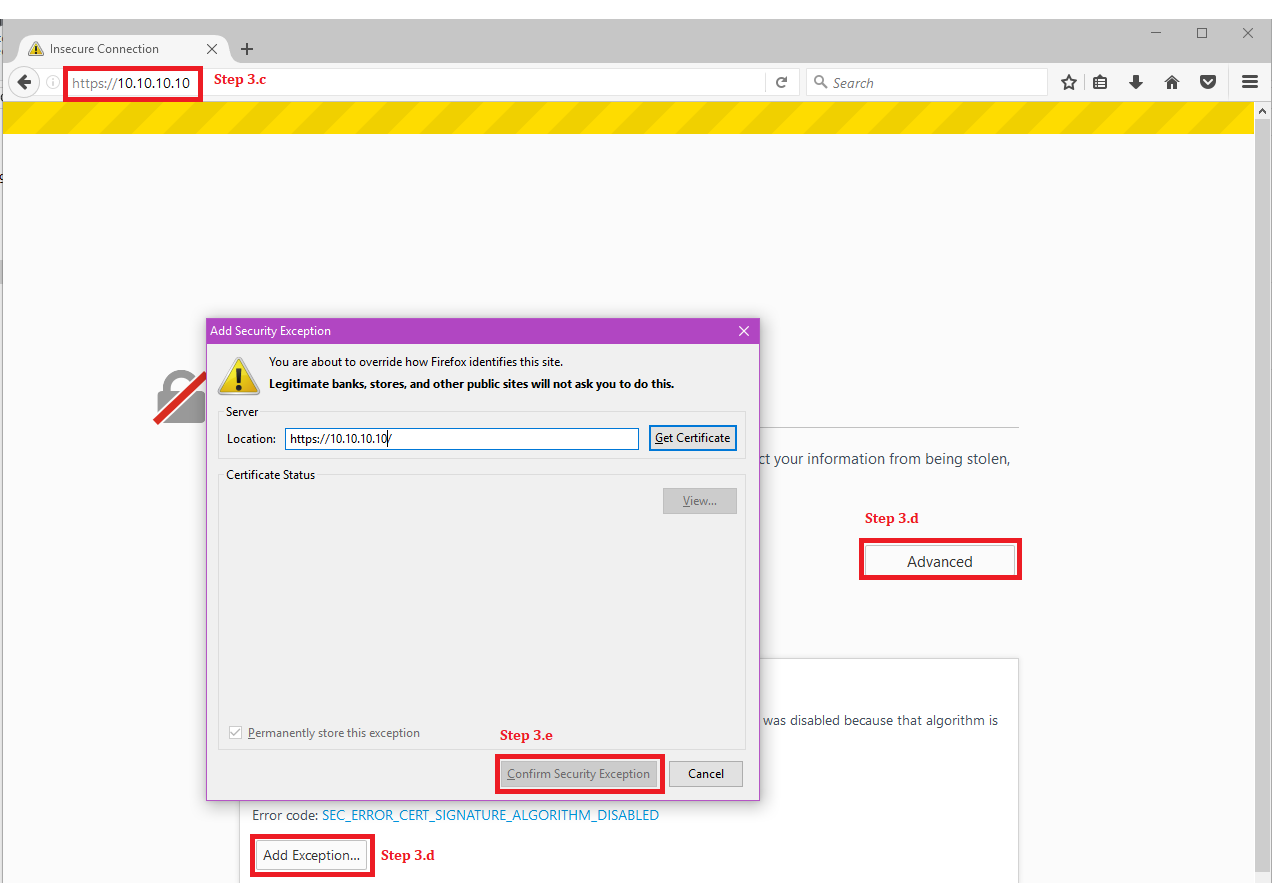
- Type in the array URL
- If the ensured connection warning page is received, click Advanced, then Add Exception
- Under the Add Security Exception window, click Confirm Security Exception
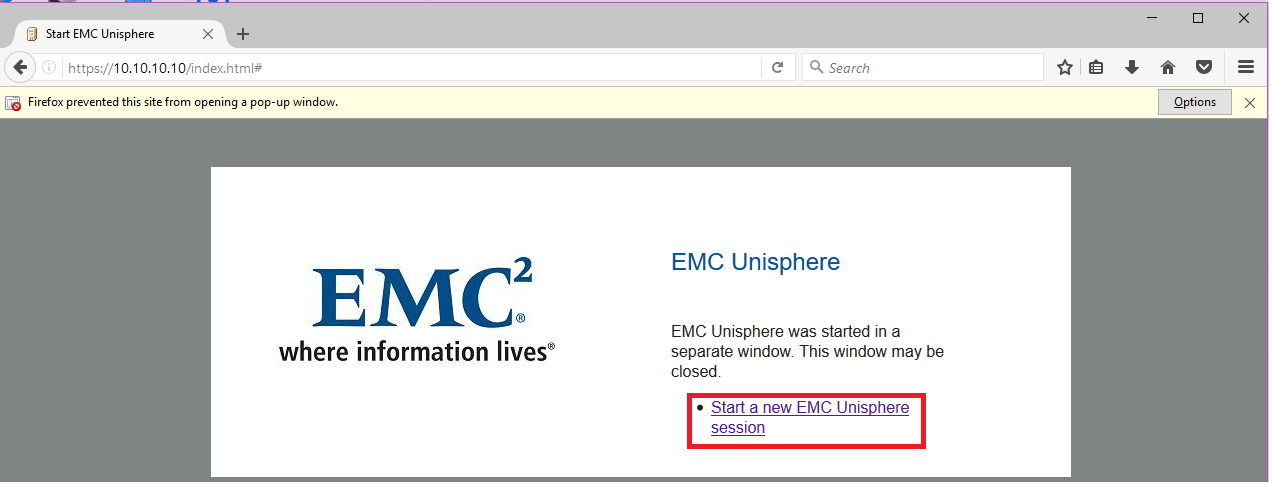
- Click Start a new EMC Unisphere session
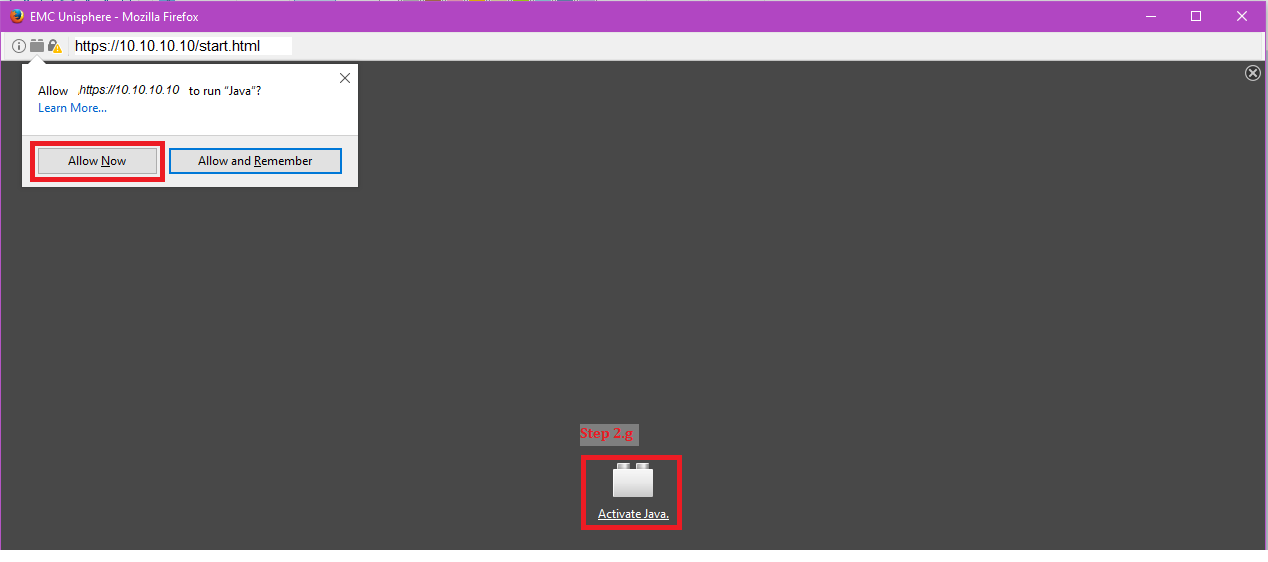
- Choose Activate Java, then Allow Now
- If there is a Java Update Needed warning message, choose Later to continue.
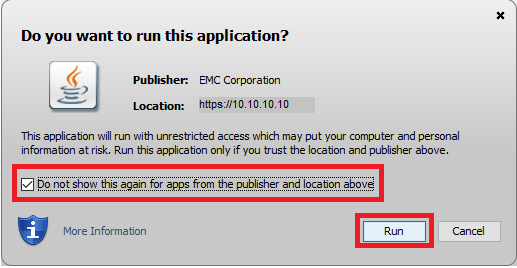
- If there is a Java security warning, select the I accept the risk and want to run this application and click Run
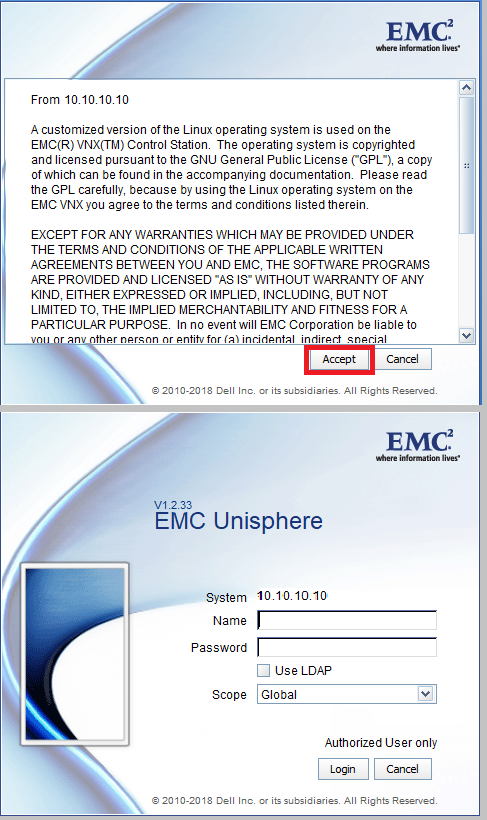
- Click Accept to continue to the Unisphere login page.
추가 정보
For convenience, create a shortcut of javacpl.exe, from step 2.a, and send it to the desktop to add additional arrays' IPs, step 2.h.
If VNX Launcher still reports a Java error after following steps above, perform the following:
If VNX Launcher still reports a Java error after following steps above, perform the following:
- Uninstall Java from the workstation by using JavaUninstallTool.exe from link below.
- Delete all invalid Java path entries from Environment variables, see step 2.p in the instruction paragraph.
- Re-install VNX Launcher
해당 제품
VNX2 Series제품
VNX1 Series, VNX2 Series문서 속성
문서 번호: 000019852
문서 유형: How To
마지막 수정 시간: 23 9월 2024
버전: 6
다른 Dell 사용자에게 질문에 대한 답변 찾기
지원 서비스
디바이스에 지원 서비스가 적용되는지 확인하십시오.