Data Domain and DDVE: How to Upgrade the Data Domain Operating System
요약: The Data Domain Operating System (DDOS) can be upgraded by following the instructions in this KB article.
이 문서는 다음에 적용됩니다.
이 문서는 다음에 적용되지 않습니다.
이 문서는 특정 제품과 관련이 없습니다.
모든 제품 버전이 이 문서에 나와 있는 것은 아닙니다.
지침
This article was created to assist Dell Technologies customers with upgrading their Data Domain.
Many of the links and references below are accessible only over the Dell Support website.
Log in to support.dell.com before reading further.
- This is only for Data Domain Operating System (DDOS) and Data Domain Virtual Edition (DDVE) upgrades. This is not valid for a Data Domain High Availability (DDHA) upgrade.
- For DDHA upgrades browse Data Domain: OS Upgrade Guide for High Availability (HA) systems (Login required)
- For DDVE deployed in the Cloud (Azure, GCP and AWS), the DDOS.rpm file required to upgrade the code is the same that is used for the hardware models. It can be downloaded from Support for DD OS.
- If this Data Domain is part of an IDPA, it should be upgraded within the IDPA upgrade, and it can NOT be upgraded separately.
- You must check the compatibility between your required Data Domain version and other integrations in your environment. Check the compatibility guide using the E-Lab Interoperability Navigator.
- Check the simple code matrix in the notes section in this document to determine how many steps are needed. There should be at least 24 hours between each upgrade step, unless upgrading from 6.2.x to 7.0.x, then no cooling period is required.
- You can find the upgrade path from the release notes of the version that you are upgrading. Reference PowerProtect and Data Domain core documents for a list of Data Domain documents.
- To check whether a Minimum Disruptive Upgrade (MDU) is needed, see Data Domain: DDOS 7.x Minimum Disruptive Upgrade (MDU) and DDOS 7.2 Compatibility (Login required)
- For an upgrade FAQ, check this KB article: DDOS upgrade Frequently Asked Questions (FAQ)
How to upgrade the Data Domain Operating System on Data Domain and DD Virtual Edition.
Duration: 00:09:51 (hh:mm:ss)
When available, closed caption (subtitles) language settings can be chosen using the CC icon on this video player.
Alternatively, view this video on YouTube.
Process 1: Downloading the code version that you are upgrading to.
-
Go to the support website (Support for DD OS) and sign in. Alternatively, go to Data Domain: DD OS Software Versions and download from there (Login required).
-
Choose the code to upgrade to:
- General Availability (GA) releases have completed Data Domain Internal QA Testing and are available for installation in production environments.
- Long-Term-Support (LTS) releases have unique characteristics different from the latest feature releases.
- Targeted for customers who adopt a standard version across their data centers and remain at that version for a year or more.
- Made available every year simultaneously.
- Proactively maintained and updated through Maintenance Releases on a regular cadence.
- Declared as LTS at the time of release with no vetting period.
- Have an offering of 36 months of software issue remediation and root cause analysis.
- Replace the Target Code concept.
-
Under the resources pane, select Downloads and Drivers.
-
Click Data Domain Operating System [VERSION]
Note: [VERSION] = The version of the download -
Read the document and then click I Accept on the last page.
-
Read the document and then click the .rpm file to start the download.
Process 2: Uploading the code to the DD:
-
Open the PowerProtect Data Domain System Manager (For example, this is accessed from either
https://hostname/ddemorhttps://IP/ddem). -
Log in as
sysadmin. -
Go to the Maintenance tab.
-
Click Upload Upgrade Package and then select your file.
Process 3: Pre-check steps
-
Log in to the Data Domain server.
- Open an SSH session.
- Type the IP address or hostname.
- Log in as
sysadminuser.
-
Validate the serial number and the hostname of the Data Domain to ensure that you are on the correct server.
system show serialnohostname
-
Confirm that you have the correct IP address.
net show settings
-
Confirm that your Data Domain is not part of an IDPA. If you see
avamar-, and threeesxX-logs, or if you see the presence of management VLANS such asethMa.121, ethMa.123, then this may indicate this is part of an IDPA. If you are unsure, contact the system administrator for your organization.mtree list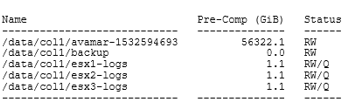
Figure 1: Example of a potential DD with IDPA output
-
Confirm that the Data Domain is not DDHA. Do NOT proceed if this is a DDHA as it has a different upgrade procedure.
ha status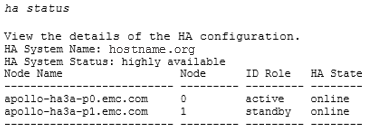
Figure 2: Example of DDHA
-
Check the current code version installed (check the matrix to confirm if this is a single step or multistep upgrade).
system show version
-
Check for alerts and determine if the alert can be cleared or needs an action to be taken. Check the DD Error Message Catalog. If you are unsure or if there are hardware issues, do NOT proceed. Engage the Dell Technologies support team.
alerts show current
-
Check the file system status and confirm that it states the file system is enabled and running.
filesys status
-
Check the space and confirm that the post-comp partition has at least 10% free space.
df
Note: If you have Archive Tier/Extended Retention, you cannot upgrade to DD 7.x version as archive tier is no longer supported in DD 7.x version and causes the upgrade to fail. -
Check if the cleaning process is running. If yes, stop it before proceeding.
filesys clean statusfilesys clean stop
-
Check if the cloud tier is enabled. If yes, stop any data movement before proceeding.
data-movement statusdata-movement stop allcloud clean statuscloud clean stop
-
Check the replication configuration. Check the CTX column. If you ever see it showing 0, it means its Collection Replication (Mirroring), this is rare, but when you have this type of replication it means that both servers must be upgraded simultaneously.
replication show config
-
Check if any replication jobs are running or initializing. If initialization is in progress, it must be stopped before proceeding with the upgrade. Sometimes it can take a long time to stop replication initialization. If replication is not running, the upgrade can proceed.
replication show stats- To stop replication, reference the Data Domain: Replication initialization is in progress, and upgrade cannot proceed.
-
Check for disk reconstruction or failed disks. Ensure that there are no Failed (F), Reconstructing (R), Copy (C), or Absent Disks (A).
disk show state
-
Perform a disk reliability check. Confirm that the last line shows X drives operating normally. Check the reallocated sectors column, if the count is 2000+, the disk must be proactively replaced prior to the upgrade.
disk show reliability-data
-
Check the network traffic.
system show stats interval 2 count 10ORiostat 2
-
Check for running NFS or CIFS jobs. If yes, stop them before proceeding.
nfs show activecifs show active
-
In the case PCR is enabled and in use, reference Data Domain: Upgrade Instructions for PCR/PCM enabled DD.
-
If integrated with Avamar and upgrading to 6.1, reference Avamar-Data Domain Integration: After upgrading Data Domain to 6.1.x, Avamar snapshots do not expire on Data Domain (Login required).
-
Check the current method used for Auto-Support delivery.
support notification method show
-
Check that the upgrade file is correct.
system package list
-
Proactively reboot.
system reboot
-
You can monitor the DD by pinging the IP address by using Command Prompt. Open Command Prompt and then type:
ping -t [DD IP address]
- If this is a PowerEdge Data Domain with iDRAC, the iDRAC module should be proactively rebooted:
- From the iDRAC user interface: Maintenance -> Diagnostics -> Reboot iDRAC
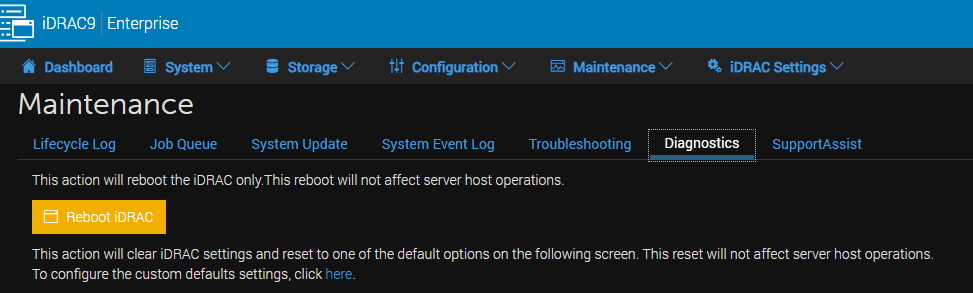
- It usually takes about 5 minutes for iDRAC to reboot
Process 4: Upgrade
-
When the host is back online, relogin to the Putty session.
-
Run the pre-check steps 7, 8 and 9 to confirm that the DD state is healthy after the reboot.
-
List the content of
/ddr/var/releases/ -
Start the upgrade pre-check. Do NOT run the upgrade if issues are detected.
system upgrade precheck <filename.rpm>
-
Start the upgrade.
system upgrade start <filename.rpm>
-
The server reboots automatically. You can monitor the DD by pinging the IP address by using Command Prompt.
Process 5: Post-check steps
-
When the host is back online, relogin to the Putty session.
-
Monitor the upgrade.
system upgrade watch
-
The upgrade is completed when the message "Upgrade successfully completed" is displayed.
-
Run the pre-check steps 6, 7, 8 and 9 to confirm that the DD state is healthy after the upgrade.
-
Check the current method used for Auto-Support delivery. If changed post-upgrade from connectemc to email, see Data Domain: Secure Remote Services (SRS) connect home stops after DDOS upgrade to 6.1.x, 6.2.x, or 7.1.x (connect in still works) (Login required).
support notification method show
-
Check Replication Status.
replication show detailed-stats all
-
Check NFS, CIFs, and VTL status.
nfs statuscifs statusvtl status
-
If DD Boost was disabled preupgrade, reenable it.
ddboost enable
-
Check if the password expiry days must be increased.
user password aging showNote: If you see "Maximum days between change" is set to a small value (for example, 90), change it to a higher value (for example, 99999):user password aging set <ddboost username> max-days-between-change 99999
Note: If the Dell Remote Proactive team is assisting with your DDOS upgrade, see Data Domain: FAQs for Remote Proactive Data Domain Upgrades (Login required).
비디오
해당 제품
Data Domain, DD OS문서 속성
문서 번호: 000021710
문서 유형: How To
마지막 수정 시간: 25 11월 2025
버전: 21
다른 Dell 사용자에게 질문에 대한 답변 찾기
지원 서비스
디바이스에 지원 서비스가 적용되는지 확인하십시오.