Troubleshooting Windows 10 Not Shutting Down Properly
요약: Discover steps to resolve Windows 10 shutdown issues with our guide. Learn about the Fast Startup feature, full shutdown methods, and command-line solutions. Ensure that your system shuts down completely for optimal performance. ...
이 문서는 다음에 적용됩니다.
이 문서는 다음에 적용되지 않습니다.
이 문서는 특정 제품과 관련이 없습니다.
모든 제품 버전이 이 문서에 나와 있는 것은 아닙니다.
지침
Windows Shutdown
Since Windows 8.1 and through Windows 10, a feature called Fast Startup has been an option on Microsoft's Operating Systems. The feature is used to speed up the Operating System boot process by being a hybrid between a System Shutdown and Hibernation.
Fast Startup in Windows discards all your open programs and files (as it would during a traditional shutdown), but it saves the state of the Windows kernel to the hard drive (as it would during hibernation). More information can be found in the following location: Distinguishing Fast Startup from Wake-from-Hibernation

Full Shut Down and Restart
The following methods should be used if a Shut Down is needed while Troubleshooting Windows software issues.
- If a Shut Down is needed, Restart should be selected instead. Windows performs a full shutdown while Restarting the computer.
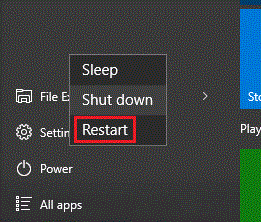
- The next option is to use the Command Line.
The following article explains how to open a Command Line in Windows: The Command Prompt: What It Is and How to Use It on a Dell System
In the Command Line, type:shutdown /s /f /t 0
Then press Enter.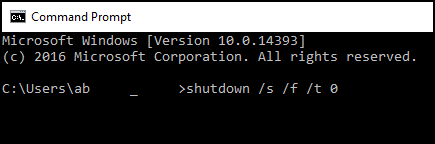
- The next option is to disable the Fast Startup feature.
Note: This option should be used as a last resort as it may increase boot times for the computer.
- Search for and open "Power Options" in the Start Menu.
- Click "Choose what the power buttons do" on the left side of the window.
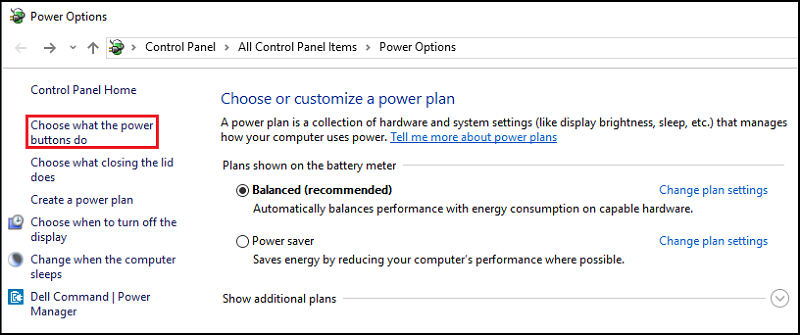
- Under "Shutdown settings," ensure "Turn on fast startup" is cleared.
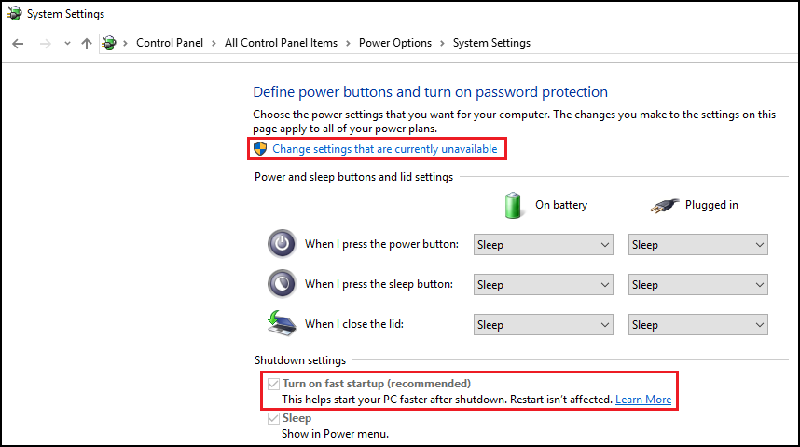
해당 제품
Alienware, Dell All-in-One, Dell Pro All-in-One, Dell Pro Max Micro, Dell Pro Max Slim, Dell Pro Max Tower, Dell Pro Micro, Dell Pro Slim, Dell Pro Tower, Dell Slim, Dell Tower, Inspiron, OptiPlex, Vostro, XPS, G Series, G Series, Alienware
, Dell Laptops, Dell Plus, Dell Pro, Dell Pro Max, Dell Pro Plus, Dell Pro Premium, Inspiron, Latitude, Dell Pro Rugged, Vostro, XPS, Fixed Workstations, Mobile Workstations, Dell Pro Max Micro XE FCM2250, Dell Pro Max Slim XE FCS1250, Dell Pro Max Tower T2 XE FCT2250, Dell Pro Max 16 XE MC16250, Dell Pro Micro Plus XE QBM1250, Dell Pro Slim Plus XE5 QBS1250, Dell Pro Tower Plus XE5 QBT1250
...
문서 속성
문서 번호: 000124687
문서 유형: How To
마지막 수정 시간: 11 7월 2025
버전: 10
다른 Dell 사용자에게 질문에 대한 답변 찾기
지원 서비스
디바이스에 지원 서비스가 적용되는지 확인하십시오.