How to Cancel Consumer Subscription Support Services
요약: Learn how to cancel Dell consumer subscription support services such as Premium Support. Follow simple steps to end your subscription.
이 문서는 다음에 적용됩니다.
이 문서는 다음에 적용되지 않습니다.
이 문서는 특정 제품과 관련이 없습니다.
모든 제품 버전이 이 문서에 나와 있는 것은 아닙니다.
지침
Note: Screenshots are provided in English but the experience is localized as per your current location.
Cancel Subscription Using Dell Account
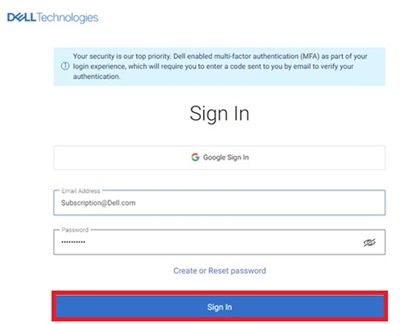
- Go to My Account page. Click the Sign In button to sign into your Dell Account using the email address used at the time of the purchase of the Dell Product or your Dell Account email address and password. For questions about creating or updating a My Account login, see the My Account FAQs.
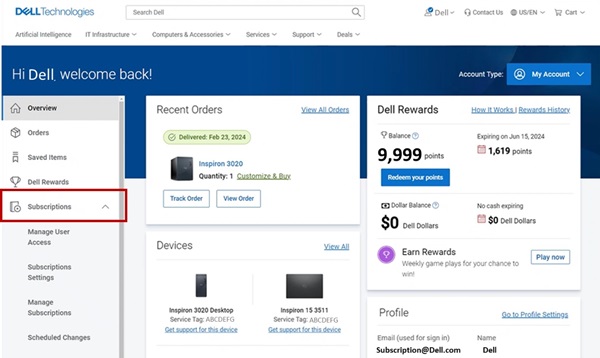
- Once you log in to the Dell Account, the home page displays a dashboard of products and services purchased, Account details, Rewards, and so on. Click Subscriptions from the left panel.
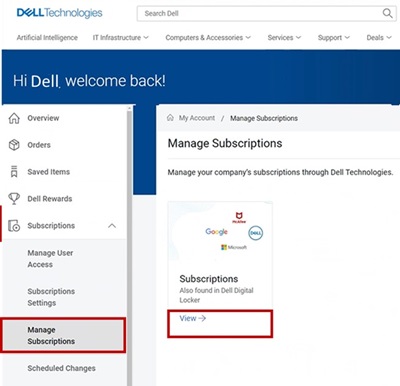
- Click Manage Subscriptions and then click View.
- The dashboard displays the hardware and software subscriptions purchased on your Dell Products.
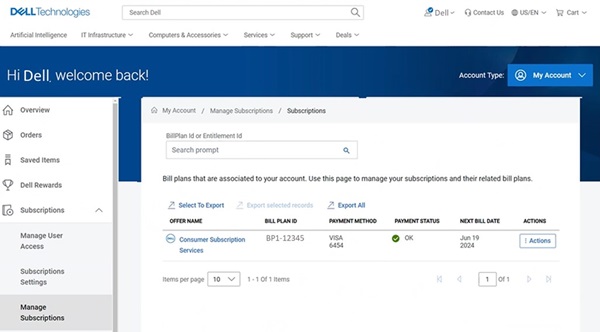
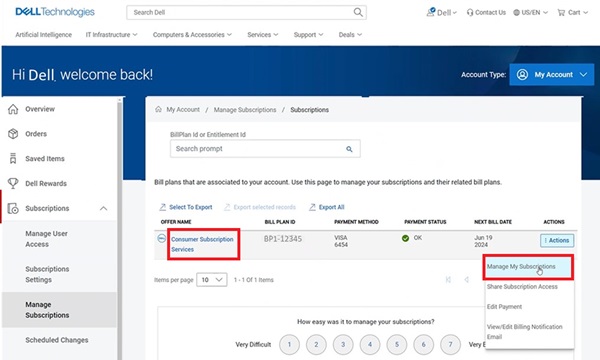
- Click the Action button on the Consumer Subscription Services which needs cancellation, and then click Manage Subscriptions. You can also click Consumer Subscription Services.
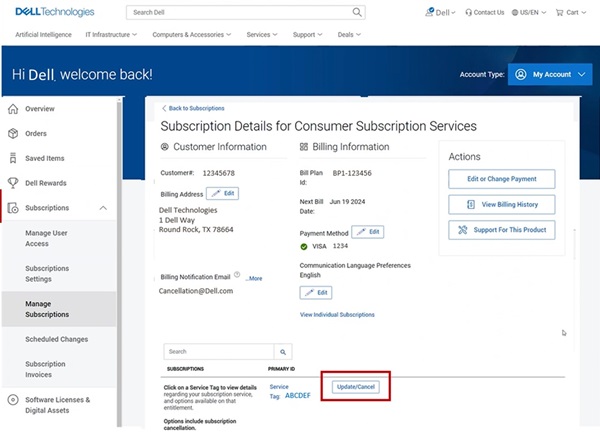
- Subscription detail of your Dell Product is displayed. Click the Update/Cancel button.
- The subscription product details page displays the subscription service details, Service tag, bill plan of your Dell Product. Click the Cancel button to cancel the Subscription.
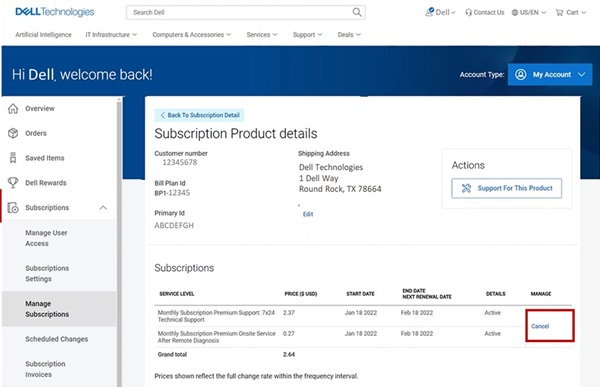 Note: The cancel button is displayed only if the subscription is eligible for cancellation. If the subscription has been previously cancelled, the Cancel button is not shown.
해당 제품
Dell Slim, Dell Tower, Inspiron, XPS, G Series, G Series, Dell Plus, Inspiron, XPS문서 속성
문서 번호: 000126747
문서 유형: How To
마지막 수정 시간: 02 9월 2025
버전: 27
다른 Dell 사용자에게 질문에 대한 답변 찾기
지원 서비스
디바이스에 지원 서비스가 적용되는지 확인하십시오.