How to Access the Dell Data Security Server Administration Console
요약: The Dell Data Security or Dell Data Protection server administration console may be accessed by following these instructions.
이 문서는 다음에 적용됩니다.
이 문서는 다음에 적용되지 않습니다.
이 문서는 특정 제품과 관련이 없습니다.
모든 제품 버전이 이 문서에 나와 있는 것은 아닙니다.
증상
Dell Data Security (formerly Dell Data Protection) requires an administration console to manage:
- Policies
- Reports
- Encryption keys
Affected Products:
- Dell Security Management Server
- Dell Data Protection | Enterprise Edition Server
- Dell Security Management Server Virtual
- Dell Data Protection | Virtual Edition
Affected Versions:
- v8.0 and Later
원인
Not applicable
해결
Click the appropriate product version for specific steps on accessing the administration console. For versioning information, reference How to Identify the Dell Data Security / Dell Data Protection Server Version.
- Open a web browser and go to https://servername.company.com:8443/webui.

Note:
- The example FQDN (fully qualified domain name) will differ from the server in your environment.
- Port 8443 may differ from the administration console port in your environment.
- Sign in to the Administration Console.
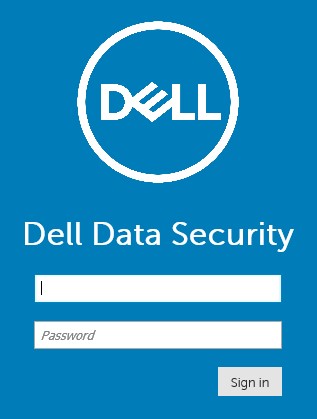
Note:
- In version 11.4 and later, the user is prompted to enter the OTP (one-time password) if either Google Authenticator or email MFA (multi-factor authentication) has been configured for the user.
- For more information about configuring MFA, reference How to Manage Multi-Factor Authentication in the Dell Security Management Server Administration Console.
- In Windows Explorer, go to:
- Dell Data Protection | Enterprise Edition server:
C:\Program Files\Dell\Enterprise Edition - Endpoint:
C:\Program Files\Dell\Virtual Edition
- Dell Data Protection | Enterprise Edition server:
Note:
- Endpoint access requires installation of the administration console (formerly Remote Management Console) from the Dell Data Protection | Virtual Edition media.
- For installation steps, reference How to Install the Dell Data Protection Remote Management Console.
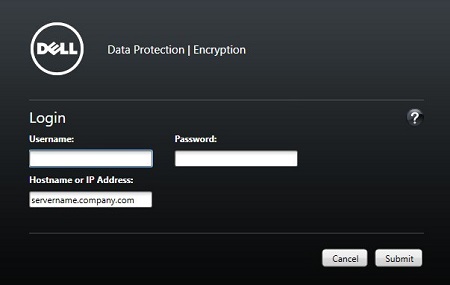
- Double-click
Credant.Console.

- Submit credentials to sign in to the administration console.
To contact support, reference Dell Data Security International Support Phone Numbers.
Go to TechDirect to generate a technical support request online.
For additional insights and resources, join the Dell Security Community Forum.
해당 제품
Dell Encryption문서 속성
문서 번호: 000126852
문서 유형: Solution
마지막 수정 시간: 16 11월 2023
버전: 15
다른 Dell 사용자에게 질문에 대한 답변 찾기
지원 서비스
디바이스에 지원 서비스가 적용되는지 확인하십시오.