USB 3.0 Device is Recognized as USB 2.0 on a Dell Computer
요약: Learn how to resolve a USB 3.0 device recognized as USB 2.0 device on a Dell computer.
이 문서는 다음에 적용됩니다.
이 문서는 다음에 적용되지 않습니다.
이 문서는 특정 제품과 관련이 없습니다.
모든 제품 버전이 이 문서에 나와 있는 것은 아닙니다.
증상
Plugging in a USB 3.0 device may cause an error message to be displayed or it may not be recognized at all.
The error message may appear stating "This USB device can transfer information faster if you connect it to a Super-Speed USB 3.0 port." This may occur even though it is plugged into a 3.0 port. The blue plastic insert in each port typically identifies USB 3.0 ports on Dell computers.
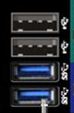
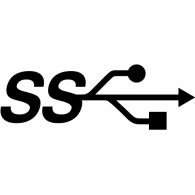
Note: It is not a requirement to have blue plastic inserts to distinguish USB 3.0 ports. With new computers the USB 3.0 ports may have standard black plastic inserts, but they still have the USB 3.0 logo located beside the port. When the computer has a mixture of USB 2.0 and USB 3.0, it is more likely that the USB 3.0 is called out with blue inserts.
원인
When a USB 3.0 device is plugged in slowly to a USB 3.0 port, it is expected behavior of the hardware to recognize as USB 2.0.
해결
If the above error is seen try the following steps to resolve:
- Verify that the device that you are using supports USB 3.0. See the documentation of the USB device for more information.
- Plug the USB 3.0 device again and avoid inserting the device slowly.
- If the above steps do not resolve the issue, reference How to Troubleshoot USB Port When it is Not Working.
해당 제품
Alienware, Inspiron, OptiPlex, Vostro, XPS, G Series, G Series, Alienware, Inspiron, Latitude, Vostro, XPS, Fixed Workstations, Mobile Workstations문서 속성
문서 번호: 000135207
문서 유형: Solution
마지막 수정 시간: 22 7월 2025
버전: 12
다른 Dell 사용자에게 질문에 대한 답변 찾기
지원 서비스
디바이스에 지원 서비스가 적용되는지 확인하십시오.