如何在 Dell Security Management Server 管理主控台中管理多重因素驗證
요약: Dell Security Management Server 可設定為需要雙因素驗證 (2FA) 才能登入管理主控台。
이 문서는 다음에 적용됩니다.
이 문서는 다음에 적용되지 않습니다.
이 문서는 특정 제품과 관련이 없습니다.
모든 제품 버전이 이 문서에 나와 있는 것은 아닙니다.
지침
可為 Dell Security Management Server 或 Dell Security Management Server Virtual 管理多重因素驗證。
受影響的產品:
- Dell Security Management Server
- Dell Security Management Server Virtual
受影響的版本:
- 11.4.0 及更新版本
可在使用者群組或個別使用者層級管理多重因素驗證。如需詳細資訊,請選擇以下適當的章節。
使用者群組
- 使用具有帳戶系統管理員角色的帳戶登入 Dell Data Security 管理主控台。如需詳細資訊,請參閱 如何存取 Dell Data Security Server 管理主控台。
注意: 如需管理員角色的詳細資訊,請參閱 支援 Dell Encryption 手冊與文件中「AdminHelp - Security Management Server PDF」的「系統管理員角色」一節。
- 從左側功能表窗格中展開 填入 標籤,然後按一下 使用者群組。

- 從清單中選取一個要編輯 的使用者群組 。
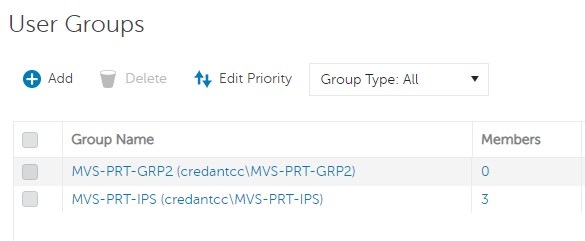 注意: 組在此清單中的位置決定了組優先順序。如需詳細資訊,請參閱 支援 Dell Encryption 手冊與文件中「AdminHelp - Security Management Server PDF」的「編輯使用者群組優先順序」一節。
 - 選取管理員標籤。

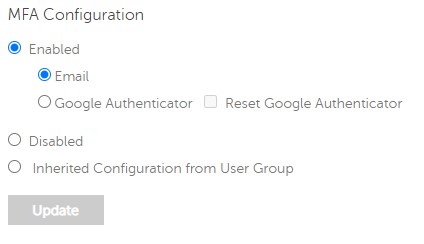
- 從 MFA 組態:
- 選取啟用。
- 選取 電子郵件 或 Google Authenticator。
- 按一下更新按鈕。

個別使用者
- 使用具有帳戶系統管理員角色的帳戶登入 Dell Data Security 管理主控台。如需詳細資訊,請參閱 如何存取 Dell Data Security Server 管理主控台。
注意: 如需管理員角色的詳細資訊,請參閱 支援 Dell Encryption 手冊與文件中「AdminHelp - Security Management Server PDF」的「系統管理員角色」一節。
- 從左側功能表窗格中展開 填入標籤,然後按一下使用者。

- 從清單中選取一個要編輯 的使用者 。
- 選取管理員標籤。

- 從 MFA 組態:
- 選取啟用。
- 選取 電子郵件、 Google Authenticator 或 從使用者群組繼承的組態。
- 按一下 Update 按鈕。
해당 제품
Dell Encryption문서 속성
문서 번호: 000200440
문서 유형: How To
마지막 수정 시간: 21 7월 2026
버전: 7
다른 Dell 사용자에게 질문에 대한 답변 찾기
지원 서비스
디바이스에 지원 서비스가 적용되는지 확인하십시오.