XMP Memory Speed Does Not Match the Specifications That was Ordered
요약: This article discusses an issue where Alienware Desktops do not report the correct memory speed.
이 문서는 다음에 적용됩니다.
이 문서는 다음에 적용되지 않습니다.
이 문서는 특정 제품과 관련이 없습니다.
모든 제품 버전이 이 문서에 나와 있는 것은 아닙니다.
증상
Affected Platforms:
- Alienware Aurora R15
- Alienware Aurora R15 AMD
The computer may report that the XMP memory only works at 4800 Mhz but should be working at 5200 Mhz or 5600 Mhz.
원인
This is working as designed.
해결
The XMP memory speed is 4800 Mhz as shipping setting on Alienware Aurora R15 and Alienware Aurora R15 AMD. Users must enable XMP function in BIOS setup or Alienware Command Center (AWCC) to enable maximum speed, 5200 Mhz, or 5600 Mhz, depending on what memory user ordered.
How to enable XMP memory speed through BIOS:
- Press the F12 key as the computer boots, to enter the BIOS
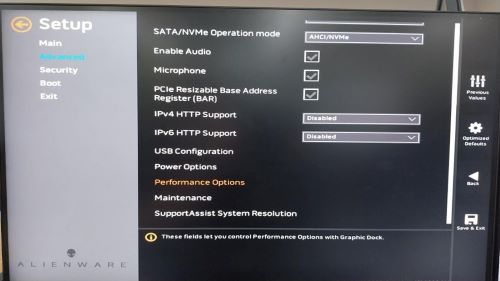
- Select Advanced > Performance Options
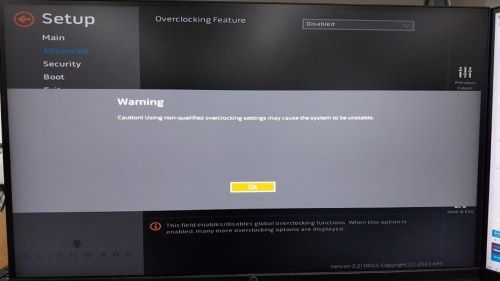
- Overclocking Feature Disable change to Enable. Click OK when a warning message is displayed.
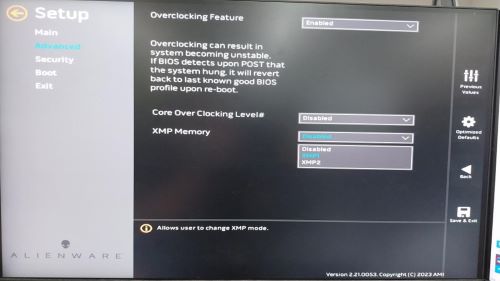
- Change XMP memory from Disable to XMP1
How to enable max XMP memory speed through AWCC:
Optional 1
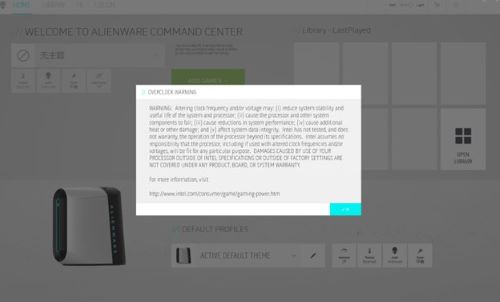
- Open AWCC in the operating system, enter OK when a warning message is displayed
- Enter Overclock and change Off to Overclock 02
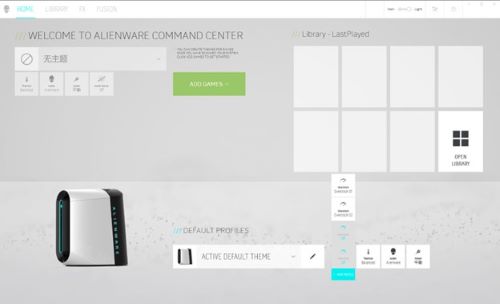
- A warning message is displayed alerting you to reboot to make the change effective, enter OK to reboot the computer
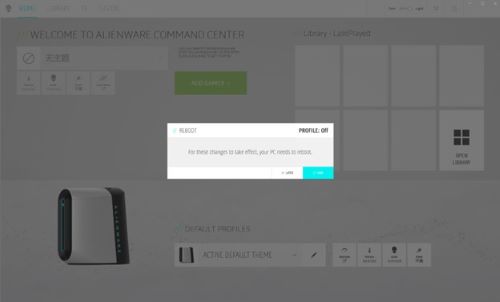
Optional 2:
Set XMP speed without CPU overclocking through AWCC
- Open AWCC in the operating system, enter OK when a warning message is displayed
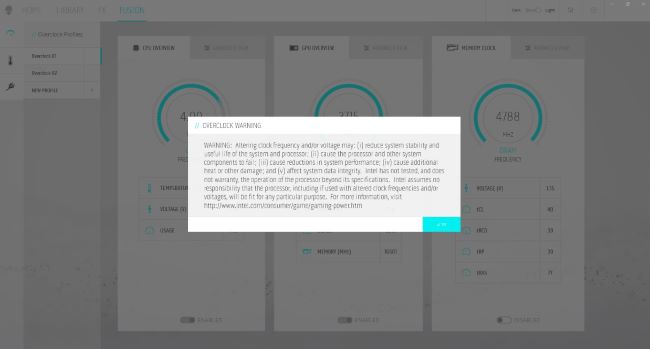
- Enter FUSION > ADVANCED VIEW
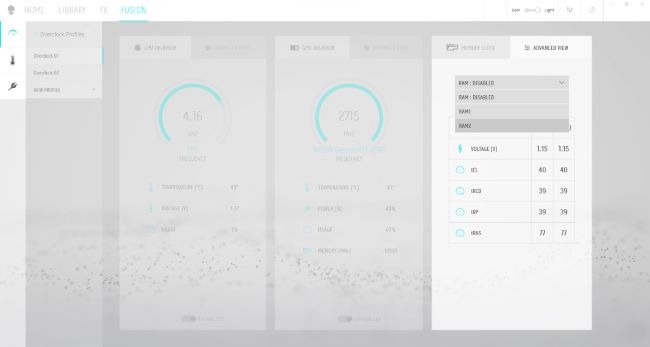
- Select RAM1, then save profile as a new name
- A warning message is displayed that you must reboot to make the change effective, enter OK to reboot computer
해당 제품
Alienware Aurora R15 AMD, Alienware Aurora R15문서 속성
문서 번호: 000216336
문서 유형: Solution
마지막 수정 시간: 16 4월 2025
버전: 4
다른 Dell 사용자에게 질문에 대한 답변 찾기
지원 서비스
디바이스에 지원 서비스가 적용되는지 확인하십시오.