Avamar: Modify Avamar Administrator Console (Java GUI) Timeout
요약: This article describes how to modify the inactivity timeout on the Avamar Administrator Console.
이 문서는 다음에 적용됩니다.
이 문서는 다음에 적용되지 않습니다.
이 문서는 특정 제품과 관련이 없습니다.
모든 제품 버전이 이 문서에 나와 있는 것은 아닙니다.
지침
Avamar Server
Log in to the Avamar server over SSH as the admin user.
Check the current value of the entry "consoleInactiveMinutesToReport."
If the value is not negative 1, change it to negative 1.
Change the entry for the Administrator Console inactivity timeout in the Management Console Service (MCS) configuration file.
Change the value of the entry "consoleInactiveMinutesToReport."
Changing the value can be done with a text editor like vi, or with the following command.
Restart MCS as admin.
Start the backup scheduler.
Avamar Administrator Console
Edit the following configuration file:
Find the entry "timeout_exit_minutes" which has a default value of 10 minutes.
If the entry "timeout_exit_minutes" does not exist, create it with the timeout value of your choice.
To create the entry, add it below the "ddr_max_streams" entry.
Example:
Change the value of the timeout, do not use a value larger than 9999 minutes.
Save the file.
Re-launch the Avamar Administrator Console with the new timeout applied.
Log in to the Avamar server over SSH as the admin user.
Check the current value of the entry "consoleInactiveMinutesToReport."
grep console /usr/local/avamar/var/mc/server_data/prefs/mcserver.xml
If the value is not negative 1, change it to negative 1.
Change the entry for the Administrator Console inactivity timeout in the Management Console Service (MCS) configuration file.
/usr/local/avamar/var/mc/server_data/prefs/mcserver.xml
Change the value of the entry "consoleInactiveMinutesToReport."
<entry key="consoleInactiveMinutesToReport" value="-1" />
Changing the value can be done with a text editor like vi, or with the following command.
sed -i '/consoleInactiveMinutesToReport/s/value="[^"]*"/value="-1"/' /usr/local/avamar/var/mc/server_data/prefs/mcserver.xml
Restart MCS as admin.
mcserver.sh --restart --force
Start the backup scheduler.
dpnctl start sched
Avamar Administrator Console
Edit the following configuration file:
C:\Users\<username>\.avamardata\var\mc\gui_data\prefs\mcclient.xml
Find the entry "timeout_exit_minutes" which has a default value of 10 minutes.
If the entry "timeout_exit_minutes" does not exist, create it with the timeout value of your choice.
To create the entry, add it below the "ddr_max_streams" entry.
Example:
<entry key="ddr_max_streams" value="50" />
<entry key="timeout_exit_minutes" value="9999"/>
Change the value of the timeout, do not use a value larger than 9999 minutes.
<entry key="timeout_exit_minutes" value="9999"/>
Save the file.
Re-launch the Avamar Administrator Console with the new timeout applied.
추가 정보
If you want to remove existing installations of other Avamar Administrator versions, go to the following path on Windows:
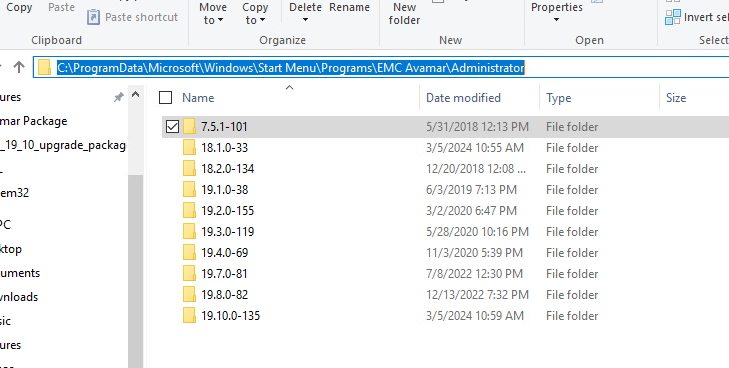
Go into each folder and run "Uninstall Avamar Administrator."
If you uninstall all Avamar Administrator console versions and want to completely remove the installation folders, go to the following path and delete the "avs" folder.

C:\ProgramData\Microsoft\Windows\Start Menu\Programs\EMC Avamar\Administrator
Go into each folder and run "Uninstall Avamar Administrator."
If you uninstall all Avamar Administrator console versions and want to completely remove the installation folders, go to the following path and delete the "avs" folder.
C:\Program Files (x86)
해당 제품
Avamar Server문서 속성
문서 번호: 000227793
문서 유형: How To
마지막 수정 시간: 03 2월 2025
버전: 4
다른 Dell 사용자에게 질문에 대한 답변 찾기
지원 서비스
디바이스에 지원 서비스가 적용되는지 확인하십시오.