How to Access the Dell Data Security Server Administration Console
Samenvatting: The Dell Data Security or Dell Data Protection server administration console may be accessed by following these instructions.
Dit artikel is van toepassing op
Dit artikel is niet van toepassing op
Dit artikel is niet gebonden aan een specifiek product.
Niet alle productversies worden in dit artikel vermeld.
Symptomen
Dell Data Security (formerly Dell Data Protection) requires an administration console to manage:
- Policies
- Reports
- Encryption keys
Affected Products:
- Dell Security Management Server
- Dell Data Protection | Enterprise Edition Server
- Dell Security Management Server Virtual
- Dell Data Protection | Virtual Edition
Affected Versions:
- v8.0 and Later
Oorzaak
Not applicable
Oplossing
Click the appropriate product version for specific steps on accessing the administration console. For versioning information, reference How to Identify the Dell Data Security / Dell Data Protection Server Version.
- Open a web browser and go to https://servername.company.com:8443/webui.

Note:
- The example FQDN (fully qualified domain name) will differ from the server in your environment.
- Port 8443 may differ from the administration console port in your environment.
- Sign in to the Administration Console.
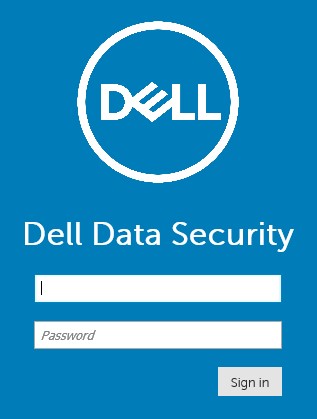
Note:
- In version 11.4 and later, the user is prompted to enter the OTP (one-time password) if either Google Authenticator or email MFA (multi-factor authentication) has been configured for the user.
- For more information about configuring MFA, reference How to Manage Multi-Factor Authentication in the Dell Security Management Server Administration Console.
- In Windows Explorer, go to:
- Dell Data Protection | Enterprise Edition server:
C:\Program Files\Dell\Enterprise Edition - Endpoint:
C:\Program Files\Dell\Virtual Edition
- Dell Data Protection | Enterprise Edition server:
Note:
- Endpoint access requires installation of the administration console (formerly Remote Management Console) from the Dell Data Protection | Virtual Edition media.
- For installation steps, reference How to Install the Dell Data Protection Remote Management Console.
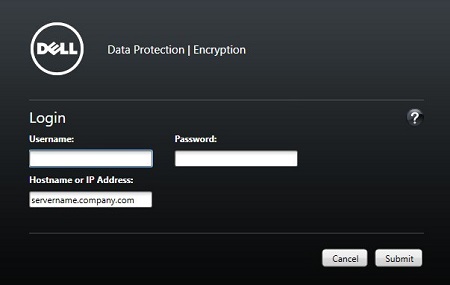
- Double-click
Credant.Console.

- Submit credentials to sign in to the administration console.
To contact support, reference Dell Data Security International Support Phone Numbers.
Go to TechDirect to generate a technical support request online.
For additional insights and resources, join the Dell Security Community Forum.
Getroffen producten
Dell EncryptionArtikeleigenschappen
Artikelnummer: 000126852
Artikeltype: Solution
Laatst aangepast: 16 nov. 2023
Versie: 15
Vind antwoorden op uw vragen via andere Dell gebruikers
Support Services
Controleer of uw apparaat wordt gedekt door Support Services.