Support for OpenManage Integration for Microsoft System Center for Microsoft Endpoint Configuration Manager and System Center Virtual Machine Manager
Samenvatting: This provides an overview and details of Dell Technologies OpenManage Integration for Microsoft System Center for Microsoft Endpoint Configuration Manager and for System Center Virtual Machine Manager. OMIMSSC enables life cycle management of PowerEdge servers by using iDRAC. OMIMSSC offers to operate system deployment, Dell Technologies HCI Solutions for Microsoft Windows server creation, hardware updating, firmware update, and maintenance of servers and modular systems. Integrate OMIMSSC with Microsoft Endpoint Configuration Manager for managing PowerEdge servers in traditional data center. Integrate OMIMSSC with System Center Virtual Machine Manager for managing PowerEdge server in virtual and cloud environments. ...
Dit artikel is van toepassing op
Dit artikel is niet van toepassing op
Dit artikel is niet gebonden aan een specifiek product.
Niet alle productversies worden in dit artikel vermeld.
Instructies

Dell Technologies OpenManage Integration for Microsoft System Center for Microsoft Endpoint Configuration Manager (formerly System Center Configuration Manager) and Virtual Machine Manager
Note: This offering is deprecated. See this link for the latest OpenManage Enterprise Integration for Microsoft System Center.
- Native management of PowerEdge servers and Dell Technologies Solutions for Microsoft Azure Stack HCI
- Console-based offerings are available for integration with Microsoft System Center Operations Manager, Microsoft Endpoint Configuration Manager, and System Center Virtual Machine Manager
OpenManage Integration for Microsoft System Center (OMIMSSC) is delivered as an appliance with integration for the Microsoft System Center suite of products. By enabling native access to the integrated Dell Remote Access Controller (iDRAC), OpenManage Integrations provides real-time access to OpenManage innovations directly from Microsoft System Center Operations Manager, Endpoint Configuration Manager (formerly System Center Configuration Manager), and Virtual Machine Manager consoles. The Dell Technologies OpenManage ecosystem of solutions enables industry-leading visibility and control across your infrastructure -- server, operating system, and hypervisor.

Consoles for OpenManage Integrations for Microsoft System Center
OpenManage Integrations for Microsoft System Center supports native management of PowerEdge servers and Dell Technologies Solutions for Microsoft Azure Stack HCI. Console-based offerings are available for integration with Microsoft System Center consoles: (1) Operations Manager, (2) Endpoint Configuration Manager, and (3) Virtual Machine Manager
OpenManage Integration for Microsoft System Center Operations Manager is an extension that enables monitoring devices and applications in a data center with the Microsoft System Center—Operations Manager (SCOM) console. The Dell Technologies OMIMSSC appliance is an integration with Microsoft SCOM to discover, inventory, monitor health, and generate performance metrics and alerts of Dell Technologies PowerEdge servers and rack workstations that are discovered through the agent-free iDRAC using WS-Man, Chassis or modular systems (including PowerEdge MX7000), and network switches. Legacy management packs can perform agent-based monitoring of PowerEdge servers and rack workstations by using iDRAC Service Module an OMSA agent.
OpenManage Integration for Microsoft System Center for Endpoint Configuration Manager, formerly System Center Configuration Manager, provides agent-free, OS-, and hypervisor-agnostic configuration and deployment as well as uniform BIOS and firmware updates for supported PowerEdge servers. Automated processes reduce the steps, time, and costs to configure your PowerEdge servers from a bare-metal state and to prepare remote one-to-many operating system deployments within multi-vendor operating system and hypervisor environments.
OpenManage Integration for Microsoft System Center Virtual Machine Manager provides agent-free automated multi-vendor operating system, hypervisor deployment, Hyper-V, VMware and Linux deployments, Windows server HCI and cluster deployments and hardware configuration, uniform BIOS, driver and firmware updates, including automated updating through Microsoft Cluster-Aware Updating (CAU) without impact to running workloads.
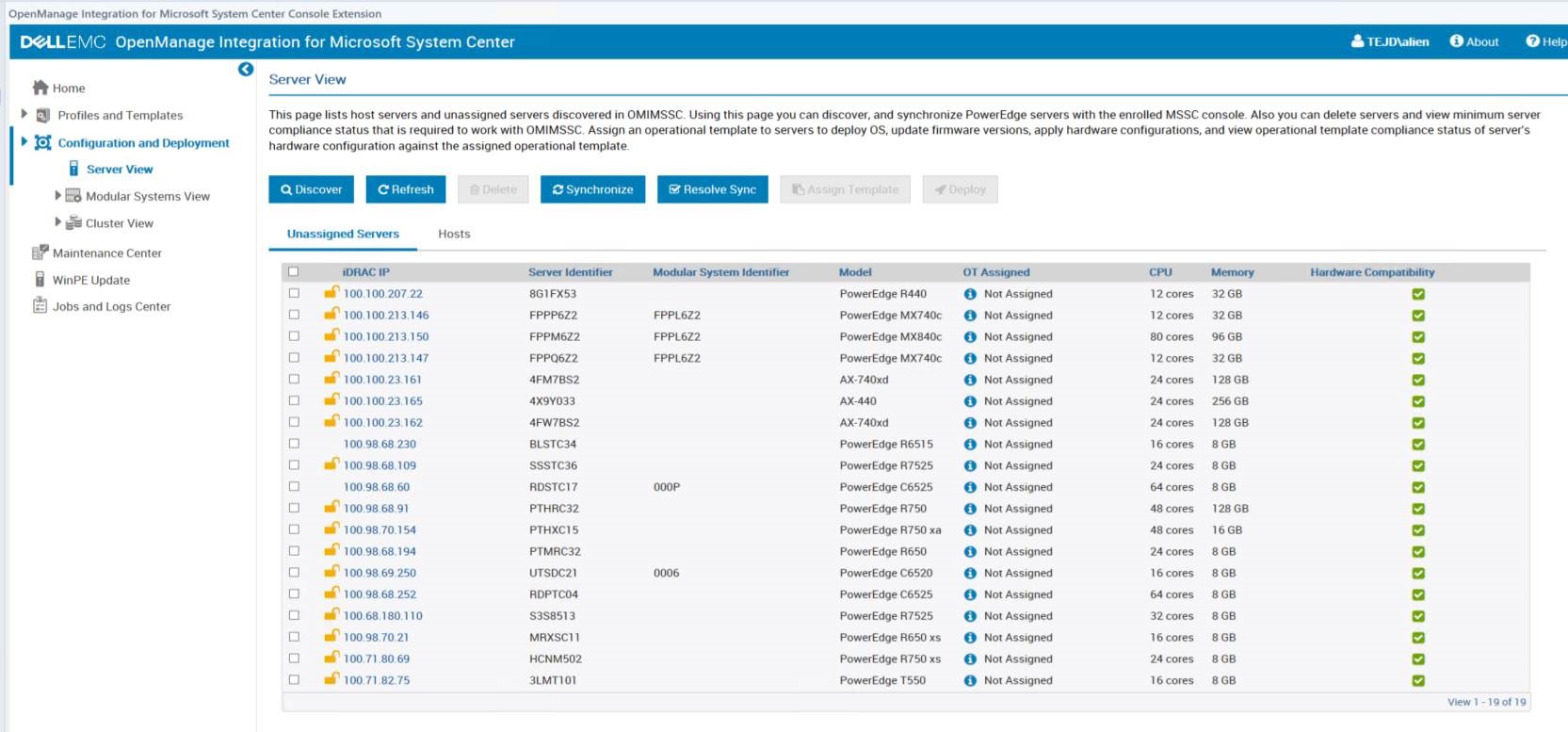
Enhancements to OpenManage Integration for Microsoft System Center Version for Endpoint Configuration Manager and System Center Virtual Machine Manager
Dell Technologies is constantly improving OpenManage Integration for Microsoft System Center for Endpoint Configuration Manager and Virtual Machine Manager.
New Features in OpenManage Integration for Endpoint Configuration Manager and Virtual Machine Manager 7.3
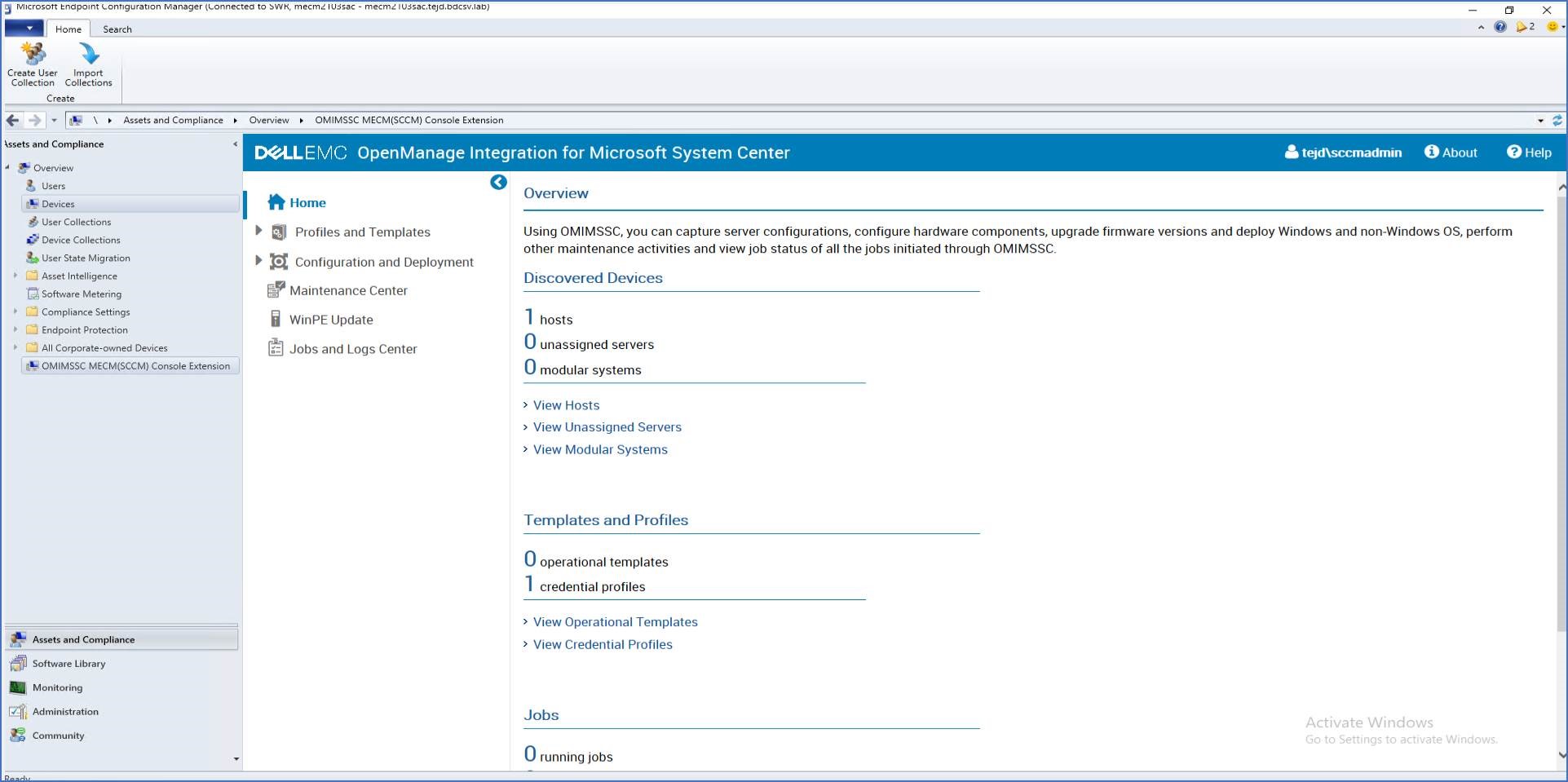
- Support for Microsoft Endpoint Configuration Manager (MECM) version 2103 and 2010
- Support for System Center Virtual Machine Manager (SCVMM) 2019 UR3, 2019 UR2, and 2016 UR10
- Support for custom HTTPS certificate management
- Support for cluster nodes for driver updates
- Support for recent 15th generation PowerEdge servers, see the support matrix for supported models in the User's Guide
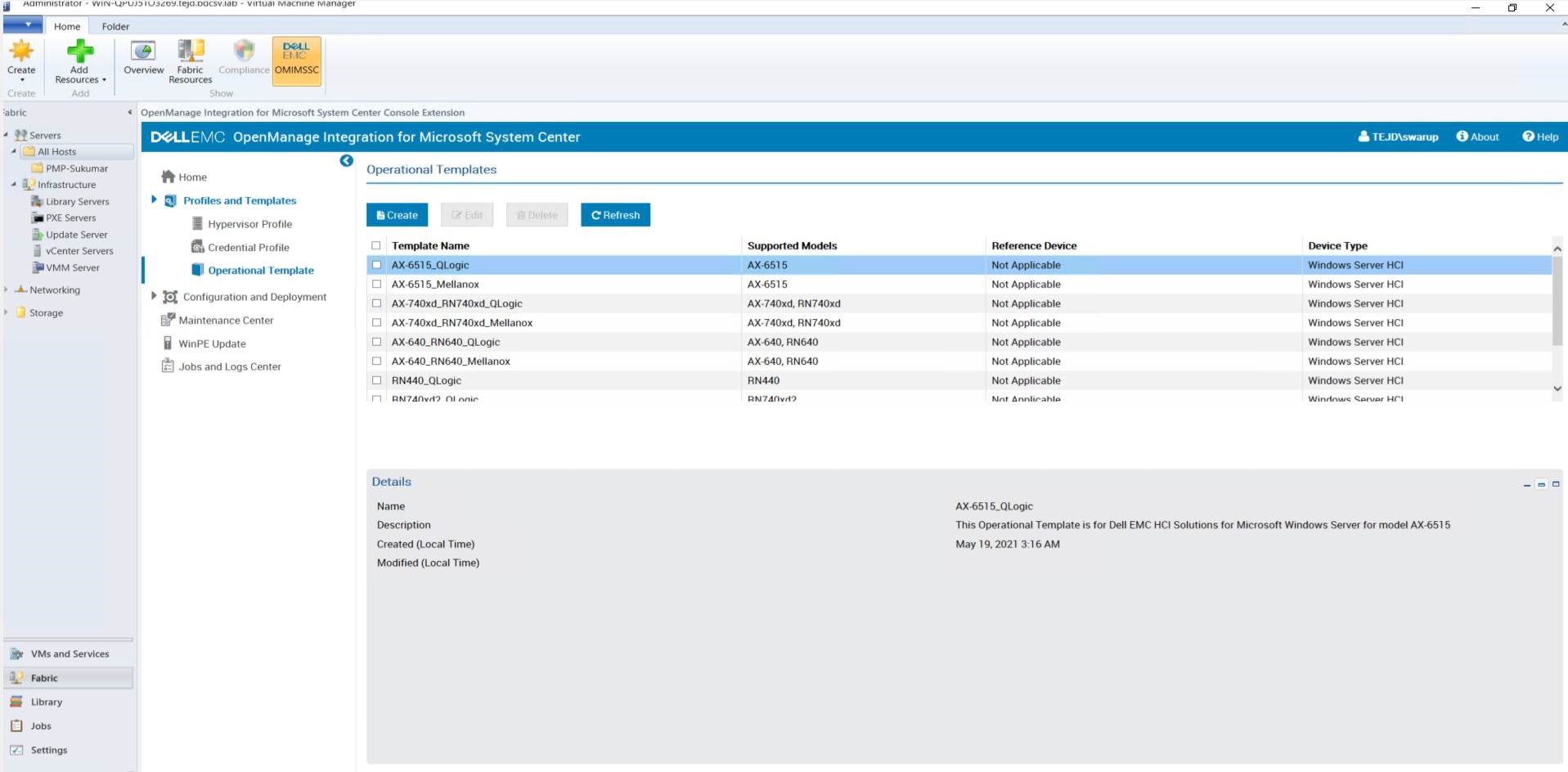
- Support for cluster creation using AX-6515 and RN440 nodes
- Support for WinPE driver injection using Dell Technologies OpenManage server driver pack
- Support for deploying the Dell Technologies OMIMSSC appliance for OpenManage Integration for Microsoft Endpoint Configuration Manager (MECM) and System Center Virtual Machine Manager (SCVMM) version 7.3 on the VMware ESXi 6.5, 6.7, and 7.0 using .ova file along with the existing support for deploying Dell Technologies OMIMSSC appliance for MECM and SCVMM on Hyper-V using .vhd file
See the OpenManage Integration with Microsoft System 7.3 for Microsoft Endpoint Configuration Manager and System Center Virtual Machine Manager Release Notes for the complete list of enhancements as well as limitations, fixed issues, and known issues.
New Features in OpenManage Integration for Microsoft System Center Version 7.2.1 for System Center Configuration Manager and System Center Virtual Machine Manager
- Support for System Center Configuration Manager (SCCM) version 2002 and 1910.
- Support for System Center Virtual Machine Manager (SCVMM) 2019 UR1, 2016 UR9, and 2016 UR8
- Reduced installer file size to support faster appliance download.
- Security fixes for Improper Authentication, Information disclosure for appliance logs, and Use of hard coded Cryptographic Key vulnerabilities have been implemented. For additional details on the security fixes, see https://www.dell.com/support/security
- Support for latest iDRAC9 X5 based PowerEdge servers, see the support matrix for supported models in the User's Guide.
See the Dell Technologies OpenManage Integration for Microsoft System Center Version 7.2.1 for System Center Configuration Manager and System Center Virtual Machine Manager Release Notes for the complete list of enhancements as well as limitations, fixed issues, and known issues.
New Features in OpenManage Integration for Microsoft System Center Version 7.2 for System Center Configuration Manager and System Center Virtual Machine Manager
- Support for Windows server 2019 operating system deployment.
- Support for System Center Configuration Manager (SCCM) version 1902 and 1809.
- Support for System Center Virtual Machine Manager (SCVMM) SAC version 1807.
- Support for System Center Virtual Machine Manager (SCVMM) 2019.
- Support for Cluster Aware Update (CAU) on Windows server 2019.
- Support for Windows server 2019 Storage Spaces Direct (S2D) cluster deployment.
See the Dell Technologies OpenManage Integration for Microsoft System Center Version 7.2 for System Center Configuration Manager and System Center Virtual Machine Manager Release Notes for the complete list of enhancements as well as limitations, fixed issues, and known issues.
Licensing for Dell Technologies OpenManage Integration with Microsoft System Center
Licensing for Dell Technologies OpenManage Integration with Microsoft System Center is available either as part of a bundle or separately.
Download and install of Dell Technologies OpenManage Integration Version 7.3 for Microsoft System Center Configuration Manager (SCCM) and Microsoft System Center Virtual Machine Manager (SCVMM)
Deploy OMIMSSC on Hyper-V 2019, 2016 or 2012 R2
- Download the OMIMSSC_v7.3.0.2948_for_VMM_and_ConfigMgr_A00.vhd.zip file. Extract the file and then move or copy the enclosed VHD file into an appropriate location on your system where you want to store the OpenManage Integration for Microsoft System Center virtual drive.
- Deploy the OMIMSSC Appliance VM by performing the following steps:
- In Windows Server, in Hyper-V Manager, from the Actions menu, select New, and click Virtual Machine Manager. The New Virtual Machine Wizard is displayed.
- In Before You Begin, click Next.
- In Specify Name and Location, provide a name for the virtual machine. If you want to store the VM in a different location, and then select Store the virtual machine in a different location, click Browse, and traverse to the new location.
- In Specify Generation, select Generation 1, and then click Next.
- In Assign Memory, assign the memory capacity that is mentioned in the prerequisite.
- In Configure Networking, in Connection, select the network that you want to use, and then click Next.
- In Connect Virtual Hard Disk, select Use an existing virtual hard disk, traverse to the location where the OMIMSSC__for_VMM_and_ConfigMgr VHD file is present, and select the file. The vhd file size is about 5 GB, hence the deployment takes about five to ten minutes to complete.
- In Summary, confirm the details that you have provided and click Finish.
- Set the Number of virtual processors count value to 4, since by default the processor count is set to 1. To set the processor count:
- Right-click OMIMSSC Appliance, and select Settings.
- In Settings, select Processor, and set the Number of virtual processors to 4.
- Perform the following tasks once OMIMSSC Appliance starts:
It is recommended that you wait for five minutes before you log in as an Admin so that all services are initiated.
- In localhost login: Type admin.
- In Enter new Admin password: Type a password.
Dell Technologies recommends configuring and use strong passwords to authenticate appliance admin user and console extension.
- In ", Please confirm a new Admin password": Retype the password, and press Enter to continue.
- In the options listed, select Configure Network, press Enter, and perform the following substeps:
- In NetworkManagerTUI, select Set system hostname provide the OMIMSSC Appliance name and click OK. For example, Hostname.domain.com
You can change the IP address of OMIMSSC Appliance by selecting Configure Network option. You cannot change the IP address or hostname of OMIMSSC Appliance after this point.
- If you are providing a static IP address, select Edit a connection, and select Ethernet0. Select IPv4 CONFIGURATION, select Manual, and click Show. Provide the IP configuration address, gateway address, DNS server IP, and click OK.
- In NetworkManagerTUI, select Set system hostname provide the OMIMSSC Appliance name and click OK. For example, Hostname.domain.com
- Note the OMIMSSC admin portal URL from OMIMSSC Appliance.
Add the OMIMSSC Appliance IP and FQDN in Forward Lookup Zones and Reverse Lookup Zones in DNS.Appliance logs are accessible for nonadmin users. However, these logs do not carry sensitive information. As a workaround protects the appliance URL
Deploy OMIMSSC on VMware vSphere ESXi 6.5, 6.7 or 7.0
- Download the OMIMSSC_v7.3.0.2948_for_VMM_and_ConfigMgr_A00.ova.zip file. Extract the file and then move or copy the enclosed OVA file into an appropriate location on your system where you want to store the OpenManage Integration for Microsoft System Center virtual drive.
- Deploy the OMIMSSC Appliance VM by performing the following steps:
- Start ESXi by using the IP address. The VMware ESXi login page is displayed.
- Enter the username and password, and then click Login.
- In the left pane, select Virtual Machines.
- To create a VM, Select Create or Register VM. The New virtual machine wizard is displayed.
- In the Select creation type section, select Deploy a virtual machine from an OVF or OVA file.
- Click Next.
- In the Select OVF and VMDK files section, enter a name for the VM that you want to create.
- Click to select files or drag-and-drop.
- Double-click the OMIMSSC_xx.ova file. The OVA management pack is uploaded to the installation process.
- Click Next.
- In the Select storage section, select the storage or datastore where you want to store the configuration and VD files.
- Click Next.
- In the Deployment options section, select the required network mappings.
- By default, the disk provisioning feature is selected as Thin.
- The option to automatically power on the VM is enabled.
- Click Next.
- In the Ready to complete section, verify the setting that you have specified, and then click Finish. The VM creation process is started. You can view the status in the Recent tasks pane.
- Enable the Synchronize guest time with host option on the VM hosted on ESXi:
- Select the VM and click Edit options.
- Select VM options.
- Select VMware Tools > Time > Synchronize guest time with host.
- Perform the following tasks once OMIMSSC Appliance starts:
It is recommended that you wait for five minutes before you log in as an Admin so that all services are initiated.
- In localhost login: Type admin.
- In Enter new Admin password: Type a password.
Dell Technologies recommends configuring and use strong passwords to authenticate appliance admin user and console extension.
- In ", Please confirm a new Admin password": Retype the password, and press Enter to continue.
- In the options listed, select Configure Network, press Enter, and perform the following substeps:
- In NetworkManagerTUI, select Set system hostname provide the OMIMSSC Appliance name and click OK. For example, Hostname.domain.com
You can change the IP address of OMIMSSC Appliance by selecting Configure Network option. You cannot change the IP address or hostname of OMIMSSC Appliance after this point.
- If you are providing a static IP address, select Edit a connection, and select Ethernet0. Select IPv4 CONFIGURATION, select Manual, and click Show. Provide the IP configuration address, gateway address, DNS server IP, and click OK.
- In NetworkManagerTUI, select Set system hostname provide the OMIMSSC Appliance name and click OK. For example, Hostname.domain.com
- Note the OMIMSSC admin portal URL from OMIMSSC Appliance.
Add the OMIMSSC Appliance IP and FQDN in Forward Lookup Zones and Reverse Lookup Zones in DNS.Appliance logs are accessible for nonadmin users. However, these logs do not carry sensitive information. As a workaround protects the appliance URL
Upgrading to 7.3 from a previous version of OMIMSSC by using backup and restore appliance capability of OMIMSSC.
Before you begin the upgrade, be sure to backup the OMIMSSC appliance.
A service pack upgrade from previous versions of OMIMSSC to OMIMSSC version 7.3 is not available.
- Upgrade to OMIMSSC version 7.3 from previous versions by using backup and restore appliance capability of OMIMSSC.
- Ensure OMIMSSC for MECM (SCCM) and SCVMM version 7.2 or 7.2.1 is deployed before restoring to OMIMSSC for MECM and SCVMM version 7.3.
- Ensure that no jobs are running. If running, wait until the jobs are completed.
- Back up the OMIMSSC appliance data of previous release from the appliance backup console.
- Download and install the appliance following the install instruction above.
- Restore the backup data into OMIMSSC version 7.3 from the admin portal.
Resources for OpenManage Integration for Microsoft System Center for Endpoint Configuration Manager and System Center Virtual Machine Manager
Documentation
See OpenManage Integration for Microsoft System Center for the latest documentation.
Videos
Dell Technologies Azure Stack HCI OpenManage Integration for Microsoft SCVMM
This simplifies life cycle management and takes control of your Azure Stack HCI, Datacenter, and distributed environments with OpenManage Integration for Microsoft System Center (OMIMSSC) for System Center Virtual Machine Manager, streamlining operations and managing software defined and hybrid cloud environments.
March 2020Creating operational template for Windows OSD using OMIMSSC in SCVMM
This demonstrates how to update the WinPE ISO file and then create an operational template in the OMIMSSC console extension for the SCVMM console. To apply this template on target servers, see the Assign and deploy video.
October 2017Assigning and deploying operational template in OMIMSSC
This demonstrates how to apply the created operational template on target servers.
October 2017Licensing in OpenManage Integration for Microsoft System Center
This describes the process of importing a license file in to OpenManage Integration for Microsoft System Center after purchasing a license and downloading the license file from the Dell Digital store.
September 2017Enrolling and de-enrolling a Microsoft console with OMIMSSC
This describes the process of enrolling an SCVMM console with OMIMSSC. However, an SCCM console can be enrolled in the same manner with SCCM console details. And finally, we demonstrate how to de-enroll the Microsoft console from OMIMSSC.
September 2017Discovering servers in OMIMSSC when multiple Microsoft consoles are enrolled
This demonstrates the discovery process in OMIMSSC when multiple Microsoft consoles are enrolled with one OMIMSSC Appliance.
September 2017Getroffen producten
OpenManage Integration for Microsoft System CenterArtikeleigenschappen
Artikelnummer: 000147399
Artikeltype: How To
Laatst aangepast: 09 jul. 2025
Versie: 13
Vind antwoorden op uw vragen via andere Dell gebruikers
Support Services
Controleer of uw apparaat wordt gedekt door Support Services.