Data Domain: MTree-replicatie configureren met behulp van de gebruikersinterface
Summary: In dit KB-artikel wordt beschreven hoe u MTree-replicatie configureert met behulp van de gebruikersinterface.
Acest articol se aplică pentru
Acest articol nu se aplică pentru
Acest articol nu este legat de un produs specific.
Acest articol nu acoperă toate versiunile de produs existente.
Instructions
MTree-replicatie configureren met behulp van de gebruikersinterface
Doel
In dit artikel wordt beschreven hoe u MTree-replicatie configureert met behulp van de gebruikersinterface.
VAN TOEPASSING OP
- Alle Data Domain systemen
- MTree-replicatie
Oplossing
-
Voeg zowel bron - als doelsystemen toe aan dezelfde gebruikersinterface (Enterprise Manager):
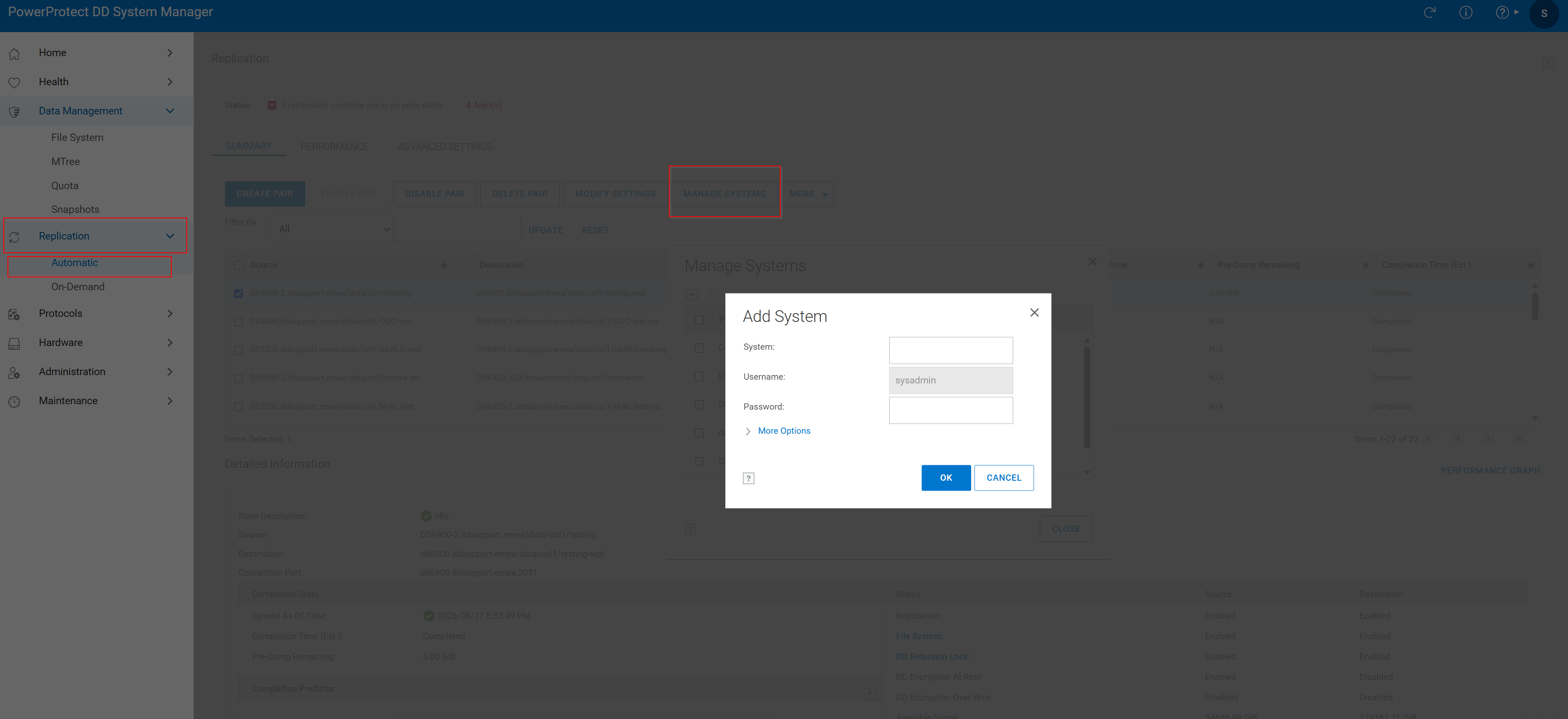 Afbeelding 1. Systeem toevoegen
2. Replicatiepaar maken:
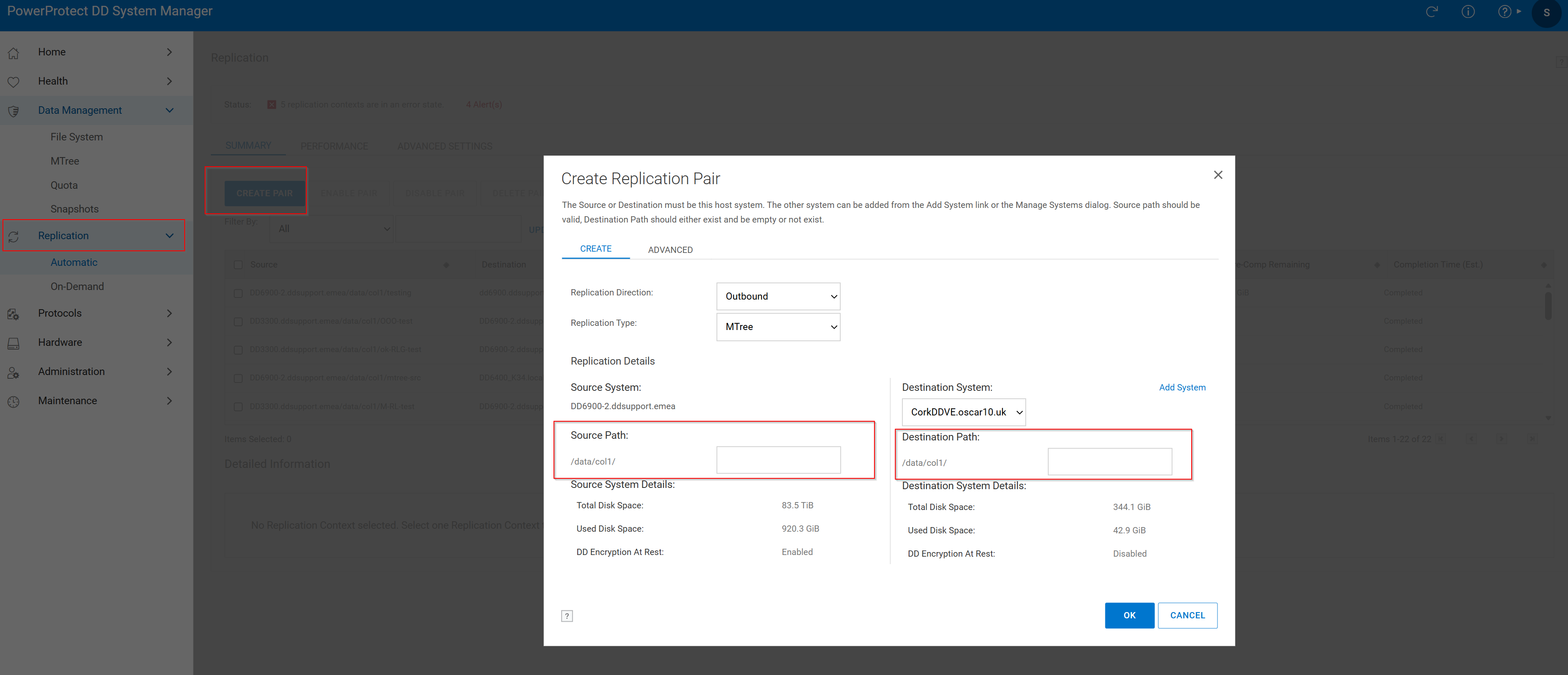 Afbeelding 2. Bronpad voor replicatiepaar > maken
- Klik op het tabblad Replicatie en klik vervolgens op Koppeling maken.
- Kies het bronsysteem en het bronpad. De Mtree zou al moeten bestaan in de broncode.
- Kies het doelsysteem en het bestemmingspad. De MTree van bestemming moet nog niet bestaan. Als het al bestaat, bekijk dan de volgende knowledge base-artikelen:
Replicatie wordt gemaakt met het volgende venster:
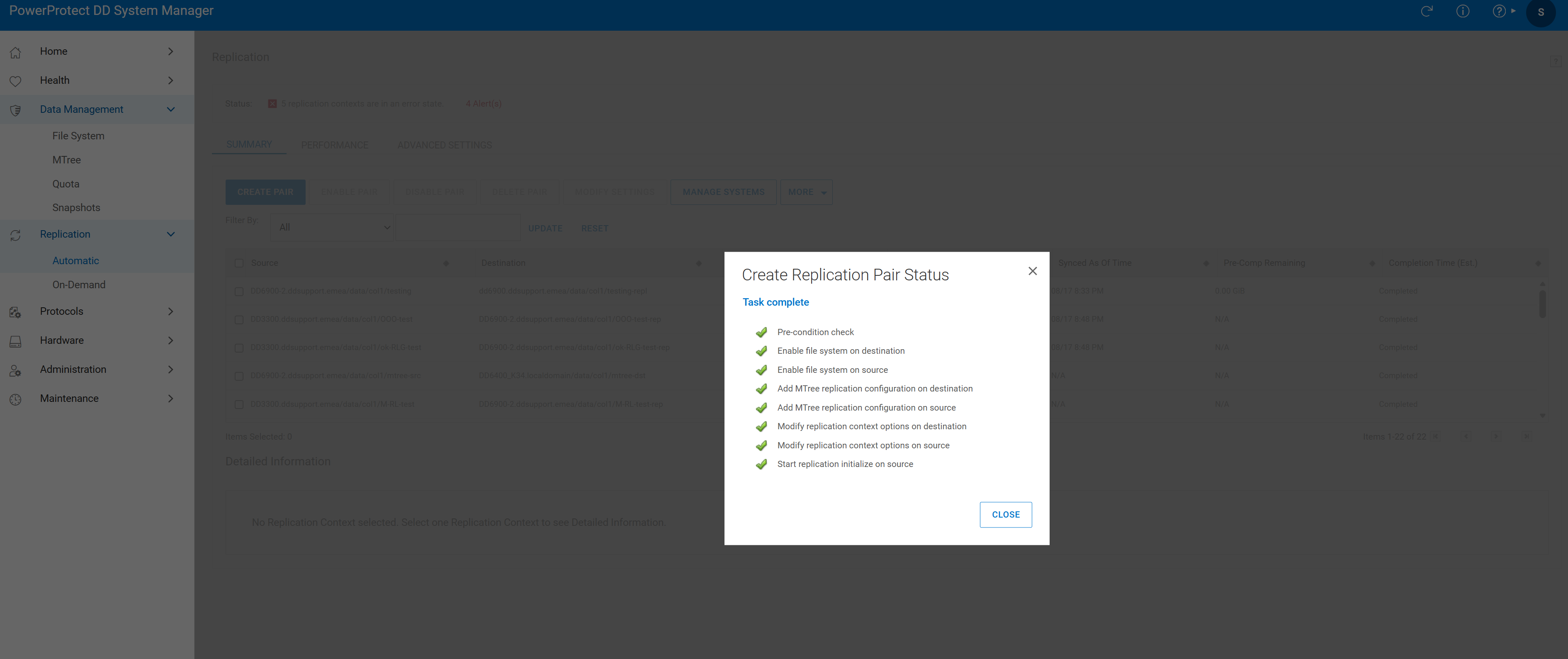 Afbeelding 3. Taak voltooid
- Controleer het replicatiepaar:

Afbeelding 4. Replicatieverificatie
Additional Information
Produse afectate
Data DomainProduse
Data DomainProprietăți articol
Article Number: 000010996
Article Type: How To
Ultima modificare: 18 Aug 2026
Version: 7
Găsiți răspunsuri la întrebările dvs. de la alți utilizatori Dell
Servicii de asistență
Verificați dacă dispozitivul dvs. este acoperit de serviciile de asistență.