PowerProtect DD:如何設定和變更系統密碼片語
Summary: 本文說明在 Data Domain (DD) 系統上設定和變更密碼片語的步驟。
Acest articol se aplică pentru
Acest articol nu se aplică pentru
Acest articol nu este legat de un produs specific.
Acest articol nu acoperă toate versiunile de produs existente.
Instructions
必須先設置系統密碼,然後系統才能支援數據加密或請求數字證書。
注意:請務必在安全的地方記錄密碼片語。密碼片語無法復原!
默認情況下,未設置系統密碼長度。要確定是否為密碼配置了最小長度,請執行以下操作:
sysadmin@datadomain# system passphrase option show min-length
Option       Value
----------   ---------
min-length   (not set)
----------   ---------
從命令列 (CLI) 設定密碼片語:
sysadmin@datadomain# system passphrase set
Enter new passphrase:
Re-enter new passphrase:
Passphrases matched.
The passphrase is set.
從 DD Web 介面 (GUI) 設定密碼片語:
選取管理 > 存取 > 管理員存取 > 設定密碼片語。如果未設置系統密碼,則「設置密碼」按鈕將顯示在「密碼」區域中。如果配置了密碼,則會顯示“更改密碼”按鈕,您唯一的選擇是更改密碼。
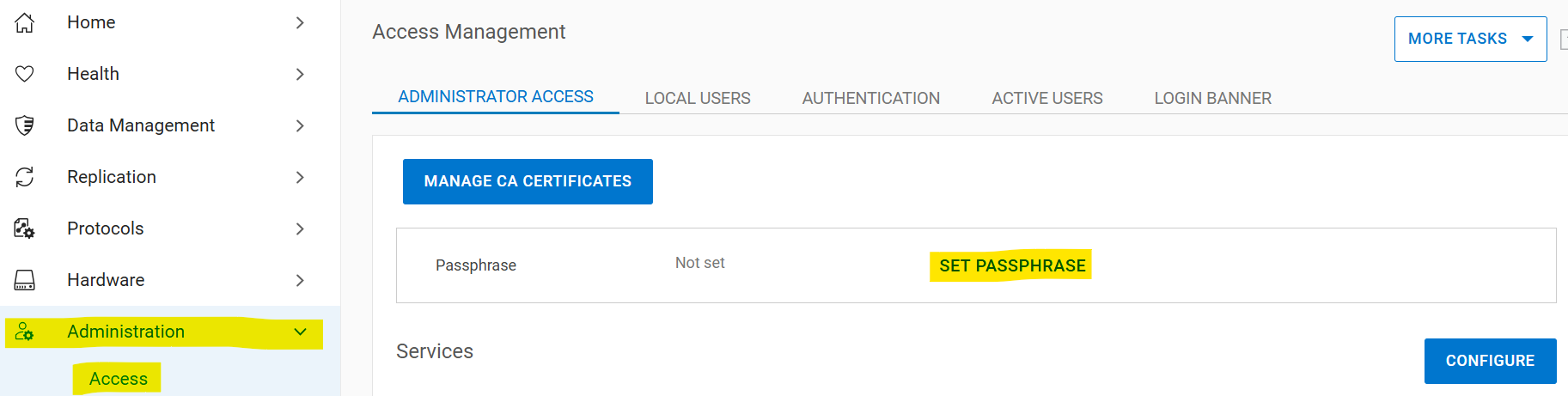
變更系統密碼片語
變更密碼片語的先決條件:
- 必須存在具有安全性權限的帳戶才能進行雙使用者身份驗證
- 開啟安全授權原則
- 關閉檔案系統
如果沒有安全官:
- 建立安全官
sysadmin@datadomain# user add secuser role security Enter new password: Re-enter new password: Passwords matched. User "secuser" added. - 以安全官身份登錄,並檢查是否啟用了安全授權策略。
secuser@datadomain# authorization policy show Runtime authorization policy is disabled. - 如果授權策略處於禁用狀態,請將其啟用。
secusr@datadomain# authorization policy set security-officer enabled
Runtime authorization policy has been enabled.
從 CLI:
必須停用檔案系統才能變更密碼片語。如果在執行命令時啟用檔案系統,密碼片語變更會失敗。sysadmin@datadomain# filesys disable
This action will disable the file system.
Applications may experience interruptions
while the file system is disabled.
Are you sure? (yes|no) [no]: yes
ok, proceeding.
Please wait........
The filesystem is now disabled.
sysadmin@datadomain# system passphrase change
This command requires authorization by a user having a 'security' role.
Please present credentials for such a user below.
Username: secuser
Password:
Enter current passphrase:
Enter new passphrase:
Re-enter new passphrase:
Passphrases matched.
The system passphrase has changed
sysadmin@datadomain# filesys enable
Please wait..........
The filesystem is now enabled.從 GUI:
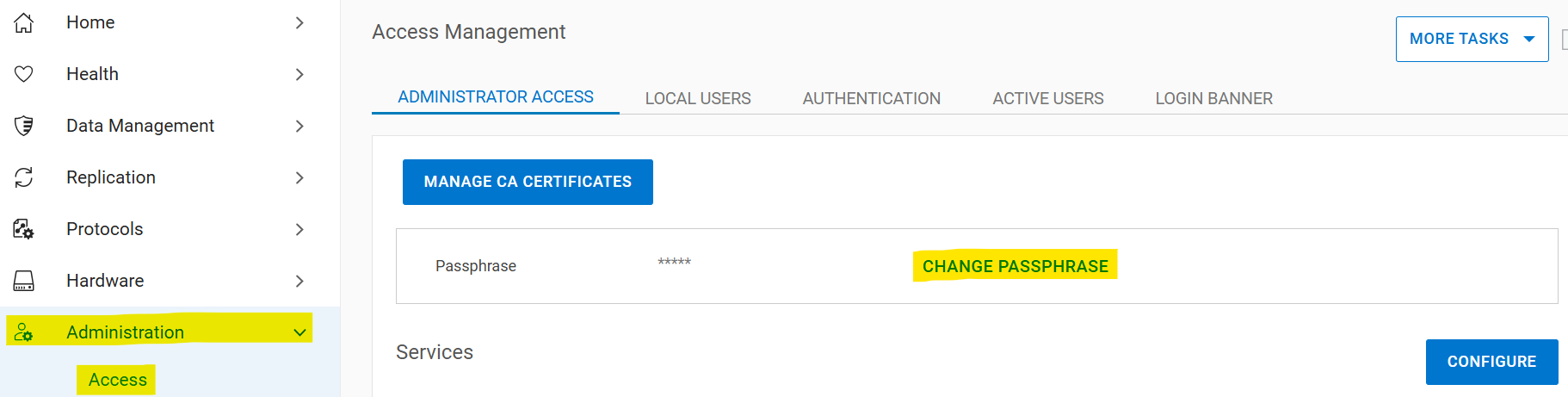
選取管理 > 存取 > 管理員存取 > 變更密碼片語:
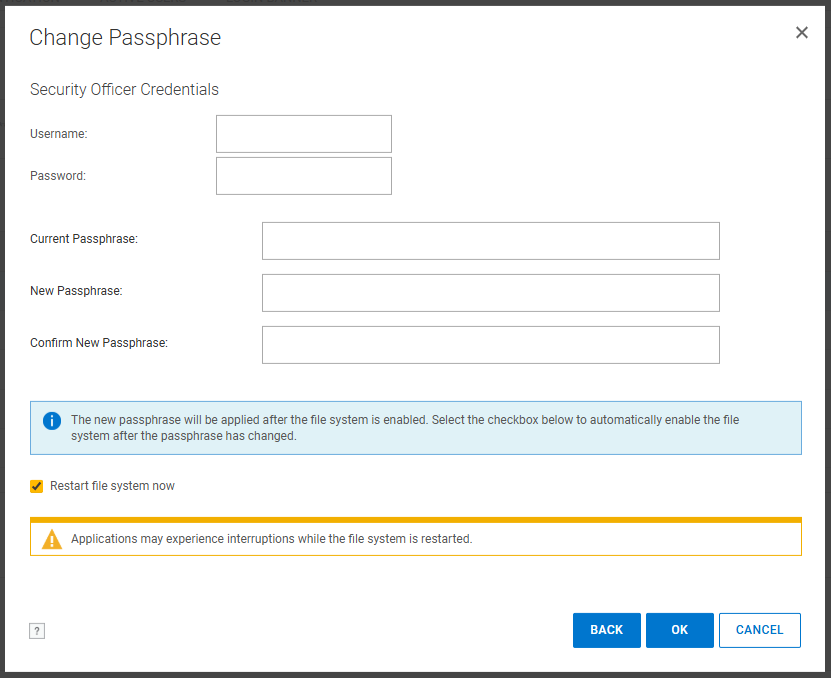
輸入安全官登入資料、目前密碼片語與新密碼片語勾選「立即重新啟動檔案系統」方塊:
如果在執行這些步驟後,密碼片語的問題仍未解決,請聯絡 Dell 支援。
Additional Information
本內容已翻譯為不同語言:
| https://downloads.dell.com/TranslatedPDF/PT-BR_KB535800.pdf |
| https://downloads.dell.com/TranslatedPDF/ZH-CN_KB535800.pdf |
| https://downloads.dell.com/TranslatedPDF/ES_KB535800.pdf |
| https://downloads.dell.com/TranslatedPDF/DE_KB535800.pdf |
| https://downloads.dell.com/TranslatedPDF/FR_KB535800.pdf |
| https://downloads.dell.com/TranslatedPDF/IT_KB535800.pdf |
| https://downloads.dell.com/TranslatedPDF/JA_KB535800.pdf |
| https://downloads.dell.com/TranslatedPDF/NL_KB535800.pdf |
| https://downloads.dell.com/TranslatedPDF/KO_KB535800.pdf |
| https://downloads.dell.com/TranslatedPDF/RU_KB535800.pdf |
| https://downloads.dell.com/TranslatedPDF/PT_KB535800.pdf |
| https://downloads.dell.com/TranslatedPDF/SV_KB535800.pdf |
Produse afectate
Data DomainProduse
Data Domain, DD OS 6.2, DD OS, DD OS 6.0, DD OS 6.1Proprietăți articol
Article Number: 000019730
Article Type: How To
Ultima modificare: 12 Jan 2026
Version: 5
Găsiți răspunsuri la întrebările dvs. de la alți utilizatori Dell
Servicii de asistență
Verificați dacă dispozitivul dvs. este acoperit de serviciile de asistență.