如何匯出 Windows 事件記錄
Summary: 瞭解如何在 Windows 11 或 Windows 10 中匯出事件檢視器記錄。本指南說明如何使用事件查看器保存日誌。
Acest articol se aplică pentru
Acest articol nu se aplică pentru
Acest articol nu este legat de un produs specific.
Acest articol nu acoperă toate versiunile de produs existente.
Instructions
- 按下 Windows 鍵。
- 在命令前頭輸入
Event Viewer,然後從清單中選擇 事件查看器 。 - 從左窗格中,選擇要導出的日誌類型。
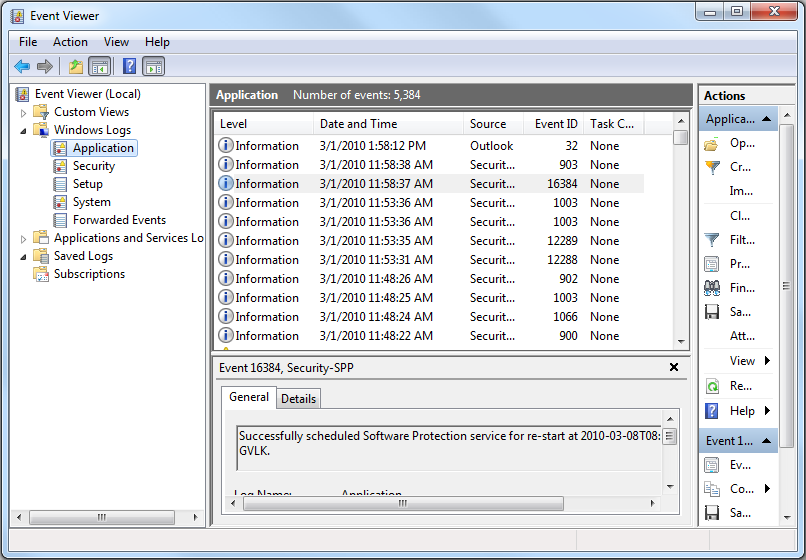
- 按一下 「動作 」,然後按一下 「將所有事件另存新檔」以儲存記錄。
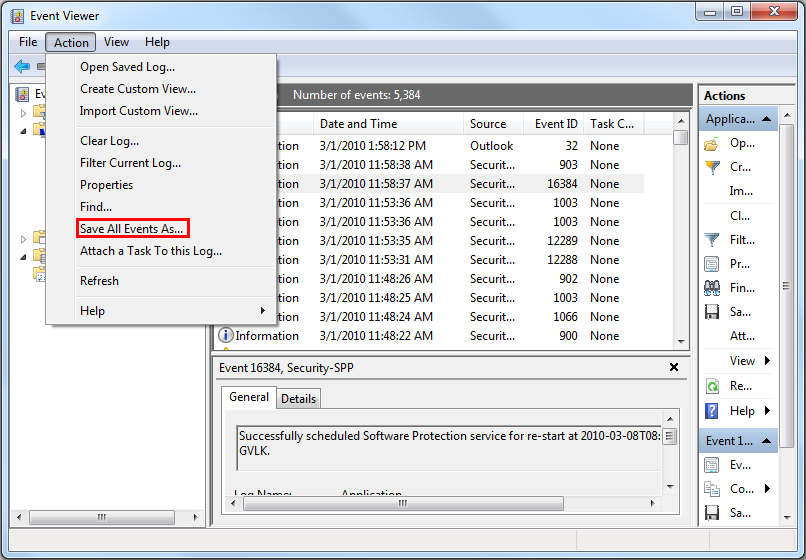
如需更多資訊,請參閱 如何儲存事件記錄
如需有關 Dell 筆記本電腦 BIOS 事件記錄的資訊,請參閱 Dell 筆記本電腦上的 BIOS 事件記錄和診斷記錄。
Additional Information
Produse afectate
Alienware, Dell All-in-One, Dell Pro All-in-One, Dell Pro Max Micro, Dell Pro Max Slim, Dell Pro Max Tower, Dell Pro Micro, Dell Pro Slim, Dell Pro Tower, Dell Slim, Dell Tower, Inspiron, Legacy Desktop Models, OptiPlex, Vostro, XPS, G Series
, G Series, Alienware, Dell Plus, Dell Pro, Dell Pro Max, Dell Pro Plus, Dell Pro Premium, Inspiron, Latitude, Dell Pro Rugged, Vostro, XPS, Legacy Laptop Models, Fixed Workstations, Mobile Workstations, Dell Pro Max Micro XE FCM2250, Dell Pro Max Slim XE FCS1250, Dell Pro Max Tower T2 XE FCT2250, Dell Pro Max 16 XE MC16250, Dell Pro Micro Plus XE QBM1250, Dell Pro Slim Plus XE5 QBS1250, Dell Pro Tower Plus XE5 QBT1250
...
Proprietăți articol
Article Number: 000124382
Article Type: How To
Ultima modificare: 19 Apr 2026
Version: 9
Găsiți răspunsuri la întrebările dvs. de la alți utilizatori Dell
Servicii de asistență
Verificați dacă dispozitivul dvs. este acoperit de serviciile de asistență.