如何安装 Dell Endpoint Security Suite Enterprise for Linux
Summary: 按照以下说明了解如何通过终端命令行界面 (CLI) 安装 Dell Data Security Endpoint Security Suite Enterprise for Linux。
Acest articol se aplică pentru
Acest articol nu se aplică pentru
Acest articol nu este legat de un produs specific.
Acest articol nu acoperă toate versiunile de produs existente.
Instructions
使用命令行完成 Dell Data Security Endpoint Security Suite Enterprise for Linux 的安装过程。
有关产品系统要求的详细信息(包括支持的 Linux 版本),请参阅 Dell Endpoint Security Suite Enterprise 系统要求。
- 打开终端。

- 在 终端中,键入以下命令,然后按 Enter 键。
sudo tar –xvf '/FilePathA/DellESSE.tar.gz' –C /FilePathB 注:
注:- 在上面的示例中:
FilePathA是 TAR 文件所在的路径。FilePathA示例/home/admin/Desktop/Downloads/
FilePathB是 TAR 文件解压到的路径。FilePathB示例/home/admin/Desktop/ESSE
- 命令区分大小写。
- 示例路径在您的环境中可能会有所不同。
- 在上面的示例中:
- 类型
sudo 'filepath/install.sh'在终端中键入解压的安装程序包的 ,然后按 Enter 键。

- 填写所使用的帐户的密码,然后按 Enter 键。

- 填充 Dell Security Management Server 的 IP 或 DNS,然后按 Enter 键。

- 填充 Dell Security Management Server 的核心服务器服务的端口,然后按 Enter 键。
 默认情况下,核心服务器服务在 8888 上运行。
 - 当系统提示您安装 DellESSE 软件包及其依赖项时,按 Y 键,然后按 Enter 键。
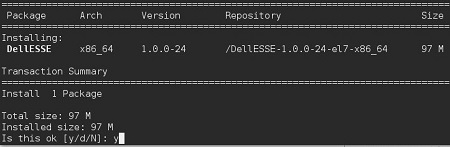
- 如果系统提示您批准指纹,请按 Y 键。否则,请转至步骤 9。

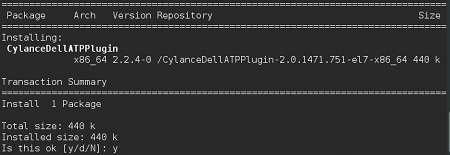
- 按 Y 键安装 CylanceDellATPplugin 软件包,然后按 Enter 键。
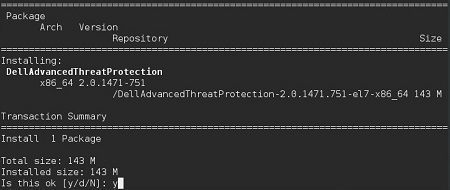
- 按 Y 键安装 DellAdvancedThreatProtection 软件包,然后按 Enter 键。
- 安装完成后,键入以下命令,然后按 Enter 键。
exit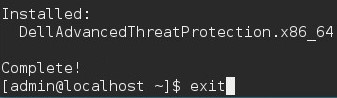
Additional Information
Videos
Produse afectate
Dell Endpoint Security Suite EnterpriseProprietăți articol
Article Number: 000124563
Article Type: How To
Ultima modificare: 05 Aug 2026
Version: 17
Găsiți răspunsuri la întrebările dvs. de la alți utilizatori Dell
Servicii de asistență
Verificați dacă dispozitivul dvs. este acoperit de serviciile de asistență.